

A Forest Rock - Project Base Camp - Training Guide
Overview
The Milesight WT101 Thermostatic Radiator Valve (TRV) can send temperature readings into Niagara without any special work. However, if you want Niagara to write a new setpoint back to the TRV, that requires a LoRa downlink message.
Unlike simple LoRa devices that accept fixed commands (e.g., “turn relay on”), the TRV requires a dynamic payload—meaning the payload changes every time because the setpoint changes.
This guide explains the concept in a simple, practical way so you can create your own working solution in Niagara.
1. Why TRV Setpoints Are Different
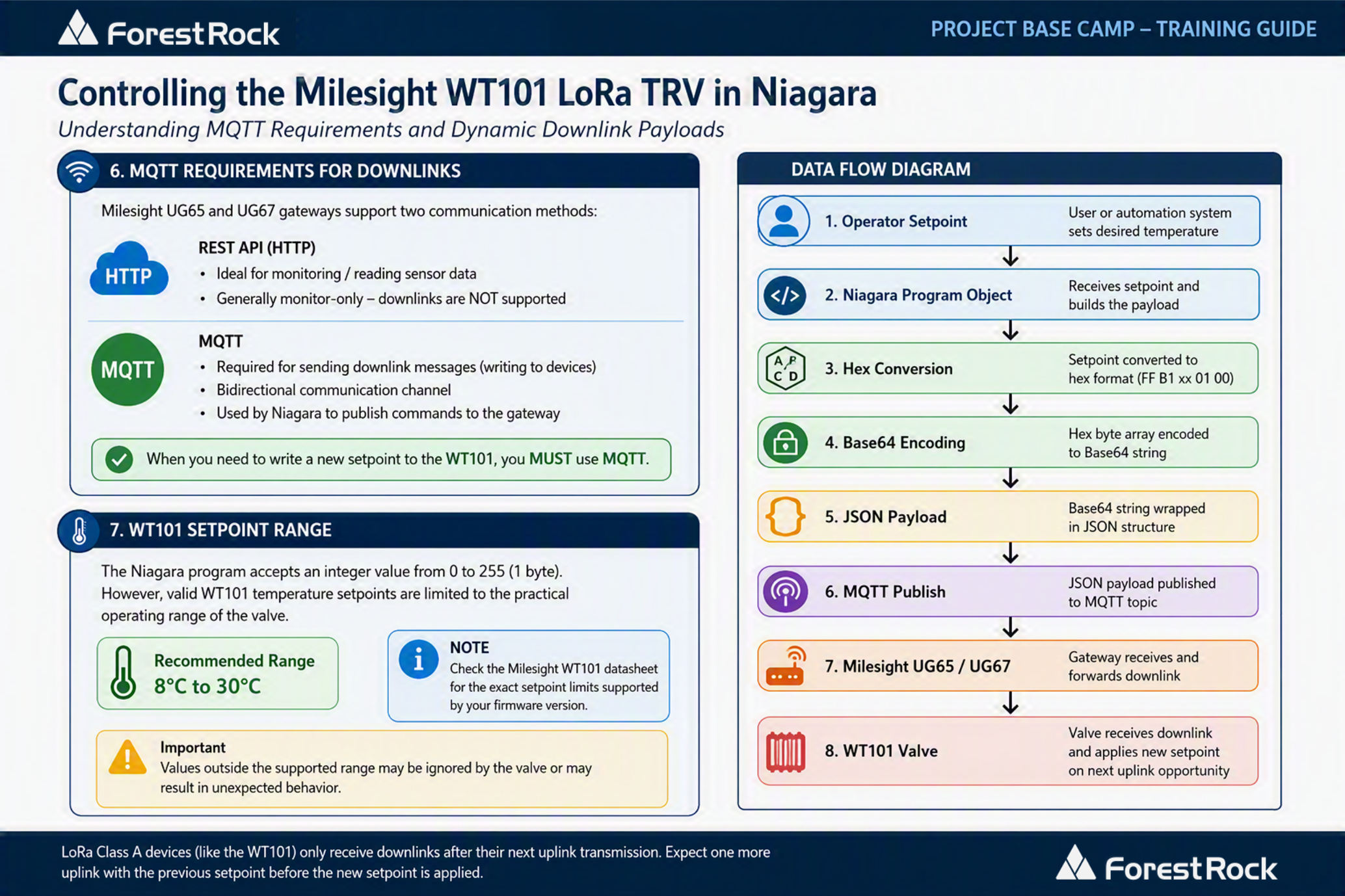
Unlike simple LoRaWAN devices that use fixed commands, such as relay on/off control, the WT101 requires a temperature setpoint value to be transmitted. Because this value changes according to user adjustments, schedules, or control logic, Niagara must dynamically generate the corresponding LoRaWAN payload before sending it to the gateway. That value must be packaged into a special format before the LoRa gateway (UG65/UG67) will accept it.
To make this work, Niagara needs to build the payload on the fly based on your desired setpoint.
2. MQTT and Gateway Requirements
Before generating the payload, it is important to understand how downlinks are sent through a Milesight gateway.
For most Milesight deployments, sensor data can be read using the gateway REST API, making it suitable for monitoring applications. However, sending commands back to a LoRa device is different.
To transmit a downlink command to a WT101 valve, the Milesight UG65 or UG67 gateway expects a message to be published via MQTT. The gateway then queues the command and delivers it to the valve during its next available LoRa receive window.
In practical terms:
-
REST API is commonly used for reading device data.
-
MQTT is typically required for sending downlink commands.
-
Niagara therefore needs to generate the appropriate payload and publish it to the gateway's MQTT broker.
-
The gateway handles delivery of the downlink to the WT101.
Once the MQTT infrastructure is configured and operational, the only remaining challenge is constructing the correct payload for the desired setpoint.
3. What the Gateway Expects
A Milesight UG65/UG67 sending a downlink requires JSON in this structure:
{"confirmed": false, "fport": 85, "data": "<base64 data>"}
The data field must be:
-
A command (hex)
-
Your setpoint (hex)
-
Converted into a byte array
-
Encoded into Base64
For example, to set 25°C:
-
TRV command: ff b1
-
Temperature in hex: 19 (because 25 decimal = 0x19)
-
Footer: 01 00
Full hex string becomes:
ff b1 19 01 00
When Base64‑encoded, this becomes:
/7EZAQA=
Which gives the final JSON:
{"confirmed": false, "fport": 85, "data": "/7EZAQA="}
Because your setpoint will change, Niagara must generate this Base64 string dynamically.
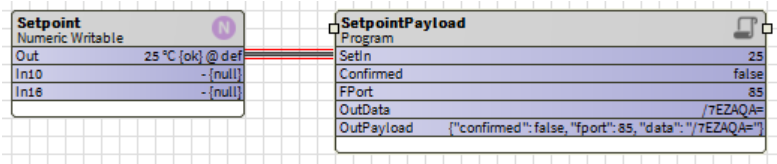
See Property Sheet OutPayload String
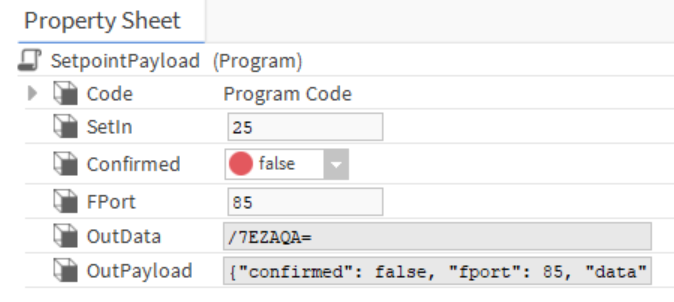
4. Setpoint Validation Considerations
The example code accepts an integer value between 0 and 255, as the temperature value is inserted into a single-byte hexadecimal field. However, the WT101 only supports a practical operating temperature range defined by the manufacturer.
For real deployments, it is recommended that Niagara validates or limits the entered setpoint to the allowable WT101 temperature range before generating the payload. This prevents invalid commands being generated and improves user experience.
The example code intentionally focuses on payload generation and therefore does not perform any range checking.
Engineering Note: Although the payload generation algorithm technically supports values between 0 and 255, only temperatures within the WT101's documented setpoint range should be exposed to operators. Applying engineering limits at the Niagara setpoint object is recommended to prevent invalid operator entries.
5. Making Niagara Generate the Payload Automatically
To avoid manual conversion, you can create a simple Niagara Program Object that:
-
Takes your numeric setpoint (e.g., 18–30°C)
-
Converts it into the correct hex format
-
Converts the hex into bytes
-
Converts the bytes into Base64
-
Outputs the ready‑to‑send JSON payload
With that out of the way, use the code below on the "Edit" tab:
-
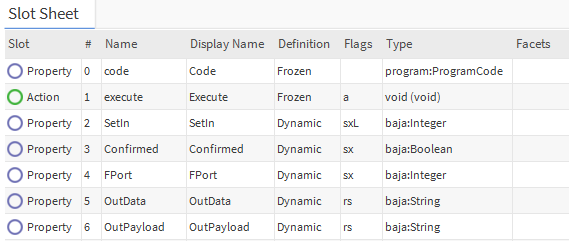
SetIn → your setpoint (integer)
-
Confirmed → true/false
-
FPort → typically 85
-
OutData → Base64 only
-
OutPayload → full JSON string to publish via MQTT
Below is the working code exactly as used in Niagara:
Java
public void onStart() throws Exception
{
  // start up code here
}
public void onExecute() throws Exception
{
  // execute code (set executeOnChange flag on inputs)

  // Your integer value (1 byte)
  int byteValue = getSetIn();

  // Convert the byte to a hex string
  String hexString = Integer.toHexString(byteValue);

  // Pad the hex string to ensure it has two characters
  if (hexString.length() == 1) {
      hexString = "0" + hexString;
  }

  // Concatenate "ffb1" to the beginning and "0100" to the end of the hex string
  String finalHexString = "ffb1" + hexString + "0100";

  // Convert the hex string to bytes
  byte[] byteArray = hexStringToByteArray(finalHexString);

  // Encode the byte array to a base64 string
  String base64String = java.util.Base64.getEncoder().encodeToString(byteArray);

  // Push the value to the output
  setOutData(base64String);

  // Additional inputs
  boolean confirmed = getConfirmed();
  int fPort = getFPort();

  // Construct the JSON string
  String jsonString = "{\"confirmed\": " + confirmed + ", \"fport\": " + fPort + ", \"data\": \"" + base64String + "\"}";

  // Push the value to the output
  setOutPayload(jsonString);
}
public void onStop() throws Exception
{
  // shutdown code here
}
public static byte[] hexStringToByteArray(String hexString) {
        int len = hexString.length();
        byte[] data = new byte[len / 2];
        for (int i = 0; i < len; i += 2) {
            data[i / 2] = (byte) ((Character.digit(hexString.charAt(i), 16) << 4) + Character.digit(hexString.charAt(i + 1), 16));
        }
        return data;
    }
Once compiled, the object automatically builds the correct downlink for you.
6. What to Expect When Writing to the Valve
This is important:
LoRa Class A devices (like the WT101) only receive downlinks after they next transmit an uplink.
Which means:
-
You send the new setpoint
-
The valve doesn’t apply it straight away
-
It first sends one more uplink with the old setpoint
-
THEN it accepts your new downlink
-
Future uplinks show the new setpoint
This delay is normal and is part of LoRa low‑power design.
7. Summary
Here’s the process in plain English:
-
Niagara generates a dynamic Base64 payload from your setpoint.
-
You send that payload via MQTT to the UG65/UG67.
-
The valve updates the setpoint the next time it wakes up.
-
Test Environment
The example below was tested using Niagara 4.13.0.186.
Because Java support and Program Object behaviour can vary between releases.
This guide provides a reliable template that you can drop straight into any Niagara project requiring dynamic LoRa TRV control.
8. Addendum:
Configuring Milesight WT401 Thermostat with WT101/WT102 via UG Series Gateway
How to Integrate WT401 with WT101/WT102 via LoRaWAN Gateway
Overview
This guide based on the video link above, explains how to configure a Milesight WT401 Smart Thermostat to provide temperature information to WT101 or WT102 thermostats using Node-RED running on a Milesight LoRaWAN gateway.
In this configuration:
-
WT401 acts as the temperature sensor/master thermostat.
-
WT101/WT102 receive temperature data via LoRaWAN downlink.
-
Node-RED performs the linkage logic within the gateway.
-
WT102 should be configured in Class B mode for faster response times.
Prerequisites
Before starting, ensure:
-
WT401 thermostat is installed and communicating with the gateway.
-
WT101 and/or WT102 thermostats are installed and communicating with the gateway.
-
All devices have been added to the Milesight gateway.
-
Milesight Toolbox App is available on a smartphone with NFC capability.
-
Gateway administrator credentials are available.
-
Node-RED workflow JSON file has been obtained from Milesight.
-
AES Password Encryption Tool URL has been obtained from Milesight.
Step 1 – Configure WT101 and WT102 Temperature Source
Using the Milesight Toolbox App:
-
Open the Toolbox App.
-
Connect to the WT101 via NFC.
-
Navigate to temperature settings.
-
Set the Temperature Source to:
LoRa Downlink -
Save the configuration.
-
Repeat the process for WT102.
Step 2 – Configure WT102 for Class B Mode
-
Access the WT102 configuration.
-
Locate LoRaWAN settings.
-
Change operating class to:
Class B -
Save and apply the settings.
Note
-
WT102 in Class B mode can respond in approximately 32 seconds.
-
WT101 operating in Class A mode typically responds within 10 minutes.
Step 3 – Log Into the Gateway
-
Open a web browser.
-
Navigate to the Milesight gateway IP address.
-
Log in using administrator credentials.
Step 4 – Enable Node-RED
-
From the left-hand menu select:
Apps → Node-RED -
Tick:
Enable -
Click:
Save -
Wait for Node-RED to initialise.
-
Click:
Launch
Step 5 – Access the Node-RED Editor
-
When prompted, enter the same username and password used for the gateway.
-
Log into the Node-RED interface.
Step 6 – Import the WT Linkage Workflow
-
Select the menu button (top right).
-
Choose:
Import -
Either:
-
Paste the supplied JSON workflow text, or
-
Upload the workflow JSON file provided by Milesight.
-
-
Click:
Import
Step 7 – Configure the WT401 Device Filter
Locate the node named:
WT401 Filter
Enter the DevEUI of the WT401 thermostat.
Example:
24E124XXXXXXXXXX
Click Done.
Step 8 – Configure the WT102 Downlink Node
Locate the node named:
Prepare Downlink
Enter the DevEUI of the WT102 thermostat.
Click Done.
Step 9 – Generate the Gateway Security Token
The workflow requires the gateway password in encrypted AES format.
Generate the Token
-
Open the AES Encryption Tool supplied by Milesight.
-
Enter the gateway password.
Example:
password
-
Verify all other parameters match Milesight's example configuration.
-
Click:
Encrypt
-
Copy the encrypted output string.
Step 10 – Configure the Login Node
Locate the node named:
Prepare Login
Paste the encrypted AES string into the:
Token
field.
Click Done.
Step 11 – Configure External Temperature Enablement
Locate the node named:
Enable External Temperature Downlink
Enter the DevEUI of the WT102 thermostat.
Click Done.
Step 12 – Deploy the Workflow
-
Review all settings.
-
Click:
Deploy -
Confirm there are no Node-RED errors.
The thermostat linkage is now active.
Step 13 – Verify Operation
Temperature Reporting
The WT401 reports ambient temperature approximately every:
10 minutes
The gateway receives this data and forwards it to the linked thermostat via downlink.
Response Times
|
Device |
LoRaWAN Class |
Typical Response Time |
|---|---|---|
|
WT102 |
Class B |
~32 seconds |
|
WT101 |
Class A |
Up to 10 minutes |
Functional Test
-
Adjust the WT401 setpoint temperature.
Example:
22°C
-
Observe the linked WT102 thermostat.
-
Verify the updated temperature information is received.
-
For WT102 operating in Class B mode, confirmation should occur within approximately 32 seconds.
Expected Outcome
Once configured:
-
WT401 acts as the temperature reference device.
-
The gateway automatically transfers temperature data through Node-RED.
-
WT101/WT102 use the external temperature source delivered by LoRaWAN downlink.
-
WT102 provides significantly faster response when operating in Class B mode.
-
The solution supports scalable HVAC deployments with improved temperature accuracy and energy efficiency.
Troubleshooting Checklist
If linkage is not working:
-
Confirm all devices are online and reporting to the gateway.
-
Verify the WT401 DevEUI is correct in the WT401 Filter node.
-
Verify the WT102 DevEUI is correct in all downlink-related nodes.
-
Check WT102 is configured for Class B operation.
-
Confirm the AES token was generated from the correct gateway password.
-
Ensure Node-RED has been successfully deployed.
-
Review the Node-RED debug window for errors.
-
Confirm WT101/WT102 Temperature Source is set to LoRa Downlink using the Milesight Toolbox App.
9. Addendum:
External Temperature Control and Direct Valve Position Control Using Node-RED
Background
A common installation challenge occurs when the WT101 is mounted inside fitted furniture, radiator covers, bench seating, or other enclosed spaces. In these situations, the internal WT101 temperature sensor may not represent the actual room temperature.
Milesight provides support for:
-
External Sensor Mode, where a remote temperature sensor (such as a WT401) provides the control temperature.
-
Direct Valve Opening Control, where an external controller determines the required valve position and commands the WT101 directly.
For applications requiring BMS-level control, Direct Valve Opening Control is often the preferred approach because it removes uncertainty regarding which temperature source the WT101 is using and allows Niagara, Node-RED, or another supervisory controller to implement the control loop.
Overview
In addition to using the WT401 as an external temperature source, Node-RED can also be used to directly control the valve position of a WT101 or WT102 thermostat. This allows the thermostat to operate as a LoRaWAN-connected actuator while control logic is performed centrally within the Milesight gateway.
Typical applications include:
-
Central plant optimised heating control.
-
BMS-driven valve positioning.
-
Occupancy-based heating strategies.
-
Energy-saving setback schedules.
-
Integration with external temperature sensors.
-
Custom HVAC control algorithms.
In this scenario:
-
Node-RED determines the required valve position.
-
The gateway sends downlink commands to the WT101/WT102.
-
The thermostat modulates the associated valve accordingly.
9.2 Operating Principle
The standard thermostat control loop can be supplemented or overridden by commands generated within Node-RED.
The control sequence is as follows:
-
Temperature data is received from the WT401 or another sensor.
-
Node-RED evaluates the control logic.
-
A valve opening percentage is calculated.
-
A LoRaWAN downlink command is generated.
-
The command is sent to the WT101 or WT102.
-
The valve position is adjusted accordingly.
Example
|
Measured Temperature |
Required Valve Position |
|---|---|
|
18°C |
100% Open |
|
20°C |
75% Open |
|
21°C |
50% Open |
|
22°C |
25% Open |
|
23°C+ |
0% Open |
This enables proportional control without relying solely on the thermostat's internal control algorithm.
9.3 Recommended Architecture
-20260827-103019.png?cb=0ccb9eca107abb7f555aa489d1f85a96)
9.4 Node-RED Configuration
-20260827-102611.png?cb=b8d3dcfb8f93a648248567fdb044701b)
NOTE: Refer to the user manual below Section 6.3 Downlink Commands
Above we have generated a Node-RED style workflow infographic example code only showing:
-
Temperature input sensor
-
JSON processing node
-
Function node to calculate valve percentage
-
Thermostat payload conversion node
-
Thermostat output
-
Temperature-to-valve-position logic table
-
Example payload structure
This mirrors the workflow described and can be used in your interpretation of the User Guides below:
9.5 Control Strategies
Proportional Control
Valve position changes smoothly according to temperature error.
Benefits:
-
Stable room temperatures.
-
Reduced overshoot.
-
Improved comfort.
Demand-Based Control
Valve position determined by:
-
Occupancy state.
-
Time schedules.
-
Window contacts.
-
Energy tariffs.
-
BMS commands.
Fixed Position Control
Node-RED may force valves to specific positions:
|
Condition |
Valve Position |
|---|---|
|
Frost Protection |
20% |
|
Normal Occupied |
60% |
|
Boost Heating |
100% |
|
Unoccupied |
0% |
9.6 WT102 Class B Recommendation
For direct valve control, Forest Rock recommends the WT102 is configured as:
Plain Text
1
LoRaWAN Class B
Show more lines
Benefits include:
-
Faster downlink delivery.
-
Improved responsiveness.
-
More accurate valve modulation.
Expected response time:
Plain Text
1
Approximately 32 seconds
Show more lines
WT101 devices operating in Class A may experience delays of up to ten minutes depending on uplink intervals.
9.7 Integration with Niagara and BMS Platforms
Node-RED running on the Milesight gateway can be integrated with external systems including:
-
Niagara Framework
-
BACnet IP
-
Modbus TCP
-
MQTT
-
REST APIs
This allows:
-
Centralised control strategies.
-
Global temperature optimisation.
-
Energy-management integration.
-
Occupancy-based HVAC control.
-
Direct BMS-driven valve positioning.
9.8 Considerations
When implementing direct valve control:
-
Ensure downlink duty cycle limits are respected.
-
Avoid excessive command transmission rates.
-
Consider fail-safe behaviour during communication loss.
-
Verify thermostat firmware supports the required valve control functionality.
-
Thoroughly test all control sequences before deployment.
9.9 Forest Rock Engineering Notes
Direct valve position control should be considered where the thermostat is acting primarily as a field actuator and control decisions are made elsewhere within the system architecture.
This approach is particularly suitable for:
-
Healthcare facilities.
-
Multi-room energy optimisation projects.
-
BMS-integrated HVAC systems.
-
Demand-led heating control applications.
Where rapid response is required, WT102 operating in Class B mode is the preferred implementation due to its significantly reduced command latency compared with Class A devices.
Direct Valve Position Control
An alternative and often simpler approach is to bypass the internal WT101 control algorithm entirely.
-20260827-103419.png?cb=22675808bd68107489874d102a051fa0)
External Temperature Update
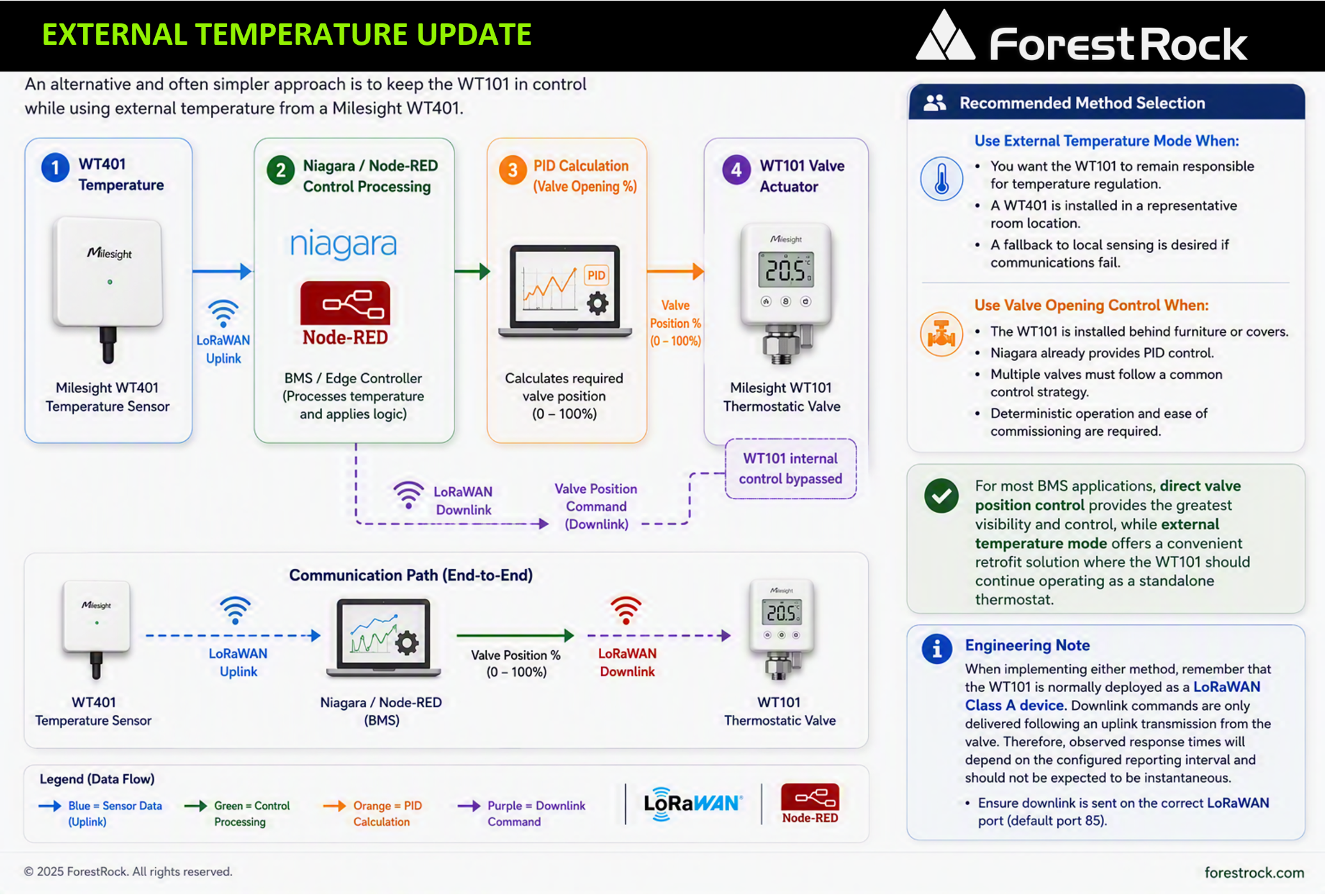
Design improvements we would recommend
-
Use official Milesight WT401 and WT101 product renders instead of text boxes.
-
Replace the architecture boxes with rounded cards using subtle shadows.
-
Add LoRaWAN and Node-RED logos.
-
Colour code the data flow:
-
Blue = Sensor Data (uplink)
-
Green = Control Processing
-
Orange = PID Calculation
-
Purple = Downlink Command
-
-
Add a small callout highlighting: "WT101 internal control bypassed".
-
Include ForestRock branding if this is intended for customer-facing documentation.
Recommended Method Selection
Use External Temperature Mode When:
-
You want the WT101 to remain responsible for temperature regulation.
-
A WT401 is installed in a representative room location.
-
A fallback to local sensing is desired if communications fail.
Use Valve Opening Control When:
-
The WT101 is installed behind furniture or covers.
-
Niagara already provides PID control.
-
Multiple valves must follow a common control strategy.
-
Deterministic operation and ease of commissioning are required.
For most BMS applications, direct valve position control provides the greatest visibility and control, while external temperature mode offers a convenient retrofit solution where the WT101 should continue operating as a standalone thermostat.
Engineering Note
When implementing either method, remember that the WT101 is normally deployed as a LoRaWAN Class A device. Downlink commands are only delivered following an uplink transmission from the valve. Therefore, observed response times will depend on the configured reporting interval and should not be expected to be instantaneous. That value must be packaged into a special format before the LoRa gateway (UG65/UG67) will accept it.
To make this work, Niagara needs to build the payload on the fly based on your desired setpoint.