

How Can I Secure My Station with Two‑Factor Authentication (2FA)?
Passwords alone are no longer enough. Even strong credentials can be compromised through phishing, reuse, or malware. Two‑factor authentication (2FA) adds a critical second layer of protection by requiring something you know (your password) and something you have (a time‑based token).
When enabled on your station, 2FA significantly reduces the risk of unauthorised access, even if a password is leaked.
What Is Two‑Factor Authentication?
Two‑factor authentication (2FA) is a security mechanism that verifies a user’s identity using two independent factors:
-
Something you know – your username and password
-
Something you have – a one‑time authentication code generated on a trusted device
Both factors must be successfully validated before access is granted.
Google Authenticator and TOTP Explained
A commonly used 2FA method is Google Authenticator, which implements a Time‑based One‑Time Password (TOTP) scheme.
Instead of relying on SMS messages or online verification services, TOTP works entirely offline:
-
A shared secret is established during setup
-
The authenticator app generates a new 6‑digit code every 30 seconds
-
The station independently calculates the expected code using the same secret and the current time
If the codes match, authentication succeeds.
Why Time Synchronisation Matters
Because TOTP is time‑based, it’s essential that:
-
The station clock
-
The user’s mobile device clock
remain reasonably aligned.
To accommodate minor clock drift, the authenticator allows a time window of approximately ±1.5 minutes. Beyond this window, valid codes may be rejected.
Best Practice: Enable NTP
To avoid login issues, the station should always use Network Time Protocol (NTP) for automatic time synchronisation:
-
Windows hosts typically sync time via the Windows Time Service
-
Linux hosts commonly use
systemd-timesyncd,chrony, orntpd
Ensuring accurate system time is one of the most important prerequisites for reliable 2FA operation.
Key Benefits of Using 2FA on Your Station
-
✅ Strong protection even if passwords are compromised
-
✅ No dependency on mobile networks or external authentication servers
-
✅ Offline operation with predictable, deterministic validation
-
✅ Widely supported authenticator apps (Google Authenticator, etc.)
Summary
Two‑factor authentication provides a simple yet powerful way to harden access to your station. By combining password authentication with time‑based one‑time codes—and by ensuring proper time synchronisation—you can dramatically improve security without adding operational complexity.
If your environment supports it, enabling 2FA should be considered a baseline security measure rather than an optional feature.
To set up Google Authentication, you’ll need the Google Authenticator app on your mobile phone, access to Workbench, and an existing user in the station database. Follow these steps:
-
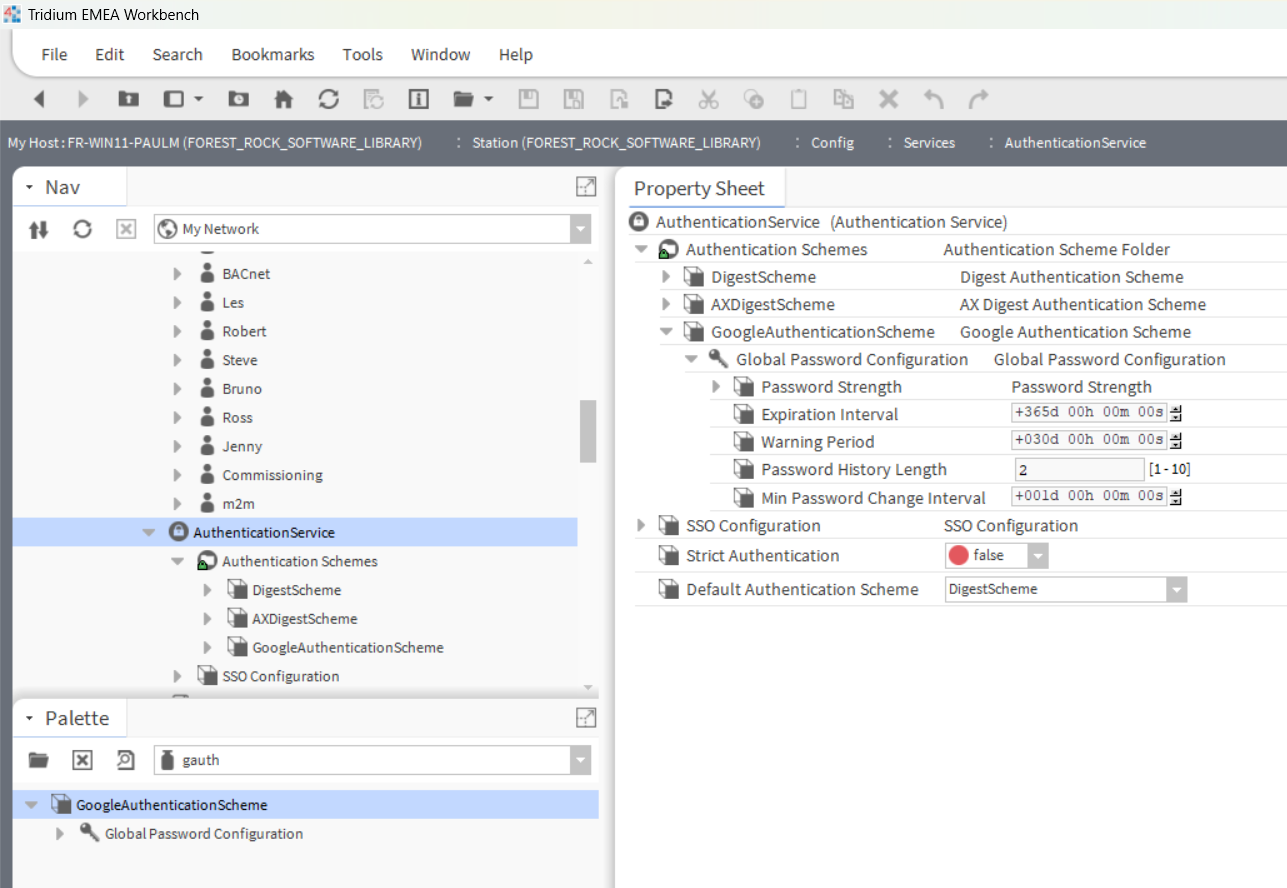
Open the gauth palette and add the GoogleAuthenticationScheme to
the Services > AuthenticationService node in the Nav tree.
-
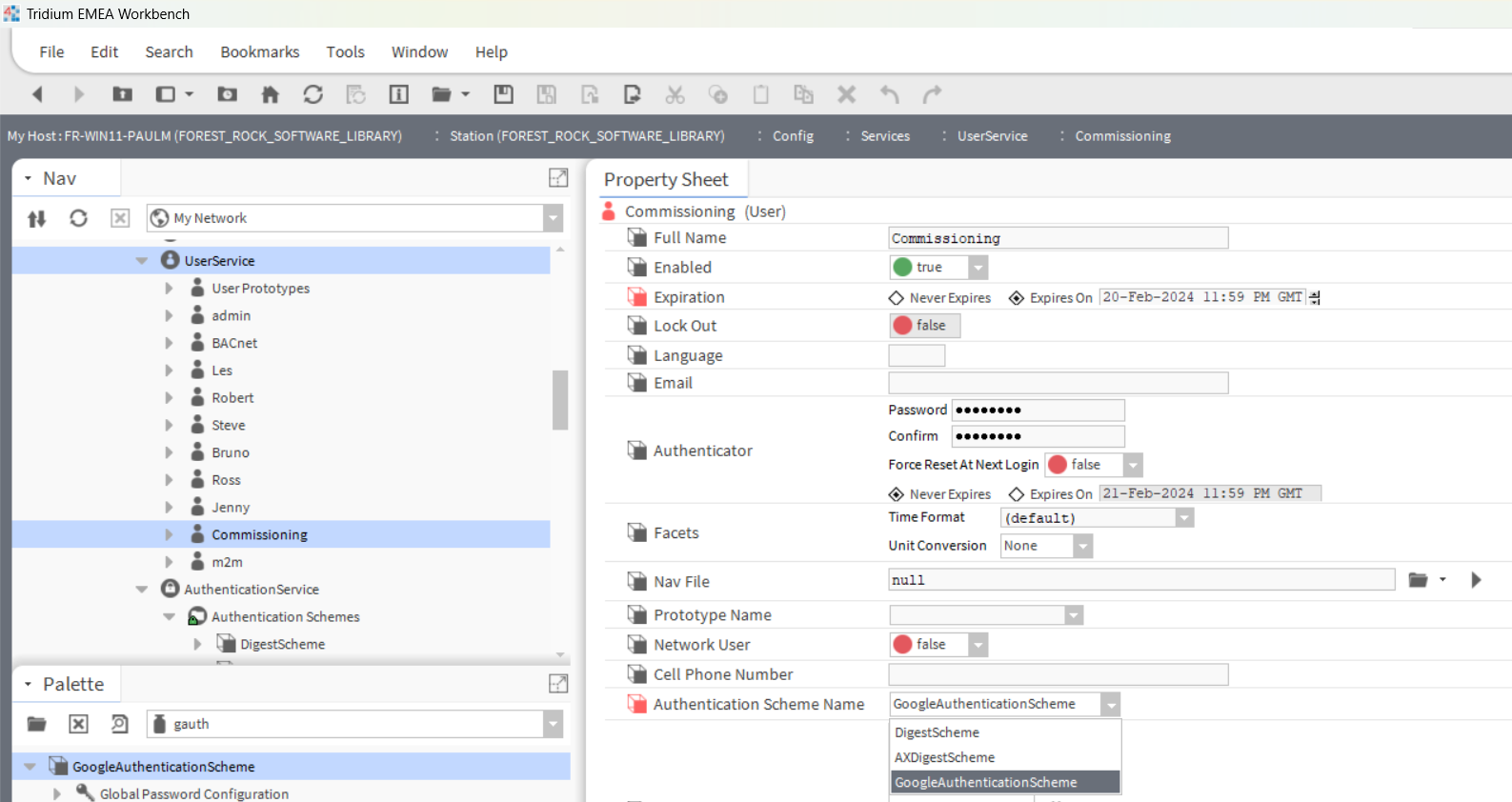
Double-click UserService, and double-click the user in the table. This will open the Edit view for the user.
-
Set the Authentication Scheme Name property to GoogleAuthenticationScheme and click Save.
-
You’ll receive a system confirmation about the change in the Authentication scheme.
-
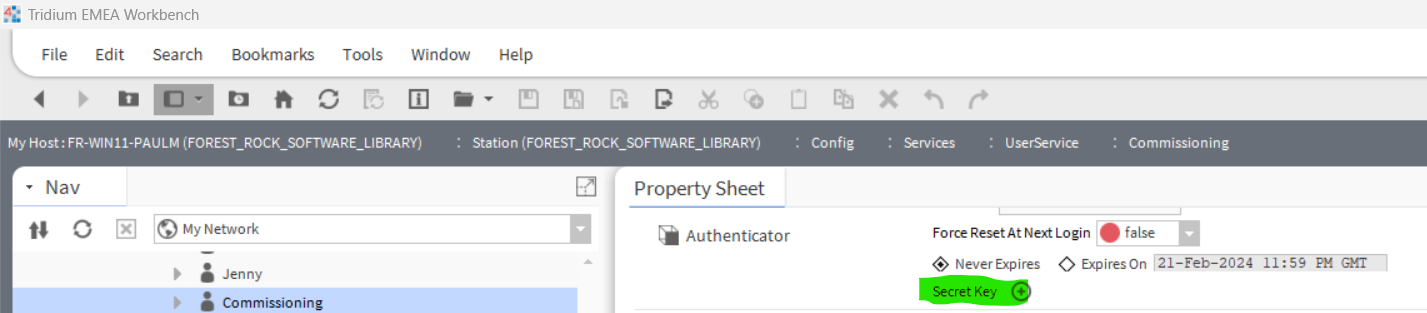
Re-access the User settings, and you’ll see a new option “Secret Key”.
-
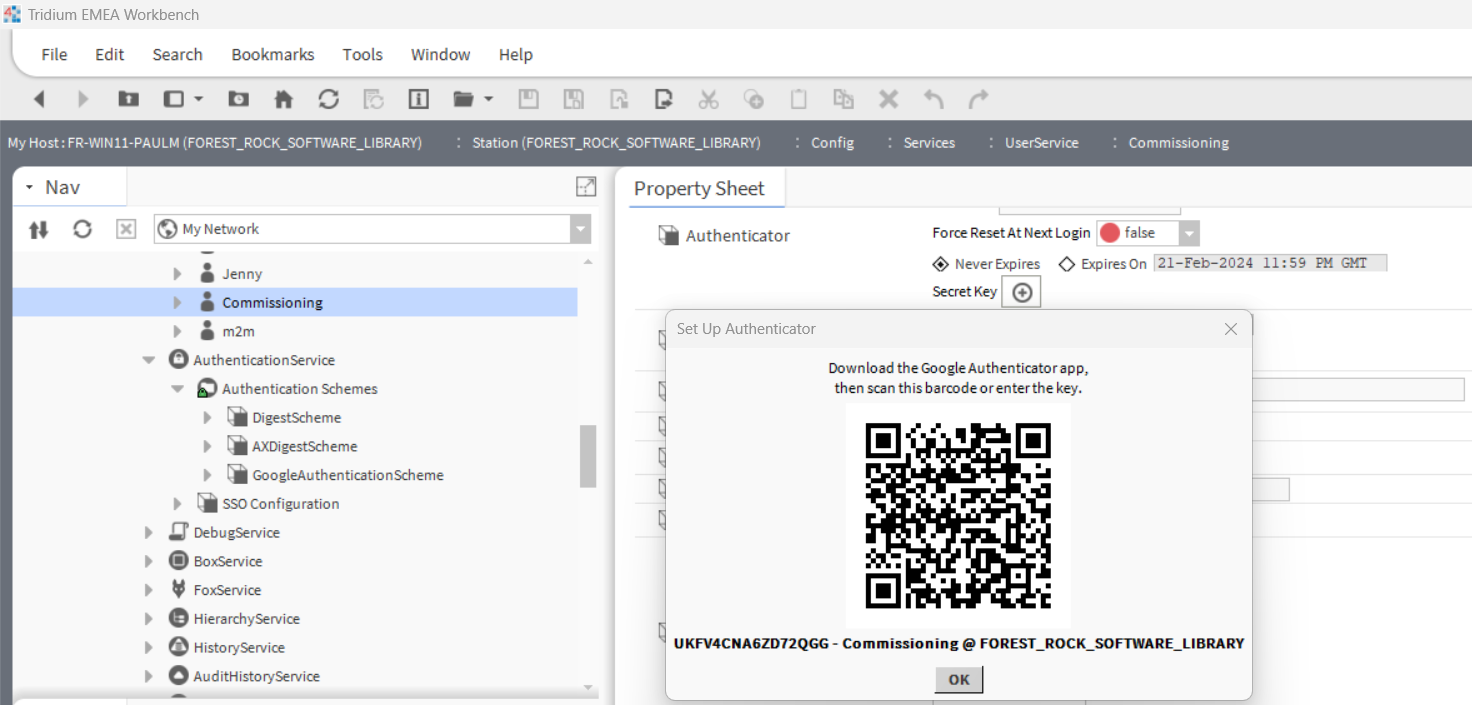
Click the “Generate Key” button from Secret Key under the user’s authenticator and follow the prompts.
-
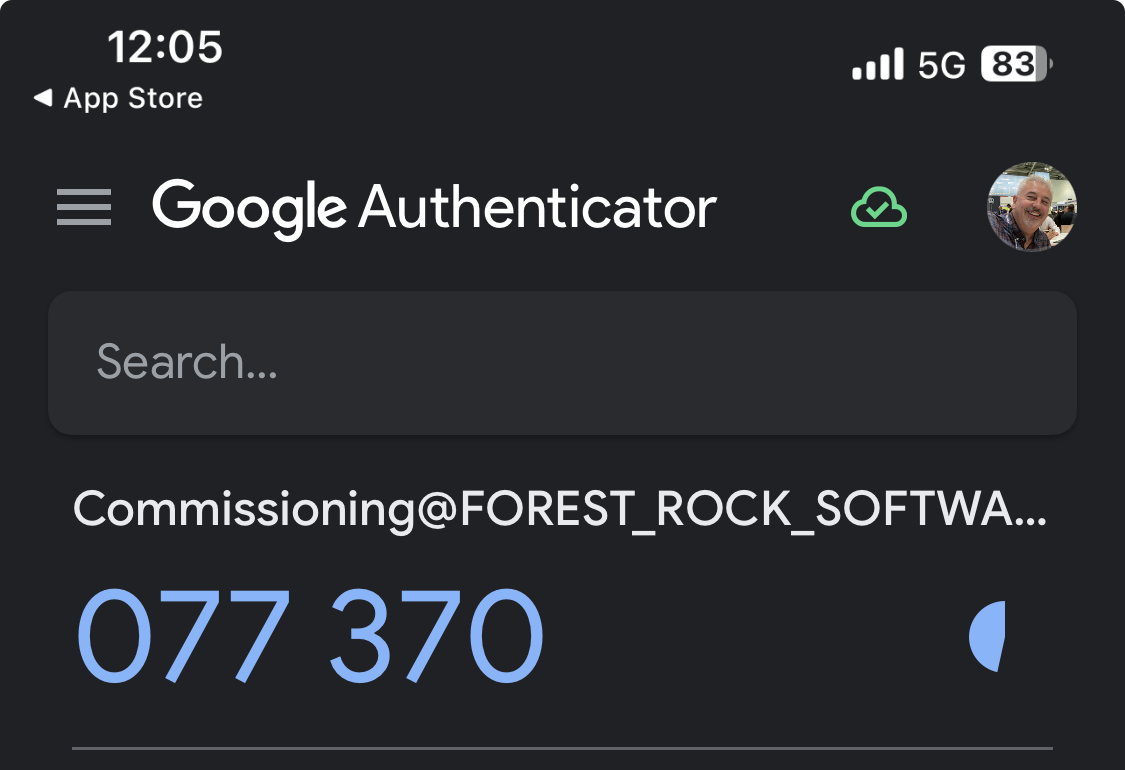
Use the Google Authenticator app on your phone to scan the Barcode / QR-Code.
-
Enter the code generated by the mobile app to link the mobile app with the user.
-
Once you see the “Regenerate Key” button, it means that everything is set up. To complete the configuration, click Save.
-
The login page for that user will now require a Token, which is the code available on the mobile app that changes every 30 seconds. This login page is available for both Workbench and Web view.
How to get and use app passwords
After you turn on two-step verification or set up the Authenticator app, you may run into issues if you use older devices (like Xbox 360 or a mail-sending security camera or controller emailing alarms) that don't support two-step verification.
For those devices, you can sign in with an app password instead. An app password is a long, randomly generated password that you provide only once instead of your regular password when signing in to an app or device that doesn't support two-step verification.
You only need to create an app password if you have two-step verification turned on and are using a device that doesn't support it.
How to create an app password
To create an app password, take the following steps. You can repeat these steps to create an app password for as many apps or devices as you need.
-
Go to the Advanced security options of your Microsoft account dashboard and scroll down to the App passwords section.
CREATE PASWORD
Create password -
Enter this app password where you would enter your normal Microsoft account password in the application.
Note: Once you have created and entered an app password for a given app or device, you usually won't need to do it again.
I've forgotten my app password.
App passwords are unique for each sign-in, so you don't need to remember them.
If you do have to enter your credentials again for some reason, simply create a new app password.
How to get and use app passwords - Microsoft Support
By following these steps, you can successfully implement a two-factor authentication scheme on your station 