Installation Guide
Learn how to configure Enless products in proprietary LoRa mode
Whether you're using a Modbus, BACnet, or HTTP receiver, the product configuration process remains the same. On the left side of this document, you will find a detailed step-by-step guide.
Proprietary LoRa architecture
In Proprietary LoRa mode, the sensors communicate with an Enless receiver (Modbus, BACnet, or HTTP).
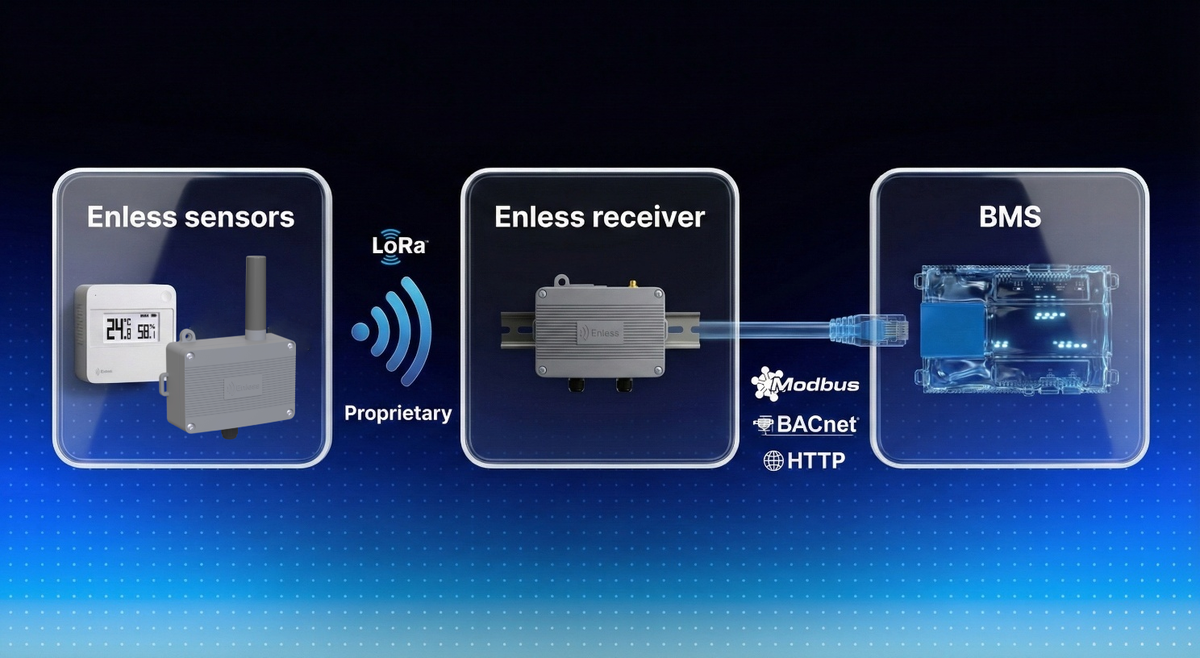
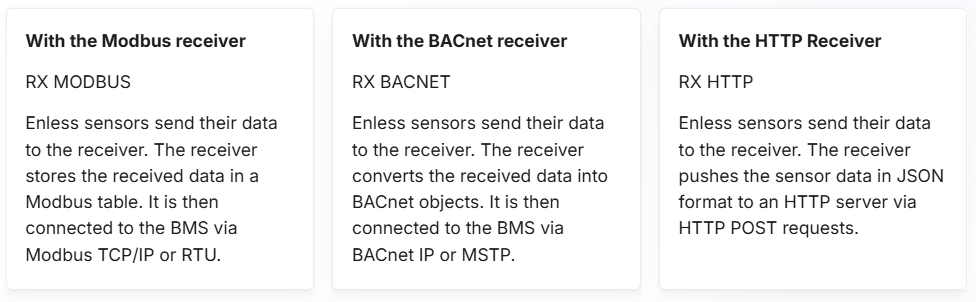
One receiver can manage up to 50 Enless sensors
Differences between LoRaWAN and Enless proprietary LoRa
If you wish to use the sensors in LoRaWAN mode, please refer to the LoRaWAN mode installation help guide.
Installation Steps
Take a step back to get an overview of the installation steps and the equipment you'll need
Installation steps
Configuring your PC's IP settings
On your PC, adjust the IP settings so the configuration server can be reached.
Example IP settings
-
IP address: 192.168.77.2
-
Subnet prefix length: 24
-
Default gateway: 192.168.77.1
-
Preferred DNS: 8.8.8.8
-
Subnet mask (if available): 255.255.255.0
Once these settings are applied, the configuration server should be accessible from your browser at 192.168.77.77 (Please avoid using Microsoft Edge and prefer Google Chrome.)
You can now proceed to the next step.
This configuration also applies to accessing the configuration servers of TX IO and TX MODBUS devices.
Access to the Server
Prepare your receiver and access the configuration server
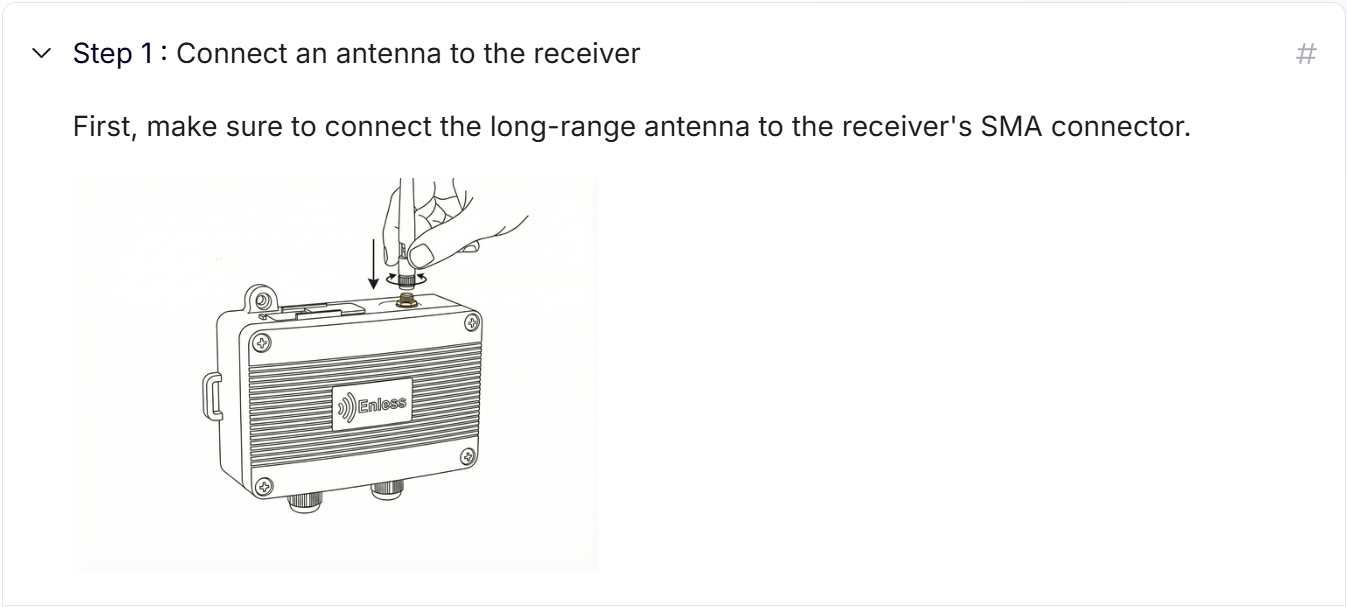
Receiver Preparation
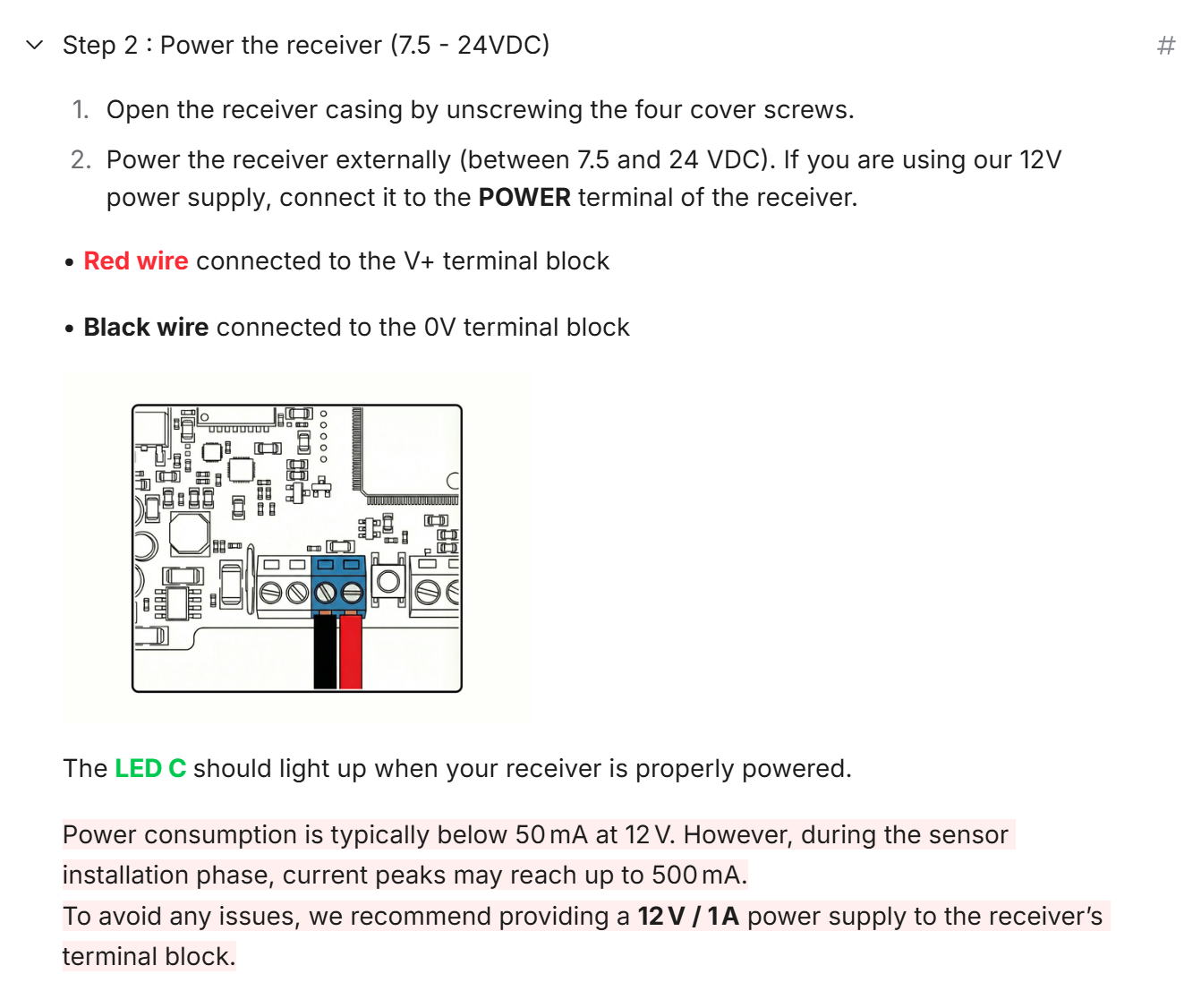
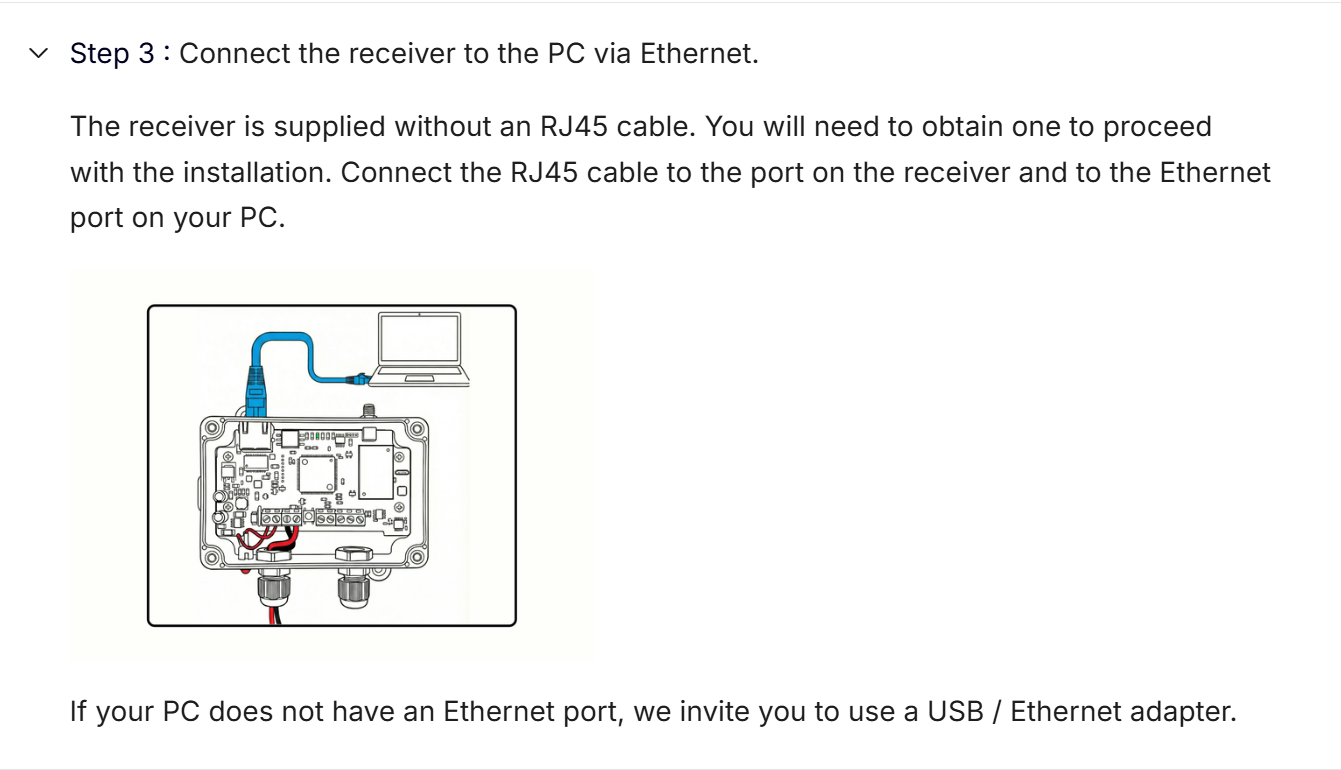

Receiver Update (optional)
Update your receiver to the latest available firmware version (optional)
We recommend updating your receiver to the latest available firmware version before proceeding with the next steps. Below are the latest available firmware files and the update procedure.
Before performing the update, please export your configuration as a CSV file from the TX Config page using the “Export CSV” button, and reimport it afterward if needed.
Receivers
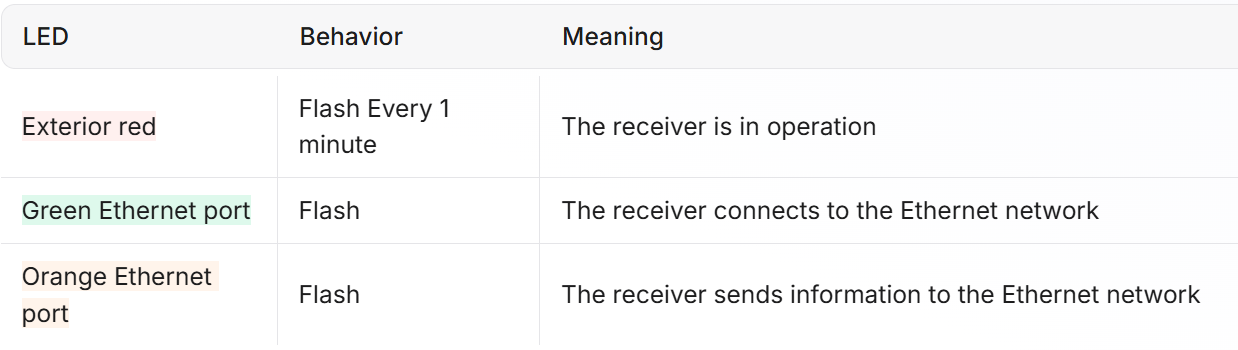
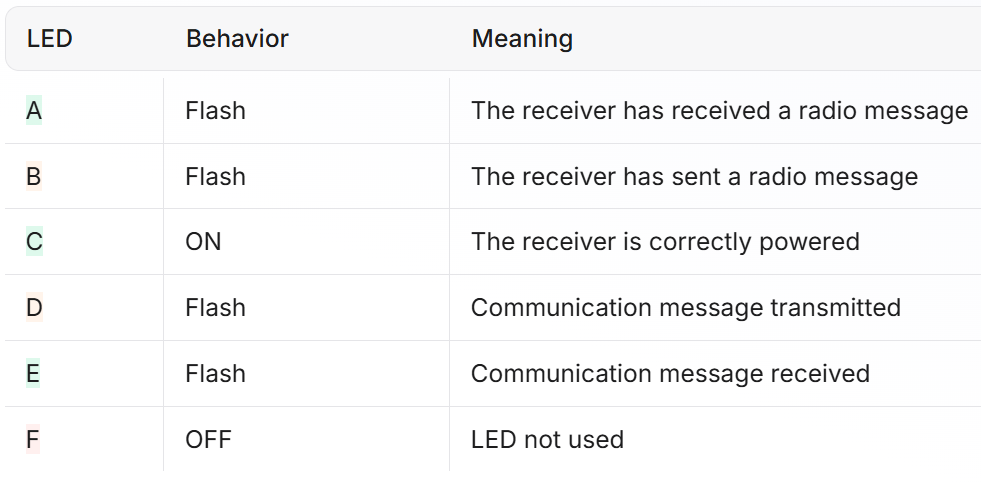
Behavior of LEDs on Modbus, BACnet and HTTP receivers
LEDs on the electronic card
LEDs outside the product