

Forgot Your Niagara Password? Reset It Directly in the BOG File
If you've lost access to a Niagara station due to a forgotten password, you can reset the password without starting the station by editing the station’s BOG file directly in Workbench.
This method allows you to regain access without needing to restore from backup or reconfigure the station.
🛠 Step-by-Step: Resetting the Password via the BOG File
-
Open the BOG File
-
In Niagara Workbench, go to File → Open and browse to the station’s .bog file.
-
This file contains the station configuration and can be opened without launching the station.
-
-
Navigate to the UserService
-
Once the BOG file is open, locate the UserService component in the tree.
-
This is where user credentials are stored.
-
-
Change the Password
-
Find the user account you want to reset.
-
Right-click the user and select “Change Password”.
-
Enter the new password and confirm.
-
-
Save the BOG File
-
After updating the password, go to File → Save to commit the changes.
-
You can now start the station and log in using the new credentials.
-
The only other thing worth noting is this needs to be done from the same version of Niagara the JACE is running. Because Tridium seem to change the password encoding in every new release now.
Here is a step by step guide what you’ll need to do:
-
Connect to the controllers Platform
-
Use the station copier to copy the station off the controller and on to your PC
-
Don’t start the station on your PC, but using the nav bar in workbench navigate to the folder where the station is stored (In Niagara this is C:\ProgramData\Niagara4.X\TridiumEMEA\stations or C:\Users\USERNAME\Niagara4.x\TridiumEMEA\stations). It will differ depending on the branding of workbench.

example of the path above
-
Find your station which will exist as a folder itself, within this there is a .bog file. You should be able to expand this from the nav window in workbench (this is called opening a station offline).
-
From here you’ll have access to the station in the same layout as it would be when it’s running, so you can navigate to the user service and simply change the admin password to whatever you’d like.
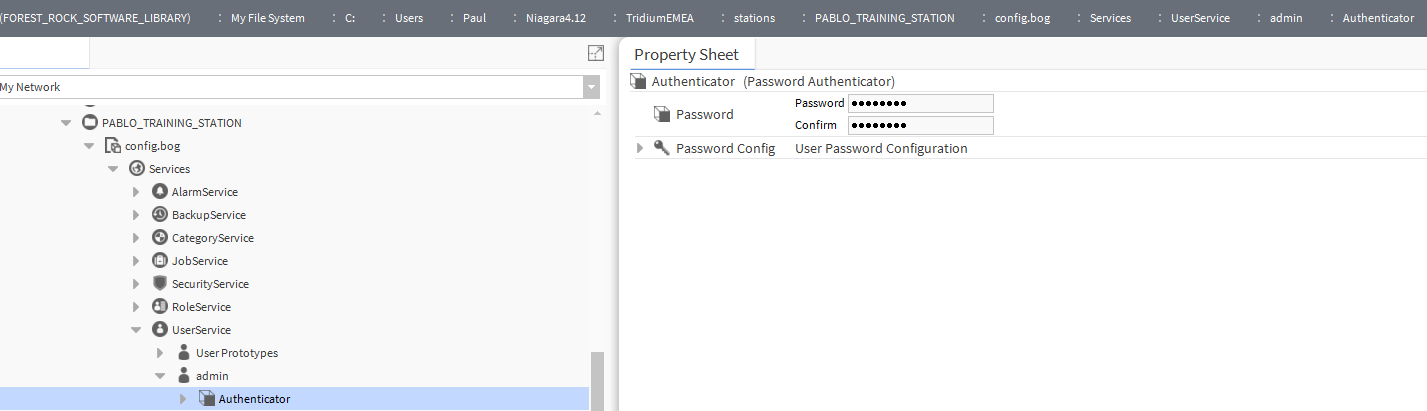
-
Right click and save the .bog file, then close it.
-
Now copy the station back onto the controller
-
The admin user will now have the password you set.
Let me know if you need a hand.
-
Open the Bog File
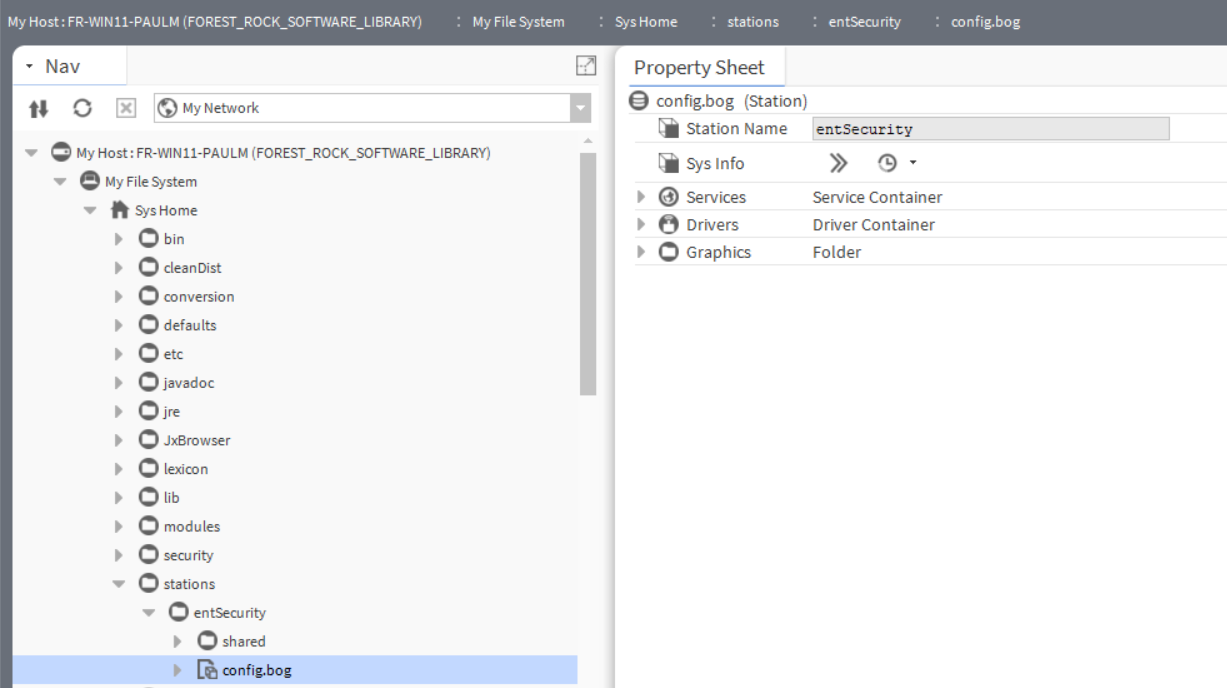
2. Go to User Service

-
Change the password
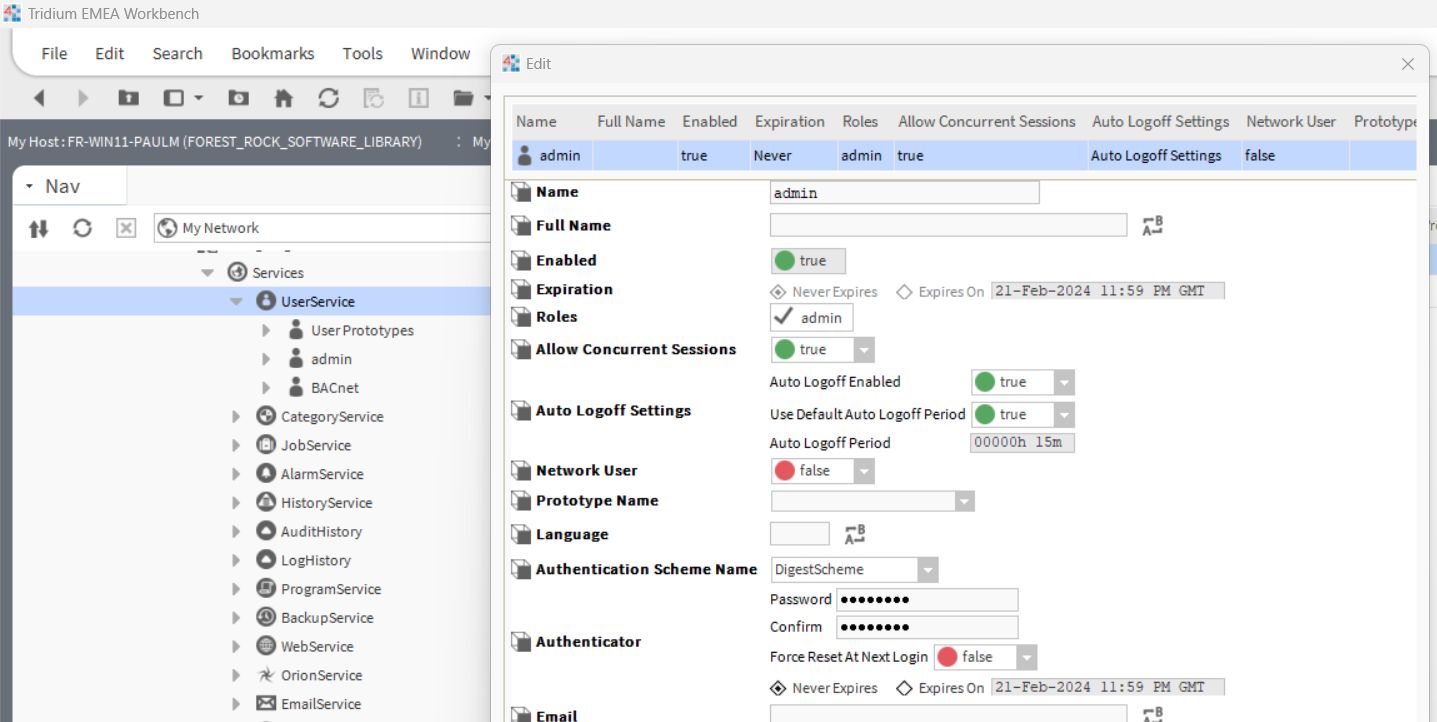
-
Save the Bog file
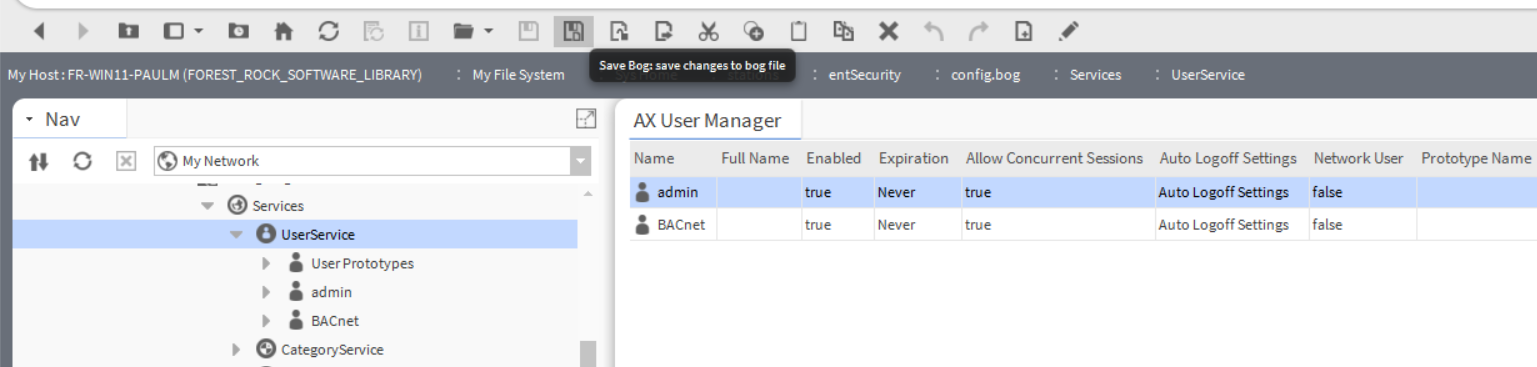
✅ Was This Article Helpful?
Let us know if this guide helped you regain access to your station. If you have any questions or need further assistance, feel free to reach out!
