
JACE / Niagara Commissioning & Connectivity Troubleshooting Guide

Resetting a Forgotten Niagara System Passphrase on Windows
1.Overview
The system passphrase is used by Niagara to encrypt sensitive information, such as passwords stored within station .bog files hosted on a Supervisor or Workbench installation. During installation, the passphrase is configured by the user and is subsequently used to protect encrypted data throughout the Niagara system.
If the system passphrase has been forgotten, it can be reset to Niagara's default value, allowing a new passphrase to be configured through Platform Administration.
Important: Resetting the system passphrase does not reveal the existing passphrase. The current value is stored in the Windows Registry in a hashed format and cannot be viewed or recovered.
Procedure
Step 1 – Open the Windows Registry Editor
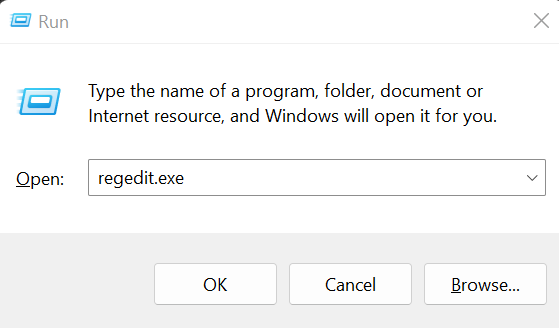
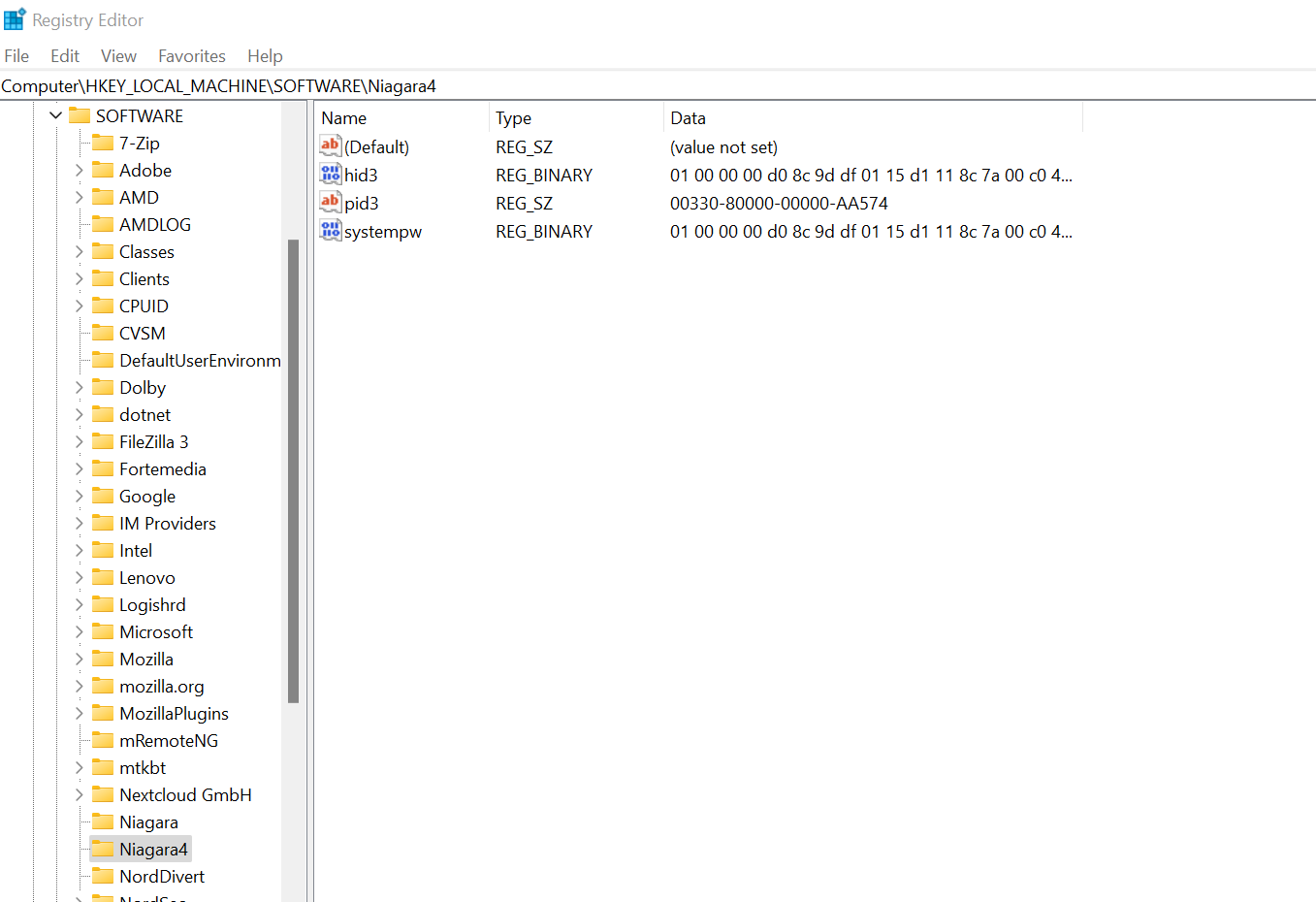
Launch the Registry Editor and in the tree on the left, browse to the following:
HKEY_LOCAL_MACHINE\SOFTWARE\Niagara4
You should see the value “systempw” in the main window. Right click this value and click Delete. You may now close the Registry Editor.
You should now close any open Niagara windows such as Workbench and restart the Niagara platform service. This can be done by opening “services.msc” from the same run prompt you used earlier, finding ‘Niagara” in the list of services, right clicking then clicking Restart. This will stop and start the Niagara platform as well as any Stations you had running.
Niagara will now use the standard passphrase ‘niagara’. You should change this to a unique value by opening Workbench and going to the local host platform > platform administration > system passphrase.
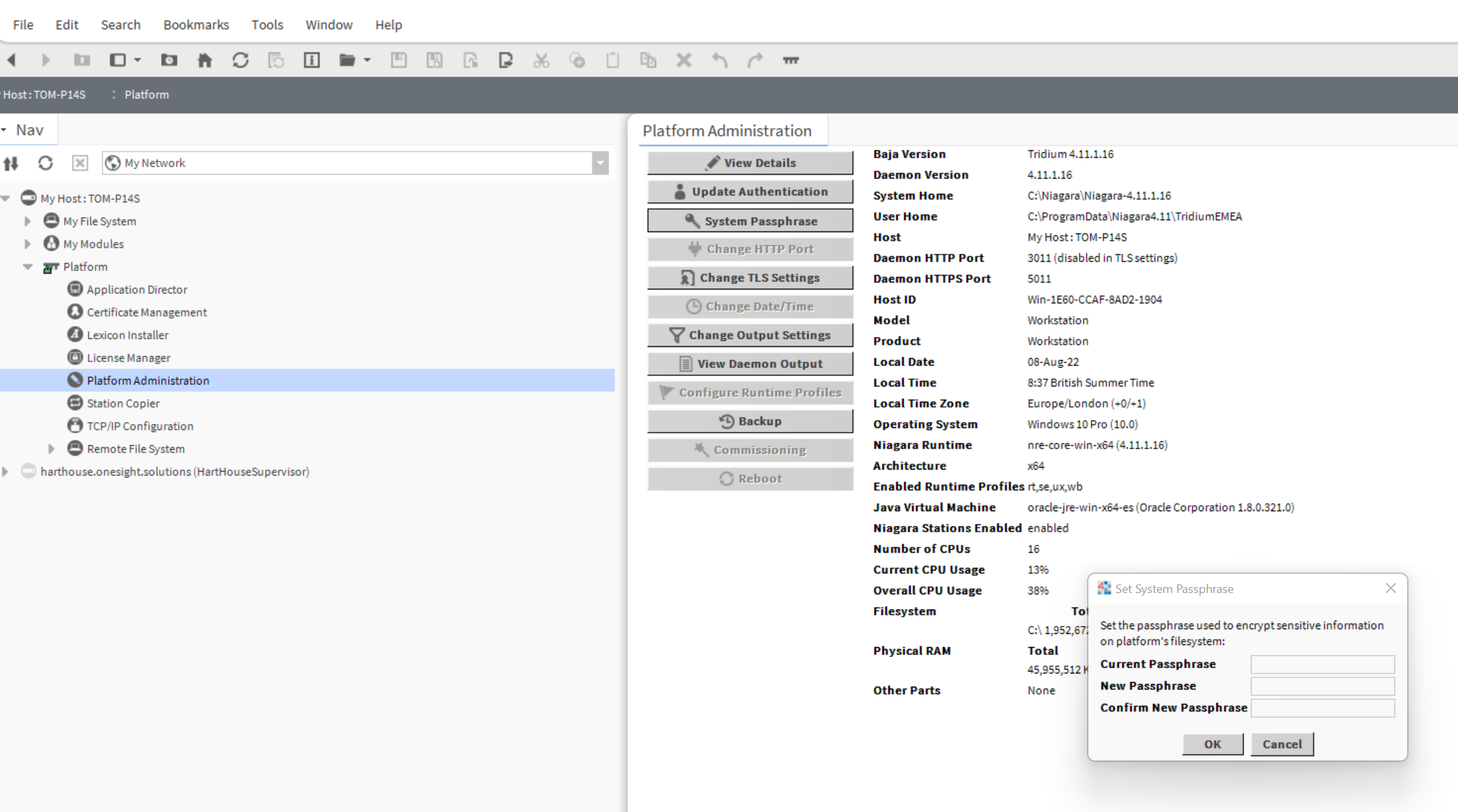
** Note that this process simply allows you to change the Niagara installations passphrase to something you know for now-onwards. Any stations you have previously created on this system but have forgotten the passphrase of will still be encrypted using your lost passphrase. You can force clear these and set new via workbench, however any passwords contained within the station will be lost and need to be re-entered.
INSTRUCTIONS ONLY
-
Open the Start Menu.
-
Search for Run and launch it.
-
Type:
Plain Text
regedit.exe
Show more lines
-
Press Enter.
Alternatively, search directly for regedit.exe from the Start Menu and launch the application.
Step 2 – Locate the Niagara Passphrase Entry
The Niagara system passphrase is stored within the Windows Registry in a hashed format. Because the value cannot be decrypted or displayed, the only recovery option is to remove the stored entry.
Navigate to the appropriate Niagara registry location for your installation and delete the passphrase entry.
Step 3 – Restart Niagara
After deleting the registry entry, restart Niagara Workbench or the Supervisor service.
When Niagara starts and detects that no custom passphrase is configured, it automatically reverts to the default system passphrase:
Plain Text
niagara
Show more lines
Step 4 – Configure a New Passphrase
Once access has been restored:
-
Open Platform Administration.
-
Navigate to the System Passphrase configuration.
-
Set a new secure passphrase appropriate for your organisation's security requirements.
-
Save the changes and follow any prompts to update encrypted station credentials.
Additional Information
-
The passphrase is required for decrypting stored credentials and other protected information within Niagara stations.
-
Deleting the registry entry does not recover the original passphrase.
-
It is recommended to document and securely store the system passphrase as part of site handover and disaster recovery procedures.
-
Ensure any passphrase changes are carried out during a maintenance window where appropriate, as encrypted station data may require reprocessing following the change.

Other Resources & Customer Survey:
💬 Don't miss out! Follow the Forest Rock News channel on WhatsApp Click Here!
💬 We’d also love your feedback! Please take a moment to complete our quick Customer Survey
It only takes a minute and helps us serve you better!

IoT Devices for BMS, Automation & Smart Connectivity | Forest Rock