

APPLIES TO: IQVISION, TONN2, 3 & 8 AS WELL AS N4 PRODUCTS
DESCRIPTION: IQVISION & Energy Manager allows you to integrate network users in to the supervisor without manually creating them. They can also be placed in to the correct user groups automatically.
SOLUTION:
Setting up the LDAP Scheme
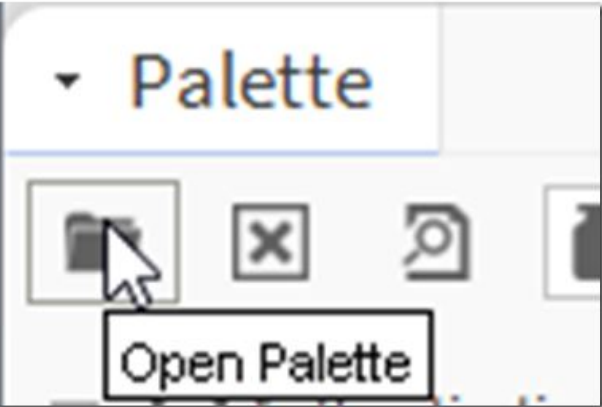
Before proceeding with this set up you will need to ensure you have engineered the Nav files, Roles & Category Service. If it is not already open Go to Window>Side Bars>Palette Click on the folder icon:
And search for “ldap”:
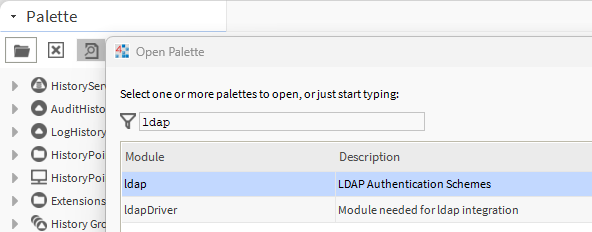
Double click on the module to open the palette:
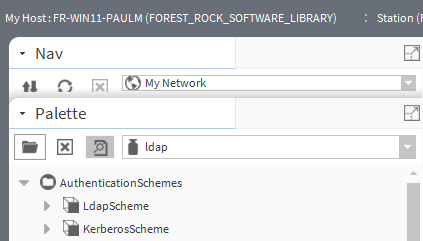
Select the LDAPScheme
Left click and hold the mouse button and drag to the following location: Station>Config>Services>AuthenticationService>Authentication Schemes:
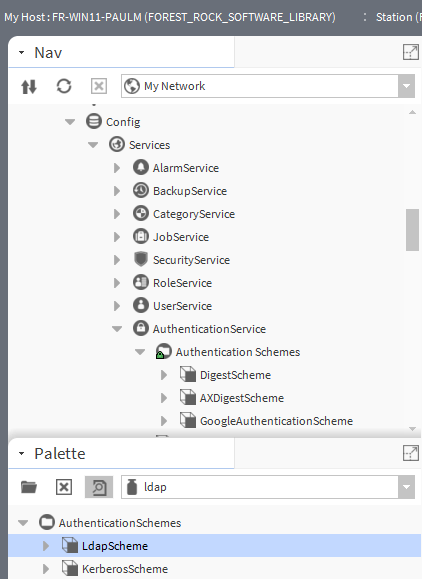
Release the mouse button to add this to the service.
Double click on the LdapScheme to show the properties:
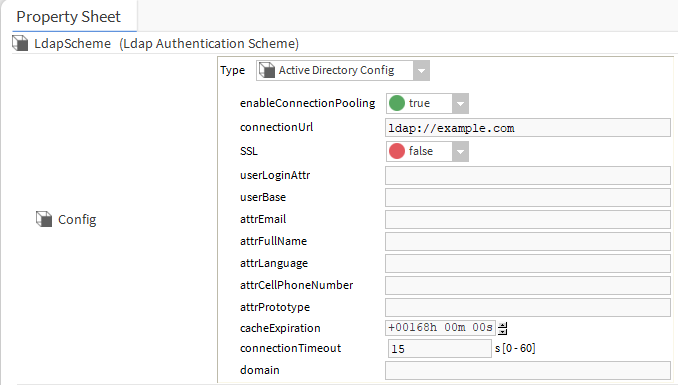
You need the following information from the IT department:
connectionUrl:
This is the location of the LDAP server e.g. ukldap1.global.en.mycompany.com or ukldap1.mycompany.com. it will be the name of the server followed by the domain name,
server name=ukldap1
Domain global.en.mycompany.com or http://mycompany.com
userLoginAttr:
This will be to user identity, either staff ID, email address, user name, etc.
By default when you login to the system, IQVISION/ENERGY MANAGER will query the “sAMAccountName” in the LDAP directory. Enter sAMAccountName in this entry.
userBase:
This is the location in the LDAP directory where IQVISION will look, normally this would be the domain name location.
Domain location 1: if you are using ukldap1.global.en.mycompany.com you would need to break this down in to its domain components and enter these separately.
The entry would then be:
DC=global, DC=en, DC=mycompany, DC=com
Domain location 2: if you are using ukldap1.mycompany.com you would need to break this down in to its domain components and enter these separately.
This entry would then be:
DC=mycompany, DC=com
attrEmail:
If you wish the email address to be imported, this entry is normally: mail
attrFullName:
If you wish the user name information to be imported, this entry is normally: name
attrCellPhoneNumber:
If you wish the telephone number information to be imported, this entry is normally: mobile
attrPrototype: if you wish to place users in to specific IQVISION/ENERGY MANAGER groups e.g. Engineer, Engineering Manager, Reception, etc.
Then you can specify which area to check in the LDAP directory.
As an example, the LDAP directory holds the information regarding the employees by organisational unit (ou).
ou=Engineering
ou=Engineering Managers
ou=Reception
When the user logs in it will check what organisational unit they are in and associate this person with the pre defined profile.
WARNING, some people can be in more than 1 group e.g. an engineering manager could be in “Engineering Managers” & “Engineering”, care is needed to segregate these people in to unique groups if you are to give different levels to engineers and engineering managers.
There are other settings to can use such as:
memberOf: the user(s) could be part of different groups, mail groups, departments, etc.
company: this could be the company name (if multiple companies in the same area connected to a single IQVISION/ENERGY MANAGER).
extensionAttributes: this could be the department, country, building, site, etc.
domain: this is the domain for the site e.g. global.en.mycompany.com or http://mycompany.com
Once all this information is available you can the populate the LDAP properties:
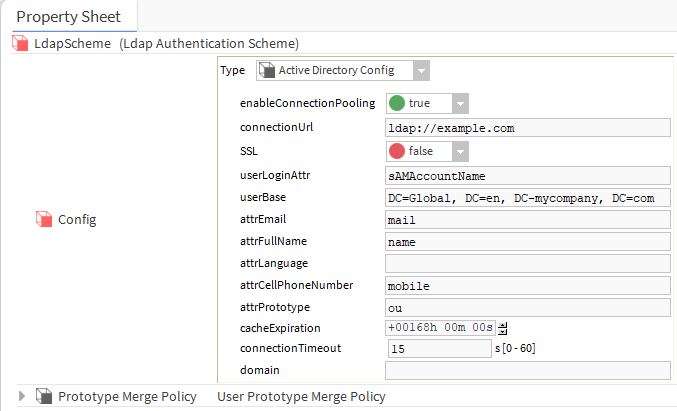
Save the entry and the LDAP is now configured.
Setting up the user profiles
With the LDAP scheme now set up, you need to associate the users in to their correct groups, to do this, you would have already needed to set up the Role Service & Category Service. Navigate to Station>Config>Services>UserService>User Prototypes>Default Prototype:
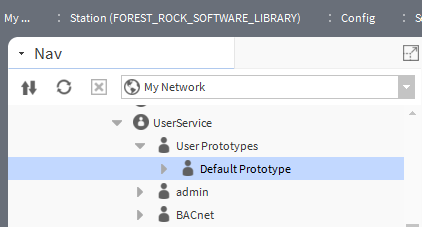
Right click on the Default Prototype and select “duplicate”
A new name box will appear:
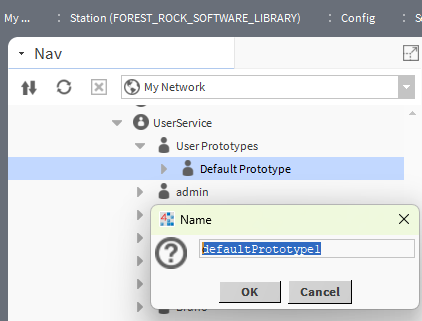
This name MUST BE THE SAME as the “attPrototype” information you are looking up in the LDAP directory

The example of the screenshot above is looking for the “Organisational Unit” (ou) in this case it would be the area of work e.g. Engineering, Engineering Managers, Reception, etc.
So if the ou for engineers is: Engineering1, the name MUST be Engineering1.
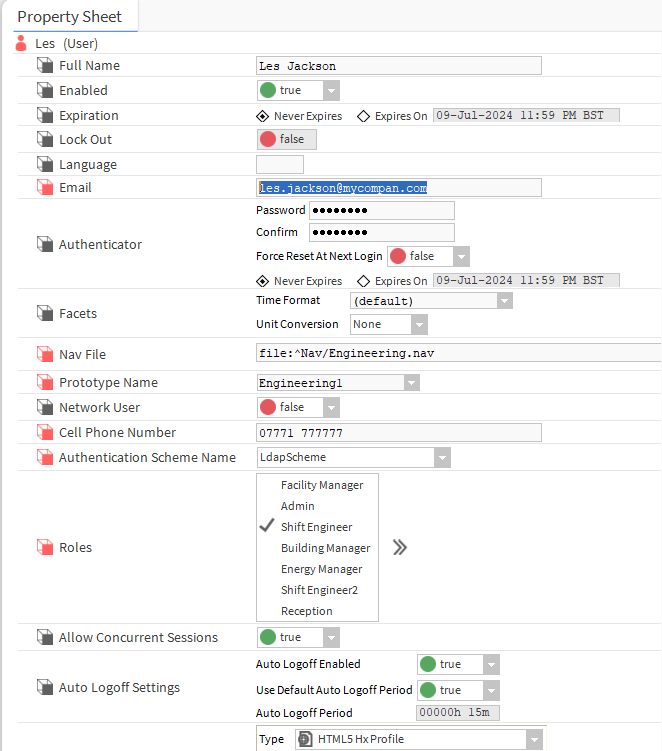
Double click on the new prototype created and edit the property sheet paying attention to the following:
Authenticator: You do not need to set a password.
Nav file: This is the standard login navigation structure (you should have previously created this).
Prototype Name: this is the current prototype e.g. Engineering1
Authentication Scheme Name: this would be LdapScheme
Roles: the role this group is going to be assigned e.g. Engineer, Manager, Reception, etc. (you should have previously created this).
Set up the rest of the entries e.g. default web profile permissions as per the security request.
Once you have completed this, click “Save”, you will get a warning pop up message regarding the authenticator:
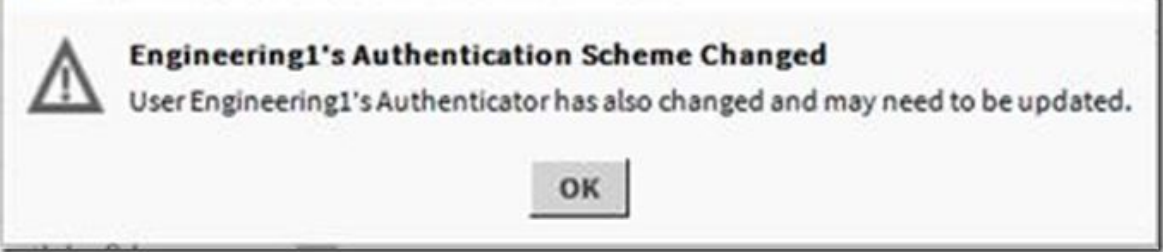
You should then see the following:
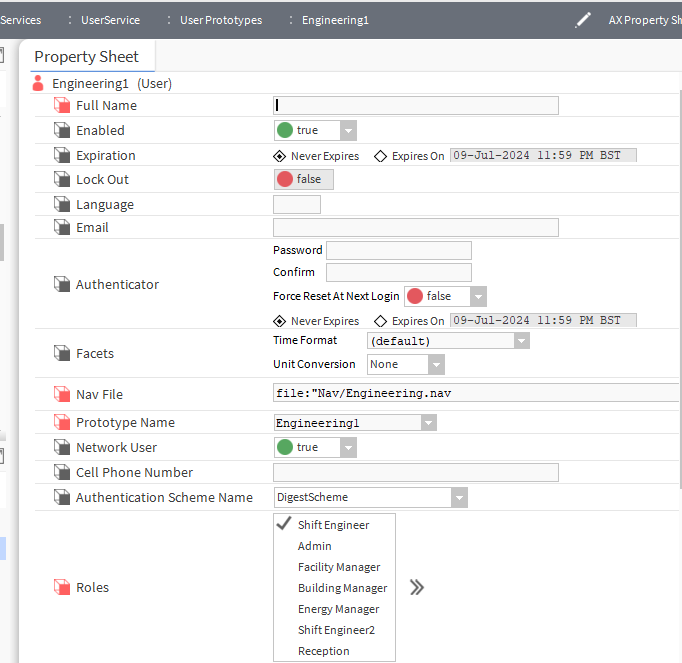
Create the necessary User Prototypes required and follow the steps above (right clicking on the newly created prototype and duplicate makes it easier)
You will need to modify the following for each prototype:
The Nav file location.
Prototype Name (this will be the same as the prototype you are setting up e.g. Engineering Manager). Authentication Scheme Name (LdapScheme).
Role(s) e.g. admin, Engineer, Managers, Reception, etc.
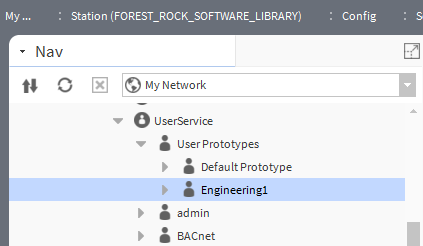
Once this is completed, open a web page, if this has been set up correctly when you log in to the system using your network credentials you should see the new users under the User Service:
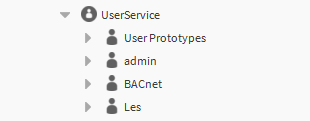
Double click on the user and check the settings have been correctly imported from the LDAP directory (User name, Expiration time, email, cell phone number, etc.) and the correct nav file, prototype name and roles.
Fault Finding
I cannot log in
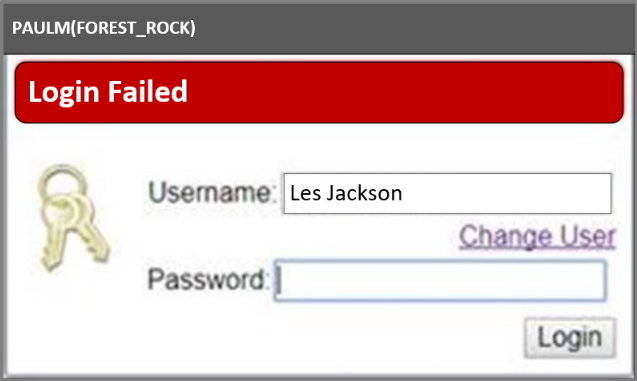
Check the settings in the Authentication scheme for the LDAP:
1. You have not authenticated with the LDAP server, try pinging the server using the full name e.g. ping ukldap1.global.en.mycompany.com
2. The userBase setting in the ldap scheme is not correct e.g. in the above server name, make sure you have the full path: DC=global, DC=en, DC=mycompany, DC=com
3. The domain is missing.
4. The server is not using Active directory or requires SSL.
5. Check that the LDAP is running on port 389, this is the default if not you may need to change the port connection type in the connectionUrl to: ukldap1.global.en.mycompany.com:xxx (where xxx is the port number of the LDAP server).
I am in the wrong prototype group
1. Check that the “attrPrototype” setting in the Authentication scheme exists in the LDAP and can be associated with the users.
2. Check the Prototype name matches exactly the naming scheme in the LDAP directory e.g. if using the ou and in the LDAP it is called Engineering1, the prototype name MUST be the same not engineering 1 (this will not work).
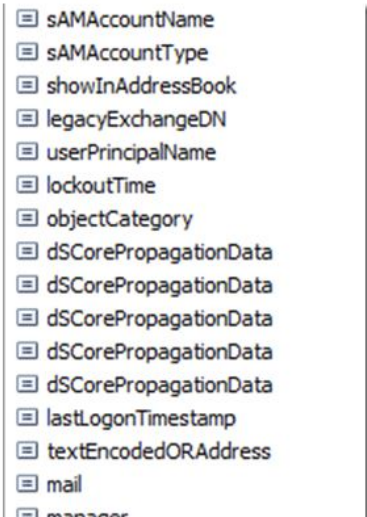
How can I see the codes that can be used in the LDAP server?
There is a free LDAP client browser available from: http://www.ldapadministrator.com/download.htm this will allow you to view the strings used for users, this is an example of some of the items you can filter by:

Other Resources & Customer Survey:
💬 Don't miss out! Follow the Forest Rock News channel on WhatsApp Click Here!
💬 We’d also love your feedback! Please take a moment to complete our quick Customer Survey
It only takes a minute and helps us serve you better!

IoT Devices for BMS, Automation & Smart Connectivity | Forest Rock