

Summary
Niagara OPC (UA and Classic) – Capabilities, Known Limitations, and Field-Proven Configuration Guidance
This knowledge base article consolidates answers and guidance from multiple Forest Rock support requests related to Niagara OPC connectivity, including the definitive response from Tridium Support regarding server-side deadband support in Niagara OPC UA Client. It also aggregates practical field guidance for OPC UA history import performance, OPC Classic (DCOM) configuration, driver limits, writeability, device status, and general troubleshooting.
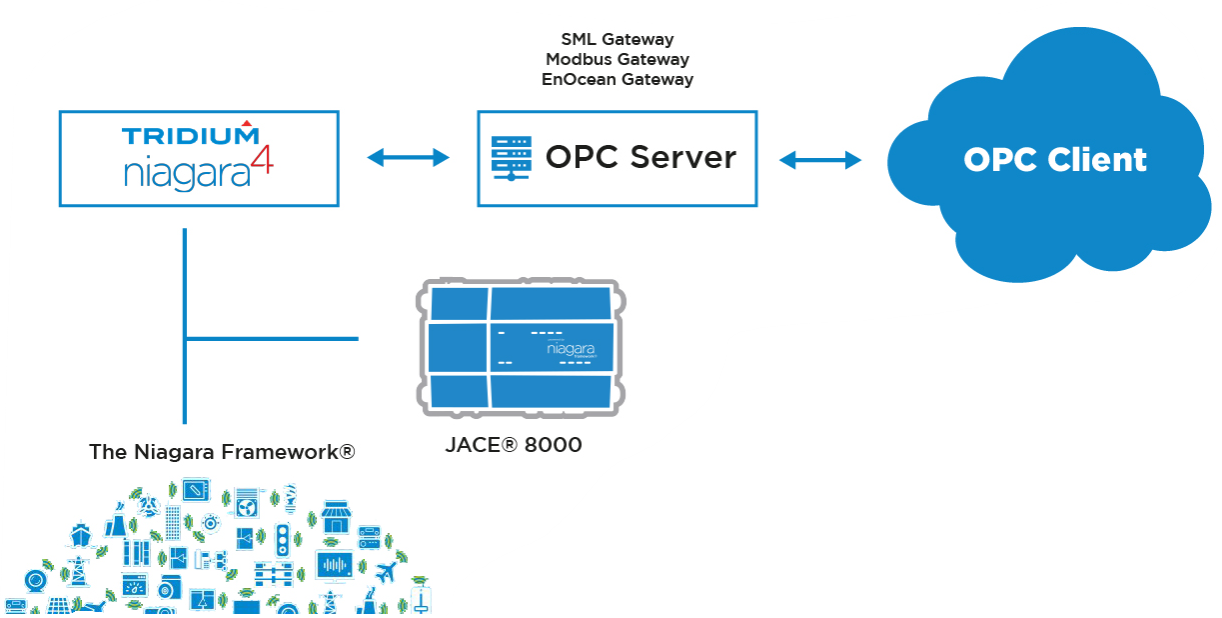
Key Answer from Tridium
Does Niagara OPC UA Client support server-side deadbands (DataChangeFilter with AbsoluteDeadband/PercentDeadband)?
Tridium response (quoted and summarised)
“Niagara’s OPC UA Client driver does not currently implement
DataChangeFilterwith options for AbsoluteDeadband and PercentDeadband. When the Niagara OPC UA Client subscribes to a point from an external OPC server, it depends on the Publish Interval parameter for data updates (configured inOpcUaClientPointDeviceExt) rather than requesting the OPC server to throttle the publishing.”“We do not see this feature planned in any current roadmaps (subject to further internal checks). The Publish Interval acts as the throttling parameter and tells the OPC UA server how often to check and report point values. Defaults typically ~500 ms; if the server enforces a slower minimum (e.g., 1000 ms), it will ignore a faster client value.”
Reference: Niagara OPC UA Client – OpcUaClientPointDeviceExt
-
Implication: Deadband reduction at the OPC Server cannot be driven from Niagara via DataChangeFilter today. Use Niagara-side mechanisms (e.g., Publish Interval, Niagara trending/alarm thresholds, station logic) to reduce data-change noise.
-
What to configure instead: Set the per-point Publish Interval on
OpcUaClientPointDeviceExt. Confirm the server’s allowable publishing rates.
Quick Answers (FAQ)
Configuration and Troubleshooting Guides
1) Niagara OPC UA Client – Performance, Discovery and History Import
1.1 Discovery on very large servers
-
Symptoms: Long discovery times, Workbench timeouts, large memory use when traversing deep/nested server namespaces (reported in FOR‑1947; Tridium bug NCCB‑59040 addressed timeouts in later builds).
-
Recommendations
-
Run on a supported LTS build (e.g., 4.15 LTS) and apply relevant Tridium updates/fixes mentioned in release notes.
-
Increase Java heap for both station and Workbench if handling very large node spaces (example values used in field: 16 GB for station/workbench on big VMs – see FOR‑8551).
-
Limit initial discovery scope if practical; add points in phases.
-
1.2 Subscriptions and pacing
-
Use Publish Interval per point (
OpcUaClientPointDeviceExt) to control update pacing. Server minimums take precedence. -
If you need deadband-like behaviour, implement Niagara-side logic (e.g., compare last value vs. threshold) or trend/alarm filters rather than OPC UA DataChangeFilter.
1.3 History import delays (“pending”)
-
Field-proven actions
-
Stagger imports rather than scheduling 1000+ histories simultaneously
(e.g., 200 every 30 minutes). -
Ensure time sync (NTP) between device/server and supervisor. Mismatched time can cause confusing server/source timestamps.
-
Avoid overlapping imports from multiple supervisors hitting the same RTU/server at the same time (observed to slow RTU import vs. Niagara-to-Niagara import chains).
-
Use Application Director “spy” filters (e.g., “OPC history”, “history”) to confirm queue, errors, or back-pressure.
-
2) OPC Classic (DCOM) – Secure Connectivity Checklist
“OPC Driver & DCOM Settings Help”.
2.1 Baseline DCOM settings
-
Run dcomcnfg as Administrator on both OPC Client and OPC Server PCs.
-
Enable Distributed COM on this computer: Checked
-
Default Authentication Level: Connect
-
Default Impersonation Level: Identify
-
Edit Limits… for Access/Launch & Activation: allow ANONYMOUS LOGON, Everyone, INTERACTIVE, SYSTEM “Local/Remote Access” and “Local/Remote Launch/Activation”.
-
Edit Defaults…: add the service account Niagara runs under (grant full Access/Launch/Activation).
-
-
-
General: Authentication Level/Impersonation Level compatible with client
(often Connect/Identify).-
Location: typically “Run application on this computer.”
-
Security: “Customize” and Edit to add/set user permissions for Launch/Activation and Access.
-
Identity: “Interactive user”/“Launching user” or a specified domain user as required by vendor guidance.
-
2.2 Common enterprise blockers and workarounds
-
Missing “Launch and Activation Permissions” or “Edit Limits”
GPO
-
HKEY_LOCAL_MACHINE\SOFTWARE\Microsoft\Ole -
Values:
DefaultAccessPermission,DefaultLaunchPermission(advanced use with tools like DCOMPerm or SubInACL).
-
-
Corporate security posture blocks DCOM entirely
OPC tunneller
-
Matrikon OPC Tunneller
-
Kepware LinkMaster
-
Cogent DataHub (rich bridging across OPC Classic, OPC UA, Modbus, MQTT, SQL; supports encryption and mirroring)
-
-
Alternative fallback: Install Niagara 4 on the OPC Server PC to keep Client/Server local (avoid DCOM), then expose data to the main Niagara system over Fox/Web services.
3) OPC UA Writeability, Device Status and UI Behaviour
-
Writeable points (FOR‑5602): After discovery, ensure you add NumericWritable/BooleanWritable types as needed. If discovered as read-only proxy types, delete and re-add as writeables, and confirm the server permits write access.
-
“Last OK Time”/device status (FOR‑5616): If an OPC device object does not expose a useful “Last OK Time,” consider using the underlying Niagara Network connection’s Last Ok/health slots for supervisory status rollups.
-
Right-click actions in views (FOR‑2281): Context menus derive from component/view types. Hiding device-level actions from point-level context may not be directly configurable for all views; as a quick UI control, designers sometimes overlay a transparent shape in PX to suppress user interaction in specific areas.
4) Known Limits, Versions, and Patches
-
Large point counts during discovery/subscribe
-
Tridium bug NCCB‑59040 (“OPC UA Client Point Manager times out when 600+ points in database”) was addressed in later 4.10.x/4.12 patches. In newer LTS builds (4.15), broader stability/performance updates exist (see release notes).
-
Mitigations on older builds: increase FOX request timeout, raise heap for Workbench/station, reduce batch sizes, add in phases.
-
-
Niagara LTS cadence: 4.15 is current LTS; prefer 4.15uN for long-term deployments. See internal notes and Tridium release documentation for opcUaClient/server fixes (e.g., unit support, duplicate discovery fixes, Byte type handling).
Step-by-Step: Recommended Setup Patterns
A) Niagara OPC UA Client – Per-point configuration
-
Discover nodes and add only the points needed (avoid full-tree mass adds on large servers).
-
For each point, set Publish Interval in
OpcUaClientPointDeviceExtto a value aligned with system needs and server capabilities. -
For writeable points, choose Writable proxy types when adding (re-add if necessary).
-
Validate updates in the point manager and confirm server-enforced minimum intervals.
B) Scheduling OPC UA history imports
-
Create import groups by priority (critical first, then bulk).
-
Stagger groups (e.g., every 30 minutes) to avoid load spikes.
-
Ensure all systems share NTP-synchronised time.
-
Check Application Director logs for queue backlogs or errors.
-
If multiple supervisors import from one RTU/server, deconflict schedules.
C) OPC Classic (DCOM) hardening path
-
Implement baseline DCOM settings (as above) on both ends.
-
Engage IT to relax domain GPO as needed; document and time-box exceptions.
-
If constraints persist, adopt OPC tunnelling or co‑locate Niagara with the OPC Server.
Examples and Field Notes
-
History import chain observation (FOR‑9138): RTU → SCADA_2 (OPC UA import, ~10 min/500 histories) → SCADA (Niagara-to-Niagara, ~1 min/1000 histories). Insight: OPC UA RTU import can be the slow leg; stagger or throttle accordingly.
-
Timestamp anomalies (FOR‑8551): 1970 timestamps typically indicate null or zero-value source timestamps substituted by Niagara. Focus on device-side timestamp correctness.
-
Write failures after discovery (FOR‑5602): Correct by selecting writeable point variants during add; re-add points if the initial selection created read-only proxies.
Practical Decision Guide
Need server-side deadband?
-
Not supported via OPC UA
DataChangeFilterin Niagara (per Tridium). -
Use Publish Interval + Niagara logic/trending thresholds.
Have DCOM constraints?
-
Engage IT for GPO/DCOM edits.
-
Consider OPC tunneller or co‑locate Niagara with server.
Import/Discovery slow?
-
Stagger imports, raise heap.
-
Deconflict multi-supervisor loads.
Revision Notes
-
This page consolidates verified Tridium responses and proven field practices from past and resolved Forest Rock support tickets.
OPC UA Driver Guide
opcUaClient-OpcUaNetwork
This device-level component in an OPU UA network represents a client connection to a specific OPC UA server and contains the configuration properties necessary for the driver to communicate with the server. The OpcUaDevice has a points device extension (OpcUaClientPointDeviceExt) that contains all subscribed proxy points.
Figure 1. OpcUaDevice properties
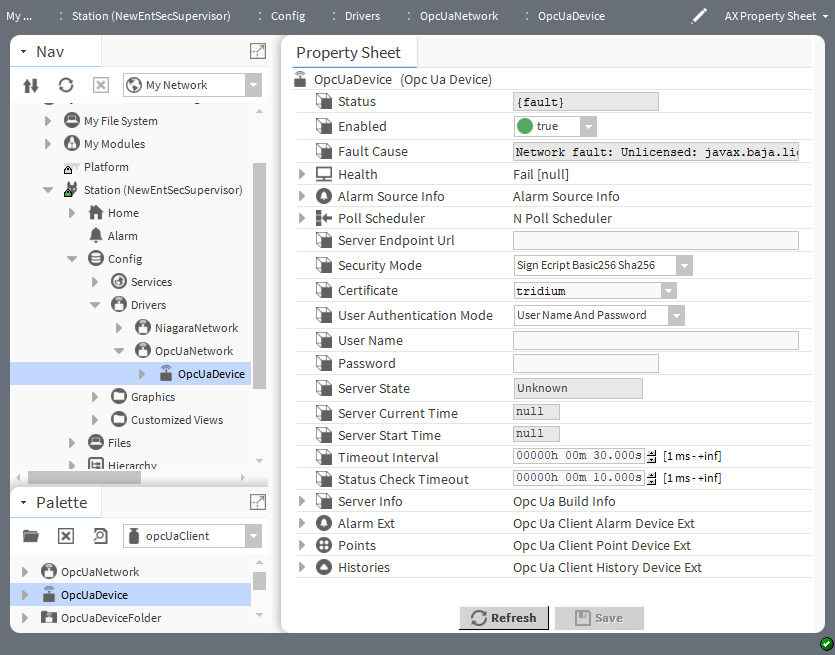
The default view for an OpcUaDevice is the Opc Ua Client Manager.
In addition to the standard properties (Status, Enabled, Fault Cause, Health, Alarm Scorce Info, and Poll Scheduler), these properties configure an OPC UA device.
|
Filter 15 rows found |
Filter 15 rows found |
Filter 15 rows found |
|
Server Endpoint Url |
URL |
Defines the connection address (URL) for the Opc Ua Server, for example: opc.tcp://IE67DTDVYXX.honeywell.com:52520/OPCUA/N4OpcUaServer |
|
Security Mode |
drop-down list (defaults to Sign Ecript Basic256 Sha256) |
Specifies what security should be applied to message exchanges during a session. Sign Ecript Basic256 Sha256 signs and encrypts all messages. The signature or signing of the message detects if it has been manipulated by any third party. Sign Ecript Basic256 Sign Basic256 Sha256 Sign Basic256 Sign Ecript Basic128Rsa15 Sign Basic128 Rsa15 None |
|
Certificate |
drop-down list (defaults to tridium) |
Selects the client’s TLS certificate. The default self-signed certificate should be approved and used only until a signed certificate is available. |
|
User Authentication Mode |
drop-down list (defaults to User Name and Password) |
Configures the type of user authentication. For a successful connection, these settings must match the OPC UA server’s User Authentication Methods settings. Anonymous User Name and Password |
|
User Name |
text string |
Configures the user’s name. User authentication by User Name and Password requires this property be set. The username and password must be defined in the station’s UserService. |
|
Password |
text string |
Configures the user’s password. User authentication by User Name and Password requires this property be set. The username and password must be defined in the station’s UserService. |
|
Server State |
read-only |
Reports the current condition of the server. |
|
Server Current Time |
read-only |
Reports the current time as maintained in the server. |
|
Server Start Time |
read-only |
Reports when the server came online. |
|
Time Interval |
hours minutes seconds (defaults to 30 seconds) |
|
|
Status Check Timeout |
hours minutes seconds (defaults to 10 seconds) |
|
|
Server Info |
additional properties |
Displays read-only data read from the OPC UA server configured for the device. These data are documented in a separate topic. |
|
Alarm Ext |
additional properties |
Opens the Opc Ua Client Alarm Manager. A separate topic documents this component’s properties. |
|
Points |
additional properties |
Opens the Opc ua Client Point Manager that contains device point data. A separate topic documents this folder’s related discovery preferences. |
|
Histories |
additional properties |
Opens the Opc Ua Client History Import Manager. The Histories Property Sheet configures the driver’s Retry Trigger. This typical set of properties are documented in the Niagara Drivers Guide. |
Actions
-
Ping sends a message to a network object (device, database, etc). The message provokes a response, which indicates the current state of the object.
-
Learn discovers device objects.
-
Reset Comm enables and disables the device (closes and reopens server connection).
Parent topic: Components
Related tasks
Connecting to an OPC UA server
Discovering OPC UA server points
Related Links
-
Connecting to an OPC UA server
The next step is to connect to the OPC UA server and add an OpcUaDevice to the network.
-
Discovering OPC UA server points
Server point discovery interrogates the connected OPC UA server to discover the OPC UA objects.
opcUaClient-OpcUaBuildInfo
This component is a child of each OpcUaDevice component. Each OPC UA device has a frozen slot named Server Info (OpcUaBuildInfo) on the OpcUaDevice component.
This component displays read-only data read from the OPC UA server and configured for the device.
Figure 1. OpcUaBuildInfo properties

|
Property |
Value |
Description |
|---|---|---|
|
Produce Name |
read-only |
Reports the name of the OPC UA server. |
|
Product Uri |
read-only |
Reports the URI (Uniform Resource Identifier) for the server. |
|
Manufacturer |
read-only |
Reports the name of the manufacturer of the server. |
|
Software Version |
read-only |
Reports the version of software for the server. |
|
Build Number |
read-only |
Reports a number for the server data type. |
|
Build Date |
read-only |
Reports a date and time of the software build for the server. |
Action
Update retreives the device data from the server.
Parent topic: Components
opcUaClient-OpcUaClientAlarmDeviceExt
This component is a child of each OpcUaDevice component. Each OPC UA device has a frozen slot named AlarmExt that is of type OpcUaClientAlarmDeviceExt.
The default view is the Opc Ua Client Alarm Manager.
This component provides the ability to subscribe to OPC UA alarm events. The view allows you to scan the connected OPC UA server for OPC UA variables that can generate an alarm.
Figure 1. OpcUaClientAlarmDeviceExt properties
To view these properties, expand Config > Drivers > OpcUaNetwork > OpcUaDevice, right-lick Alarm Ext and click Views > Property Sheet.
In addition to the standard properties that configure Alarm Source Info, these properties support the OPC UA client alarm device extension.

|
Property |
Value |
Description |
|---|---|---|
|
Alarm Class |
drop-down list (defaults to Medium) |
Specifies the alarm routing option for the component. Replace provides a selection list of a local alarm classes, from which to select one to use for all alarms received from this device. Use Existing routes alarms from this remote station to any matching alarm class, that is, one with an identical name as that in each alarm record. If the program finds no local matching alarm class, it uses the station's default alarm class. Prepend adds leading text (as specified) to the incoming alarm class string, then routes it to any local matching alarm class in the station. Append adds trailing text (as specified) to the incoming alarm class string, then routes it to any local matching alarm class in the station. |
|
Last Received Time |
read-only |
Reports the time the last alarm was received. |
|
Auto Subscribe Enable |
true (defaul)t or false |
Turns automatic device subscription on (true) and off (false). |
|
Opc Ua Severity |
read-only |
Reports the configuration for the four severity settings. For more information, refer to opcUaServer-OpcUaAlarmRecipient. |
Parent topic: Components
Related tasks
Subscribing for OPC UA alarm events
Related Links
-
Subscribing for OPC UA alarm events
The OpcUaDevice component's Alarm Ext (OpcUaClientAlarmDeviceExt) component subscribes to OPC UA alarm events.
opcUaClient-OpcUaClientPointDeviceExt
This component is the OPC UA implementation of PointDeviceExt, a frozen device extension under every OPC UA client device. Its primary view is the Opc Ua Client Point Manager.

The OpcUaClientPointDeviceExt (Points) is also available in the opcUaClient palette.
Figure 1. OpcUAClientPointDeviceExt properties
To access these properties, right-click Points, click Views > Property Sheet and expand Discovery Preferences.
|
Filter 10 rows found |
Filter 10 rows found |
Filter 10 rows found |
|
Do Not Ask Again |
true (default) or false |
Controls when the discovery prompt displays. true displays the prompt when you click the Discover button on the Device Manager view. false displays the prompt before the system initiates the search. |
|
Show Addable Only |
true (default) or false |
Controls the display of points that cannot be added to the database. true excludes the points that cannot be added to the database. false displays the points that cannot be added to the database. |
|
Exclude Server |
true (default) or false |
Controls the display of points associated with the server. true excludes the points associated with the server. false includes the points associated with the server. |
|
Exclude Types Folder |
true (default) or false |
Controls the display of points in the Types folder. true excludes the points in the Types folder. false includes the points in the Types folder. |
|
Publish Interval |
number (defaults to 500) |
Specifies the scan interval that the server is requested to check for changes to each subscribed point. If this is faster than the server's fastest scan rate then the server sends the best rate it can offer. The server only publishes updates if the point has changed. |
|
Max Keep Alive Count |
number (defaults to 1728000) |
Specifies the maximum number of times the Publish Interval can expire without any changes occurring before a Keep Alive message is issued. |
|
Subscription Batch Delay |
number (defaults to 1s) |
Specifies the time to wait before flushing accumulated subscription requests into a batch. The larger the number of points the user is subscribing to in the client driver's point device extension, the longer the batch delay should be to maximize performance. Optimizing this property reduces the number of batch requests sent to the server and improves performance. |
|
Max Monitored Items Per Subscription |
number (defaults to 10000) |
Specifies the maximum number of monitored items that can be included in a single subscription (default: 10000). This limit has to be configured based on the OPCUA server configuration and is automatically fetched if the server has configured the MaxMonitoredItemsPerSubscription property in its server capabilities (at NodeId i=11714). If the server does not specify this property, you should set it according to the server's capabilities to avoid issues. Setting this property too low can lead to an excessive number of subscriptions being created, which can strain client machine resources and lead to performance degradation. Setting the property higher than the server's capabilities can result in errors (Bad_TooManyMonitoredItems) when adding monitored items, as the server will reject requests that exceed its limits. |
|
Subscription Retry Delay |
number (defaults to 10s) |
Specifies the time to wait before retrying a failed subscription request. The bigger the number of points the user is subscribing to in the client driver's point device ext, the bigger the retry delay should be. This allows to avoid overwhelming the server with retry attempts and improves performance. |
|
Active Subscription Count |
number (default to 0) |
The Subscription Count property is read-only and indicates the number of active subscriptions the OPCUA Client has with the server. |
Parent topic: Components
opcUaClient-OpcUaDeviceFolder
This component is the OPC UA client implementation of a folder under an OpcUaNetwork.
Typically, you add such folders using the New Folder button in the Opc Ua Client Device Manager view of the OPC UA network. The component is also available in the opcUaClient palette.
Parent topic: Components
opcUaClient-OpcUaClientHistoryDeviceExt
This component, whose default name is Histories, is a frozen device extension on the OPC UA client component. It imports historical data from the OPC UA server into the station’s history space.
You use this components Opc Ua Client History Import Manager to add OPC UA client historyImport descriptors.
Figure 1. OpcUaClientHistoryDeviceExt properties
For information about Retry Trigger properties, refer to the Niagara Drivers Guide.

Action
Retry downloads histories again.
Parent topic: Components
Related tasks
Adding points containing OPC UA histories
Related Links
-
Adding points containing OPC UA histories
If the OPC UA point you are adding has an OPC UA history, the point automatically includes a history extension (ImportHistoryExt).
opcUaClient-OpcUaClientPointFolder
This component is the OPC UA cClient implementation of a folder under an OPC UA device Points extension. You add such folders using the New Folder button in this component’s Opc Ua Client Point Manager. This folder is also available in the opcUaClient palette.
This folder is also available in the opcUaClient palette.
Parent topic: Components
opcUaServer-OpcUaServerDeviceManager
This manager is the primary view for the OpcUaServer component. It manages OPC UA namespace components in the station.
Figure 1. Opc Ua Server Device Manager with added OpcUaNamespace
To view, either double-click the OpcUaServer or right-click the OpcUaServer and select Views > Opc Ua Server Device Manager.
|
Column |
Description |
|---|---|
|
Name |
Displays the name of the namespace. |
|
Type |
Displays the type of the namespace. |
|
Exts |
Displays the device extension’s hyperlinks, including: Points, Alarms, Schedules, Trend Logs and Config. |
|
Name Uri |
Displays the namespace Uri. |
|
Status |
Reports the current condition of the entity as of the last refresh: {alarm}, {disabled}, {down}, {fault}, {ok}, {stale}, {unackedAlarm} |
|
Enabled |
Indicates if the network, device, point or component is active or inactive. |
|
Health |
Displays the current status of the device. |

Buttons
-
New Folder creates a new folder for devices. Each such folder provides its own set of manager views.
-
New creates a new device record in the database.
-
Edit opens the device’s database record for updating.
-
TagIt associates metadata, such as location or unique configuration with the object.
Parent topic: Components
Opc Ua Server Alarm Manager
This manager is the default view of the server alarms device extension (OpcUaServerAlarmDeviceExt as well as the client alarms device extension (OpcUaClientAlarmDeviceExt).
Figure 1. Opc Ua Client Alarm Manager
To view,double-clickthe Alarms extension, or right-click and selectViews > Opc Ua Server Alarm Manager.
|
Column |
Description |
|---|---|
|
Name |
Reports the name of the entity or logical grouping. |
|
Ua Node Id |
Displays the ID of UA Node. |
|
Enabled |
Indicates if the network, device, point or component is active or inactive. |
|
Alarm Class |
Displays the alarm routing options and priorities. |
|
Subscribed |
Displays whether the device is subscriber or not. |
|
Last Event |
Displays the summary of the last alarm event received from the OPC UA server for the specified OPC UA node. |

Buttons
-
New creates a new device record in the database.
-
Edit opens the device’s database record for updating.
-
Discover runs a discover job to locate installed devices, which appear in the Discovered pane. This view has a standard appearance that is similar to all Device Manager views.
-
Cancel ends the current discovery job.
-
Add inserts into the database a record for the discovered and selected object.
-
Match associates a discovered device with a record that is already in the database.
-
TagIt associates metadata, such as location or unique configuration with the object.
Parent topic: Components
Opc Ua Server Point Manager
This manager is the default view for the OpcUaServerPointDeviceExt (Points container) under an OPC UA namespace. This is also the default view for any OpcUaServerPointFolder under the Points container of an OPC UA namespace.
Bi-directional points
Starting in Niagara 4.15, the OPC UA Server supports bi-directional communication. One point is responsible for sending data from the OPC UA Server, while another point is required to receive data from the client. With this enhancement, a single point will manage incoming and outgoing data values.
Two different ways to add the bi-directional points in the Opc Ua Server Point Manager
-
While adding the bidirectional points from the Discovered pane, the import and export points are linked to the local points
-
Another way is adding the bi-directional points in the Database pane, by clicking through the New button. These points are not linked to any local points.
Figure 1. Bi-directional points

Use this view to discover server points that exist in the station, which can be mapped to the OpcUaServerPointFolder. Such server points are visible to a connected OPC UA client. Also, server points provide live and historical data as well as alarm events.
Figure 2. Opc Ua Server Point Manager view with discovered points added to station database
To view, right-click a OpcUaServerPointDeviceExt or OpcUaServerPointFolder and select Views > Opc Ua Server Point Manager
|
Column |
Description |
|---|---|
|
Point |
Display the details of points. |
|
Direction |
Displays the direction value. |
|
Point Type |
Displays the type of the point added. |

Buttons
-
New Folder creates a new folder for devices. Each such folder provides its own set of manager views.
-
New creates a new device record in the database.
-
Edit opens the device’s database record for updating.
-
Discover runs a discover job to locate installed devices, which appear in the Discovered pane. This view has a standard appearance that is similar to all Device Manager views.
-
Cancel ends the current discovery job.
-
Add inserts into the database a record for the discovered and selected object.
-
Match associates a discovered device with a record that is already in the database.
-
TagIt associates metadata, such as location or unique configuration with the object.
Parent topic: Components
Opc Ua Client Device Manager
The Opc Ua Device Manager is the default view of a OpcUaNetwork, which helps to access OPC UA device components.

Figure 1. Opc Ua Client Device Manager
To view, right-click a OpcUaNetwork and select Views > Opc Ua Client Device Manager.
|
Filter 9 rows found |
Filter 9 rows found |
|
Name |
Reports the name of the entity or logical grouping. |
|
Type |
Displays the type of device. |
|
Exts |
Displays the device extension’s hyperlinks, including: Points, Alarms, Schedules, Trend Logs and Config. |
|
Status |
Reports the current condition of the entity as of the last refresh: {alarm}, {disabled}, {down}, {fault}, {ok}, {stale}, {unackedAlarm} |
|
Server Endpoint Url |
Displays the connection address (URL) for the Opc Ua Server. |
|
Security Mode |
Displays the security applied to message exchange during a session. |
|
Certificate |
Displays the selected certificate. |
|
Enabled |
Indicates if the network, device, point or component is active or inactive. |
|
Health |
Reports the status of the network, device or component. This advisory information, including a time stamp, can help you recognize and troubleshoot problems but it provides no direct management controls. The Niagara Drivers Guide documents the these properties. |
Buttons
-
New Folder creates a new folder for devices. Each such folder provides its own set of manager views.
-
New creates a new device record in the database.
-
Edit opens the device’s database record for updating.
-
Discover runs a discover job to locate installed devices, which appear in the Discovered pane. This view has a standard appearance that is similar to all Device Manager views.
-
Cancel ends the current discovery job.
-
Add inserts into the database a record for the discovered and selected object.
-
Match associates a discovered device with a record that is already in the database.
-
TagIt associates metadata, such as location or unique configuration with the object.
-
Template Config accesses the station template that defines configuration options. You would select a template to set up the device with pre-configured properties.
Parent topic: Components
Opc Ua Client Alarm Manager
This manager is the default view of the client alarms device extension (OpcUaClientAlarmDeviceExt) as well as the server alarms device extension (OpcUaServerAlarmDeviceExt).
This view allows you to scan the OPC UA server to discover and subscribe to OPC UA alarm events. For more information, refer to “Opc Ua Server Alarm Manager.”
Parent topic: Components
Opc Ua Client Point Manager
This manager is the default view for the OpcUaClientPointDeviceExt (Points container) under an OPC UA device. This is also the default view for any OpcUaClientPointFolder under the Points container of an OPC UA Device. Use this view to discover available points and add them to your station database.
Figure 1. Opc Ua Client Point Manager view with selected discovered points added to station database
To view, right-click a OpcUaClientPointDeviceExt or OpcUaClientPointFolder and select Views > Opc Ua Client Point Manager.
|
Column |
Description |
|---|---|
|
Ua Display Name |
Reports the name of the entity or logical grouping. |
|
Ua Node Id |
Displays the ID of the UA node. |
|
Access Level |
Indicates the value of a variable can be accessed (read/write) and if it contains current and/or historic data. |
|
Array Dimension |
Displays the maximum supported length of each dimension. If the maximum is unknown the value shall be 0. |
|
Array Index |
Displays the integer marker of the index of a particular value in an array type Node. |
|
Ua Data Type |
Displays the DataType attribute to a node of the data type NodeClass in the Server. |
|
Ua Data Type identifier |
Displays the numeric identifier from the Data Type Node Id. |

Buttons
-
New Folder creates a new folder for devices. Each such folder provides its own set of manager views.
-
New creates a new device record in the database.
-
Edit opens the device’s database record for updating.
-
Discover runs a discover job to locate installed devices, which appear in the Discovered pane. This view has a standard appearance that is similar to all Device Manager views.
-
Cancel ends the current discovery job.
-
Add inserts into the database a record for the discovered and selected object.
-
Match associates a discovered device with a record that is already in the database.
-
TagIt associates metadata, such as location or unique configuration with the object.
Parent topic: Components
Opc Ua Client History Import Manager
This manager is the default view for the OpcUaClientHistoryDeviceExt component, which discovers and imports OPC UA histories without the creation of a control point.

To view, right-click a OpcUaClientHistoryDeviceExt and select Views > OpcUa Client History Import Manager.
Figure 1. OpcUa Client History Import Manager lists discovered points with histories
|
Filter 9 rows found |
Filter 9 rows found |
|
Ua Display Name |
Reports the name of the entity or logical grouping. |
|
Ua Node Id |
Displays the ID of the UA node. |
|
Array Dimension |
Displays the maximum supported length of each dimension. If the maximum is unknown the value shall be 0. |
|
Array Index |
Displays the integer marker of the index of a particular value in an array type Node. |
|
Node Class |
Displays the class of a Node in an AddressSpace. |
|
Description |
Displays the information in the description attribute of a Node. |
|
Type Spec |
Displays the Niagara Type Specification given to an OPCUA objects based on the type of data it encodes. |
|
Ua Data Type |
Displays the DataType attribute to a node of the data type NodeClass in the Server. |
|
Ua Data Type Identifier |
Displays the numeric identifier from the Data Type Node Id. |
Buttons
-
New creates a new device record in the database.
-
Edit opens the device’s database record for updating.
-
Discover runs a discover job to locate installed devices, which appear in the Discovered pane. This view has a standard appearance that is similar to all Device Manager views.
-
Cancel ends the current discovery job.
-
Add inserts into the database a record for the discovered and selected object.
-
Match associates a discovered device with a record that is already in the database.
-
TagIt associates metadata, such as location or unique configuration with the object.
-
Archive archives the data.
Forest Rock Technical Support
Building systems that remain reliable, upgradeable, and supportable
Other Resources & Customer Survey:
💬 Don't miss out! Follow the Forest Rock News channel on WhatsApp Click Here!
💬 We’d also love your feedback! Please take a moment to complete our quick Customer Survey
It only takes a minute and helps us serve you better!

IoT Devices for BMS, Automation & Smart Connectivity | Forest Rock