

JACE-8000 Platform Credentials and System Passphrase Recovery
Overview
Earlier generations of JACE controllers (J‑201, J‑300E, J‑600, J‑700) allowed engineers to reset platform credentials to factory defaults using Shell Mode via HyperTerminal or PuTTY.
With the release of the JACE‑8000, this method was removed and the System Passphrase was introduced to secure encrypted data. As a result, any attempt to recover unknown platform credentials or the system passphrase previously required a full factory reset using the backup button, which also erased the station.
From Niagara 4.4 onward, a new Shell Mode mechanism enables platform credential and system passphrase recovery without factory‑resetting or deleting the station.
Recovery Procedure (Niagara 4.4 and Later)
-
Enter Shell Mode
-
Reboot the JACE‑8000.
-
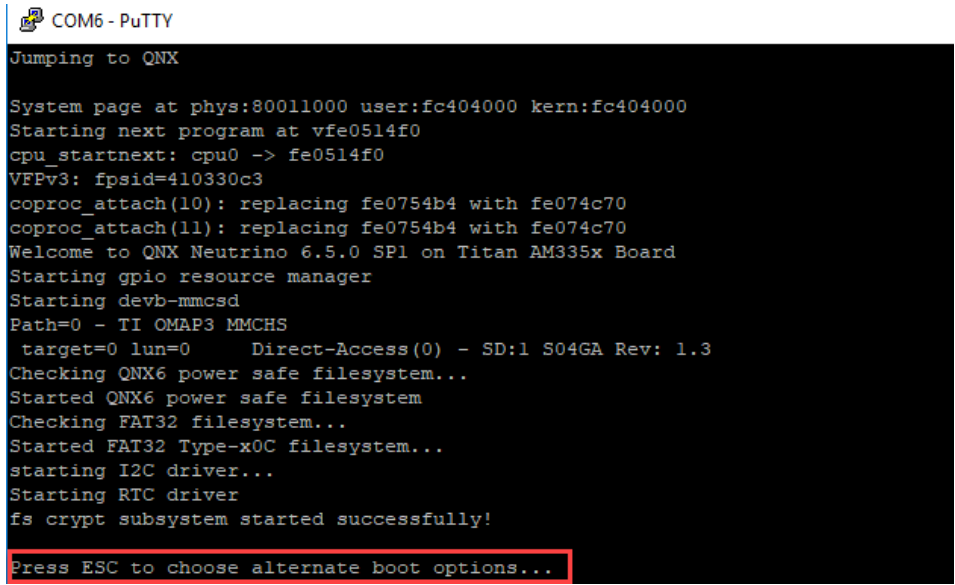
When the message
“Press ESC to choose alternate boot options…”
appears, press ESC.
-
-
Select the Reset Option
-
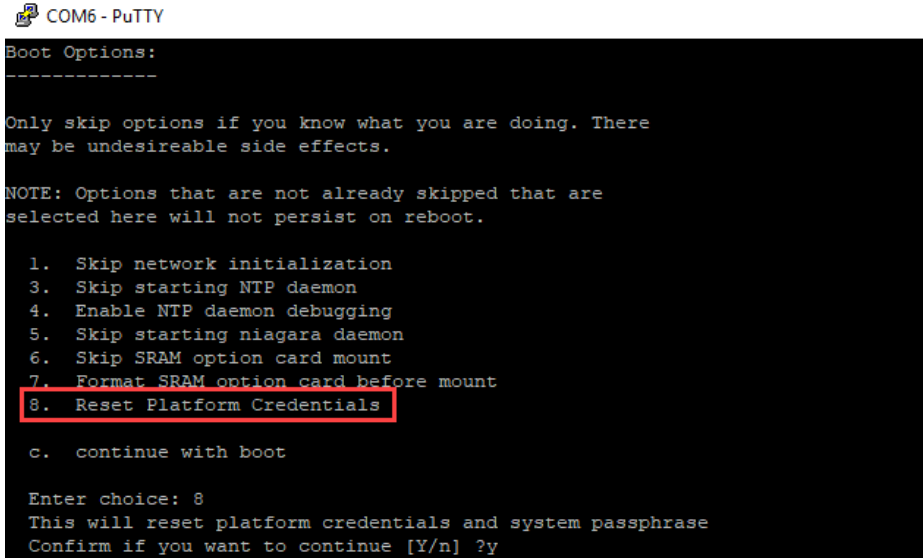
In the Shell menu, press 8 – Reset Platform Credentials.
-
-
Capture HostID and Token
-
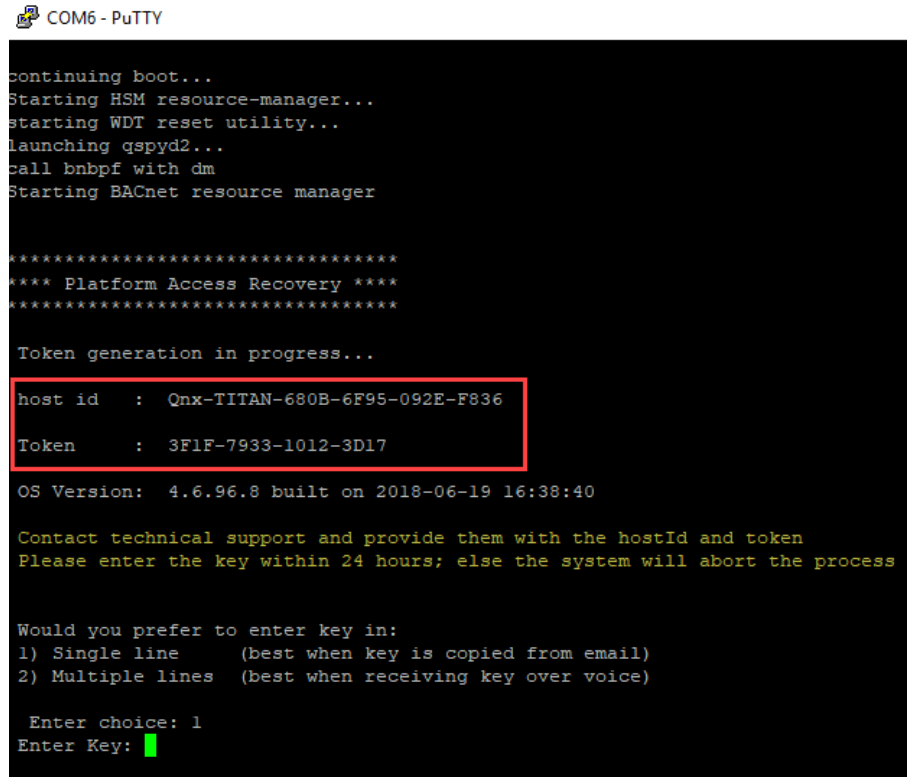
The JACE will display:
-
HostID
-
Token
-
-
Send both items to Forest Rock Technical Support:
support@forestrock.co.uk
(Forest Rock will forward the information to Tridium for validation.)
-
-
Receive and Enter the Reset Key
-
After processing, Tridium will provide a Reset Key.
-
Enter the key in Shell Mode within 24 hours to complete the credential and passphrase reset.
-
1. JACE-8000 Shell Mode: Look for “Press ESC to choose…” and press ESC
-
Select “Reset Platform Credentials” In the Shell menu, press 8 – Reset Platform Credentials.
-
Copy HostID and Token, Send to Forest Rock Tech Support (support@forestrock.co.uk) this information is needed for processing the reset token.
-
Once received, Enter Key to complete the process (within 24 hours)
Other Resources & Customer Survey:
💬 Don't miss out! Follow the Forest Rock News channel on WhatsApp Click Here!
💬 We’d also love your feedback! Please take a moment to complete our quick Customer Survey
It only takes a minute and helps us serve you better!

IoT Devices for BMS, Automation & Smart Connectivity | Forest Rock