

Prerequisites
Before you start, it’s worth taking a moment to confirm where the controller came from.
We can only request an unlock token if the JACE was originally supplied by Forest Rock Systems. The unlock process relies on Tridium issuing a token against the device’s host ID, and without that supply chain link in place, the request is likely to be rejected.
If you’ve recently inherited the site and the history is unclear, don’t leave this until you’re standing in front of the panel. Get ahead of it. A simple statement of ownership from the end user is usually enough for us to align the host ID under our supply chain.
From experience, this step saves a lot of wasted time, particularly those frustrating site visits where everything is ready to go, but the unlock request gets declined because the device isn’t recognised as one of ours.
Treat this as part of your pre-visit checks, just like confirming IP access or backups. It’s a small step that removes a big risk and a wasted day on site.
Supported Versions
Applies to: JACE-8000 and JACE-9000 running Niagara 4.4 or later.
Overview
Earlier generations of JACE controllers (J‑201, J‑300E, J‑600, J‑700) allowed engineers to reset platform credentials to factory defaults using Shell Mode via HyperTerminal or PuTTY.
With the release of the JACE‑8000, this method was removed and the System Passphrase was introduced to secure encrypted data. As a result, any attempt to recover unknown platform credentials or the system passphrase previously required a full factory reset using the backup button, which also erased the station.
From Niagara 4.4 onward, a new Shell Mode mechanism enables platform credential and system passphrase recovery without factory‑resetting or deleting the station.
Serial Connection Settings
Determine the COM port using Windows Device Manager under Ports (COM & LPT).
-
Connection Type: Serial
-
Baud Rate: 115200
-
Data Bits: 8
-
Stop Bits: 1
-
Parity: None
-
Flow Control: None
Recovery Procedure (Niagara 4.4 and Later)
-
Enter Shell Mode
-
Reboot the JACE-8000 or JACE-9000
-
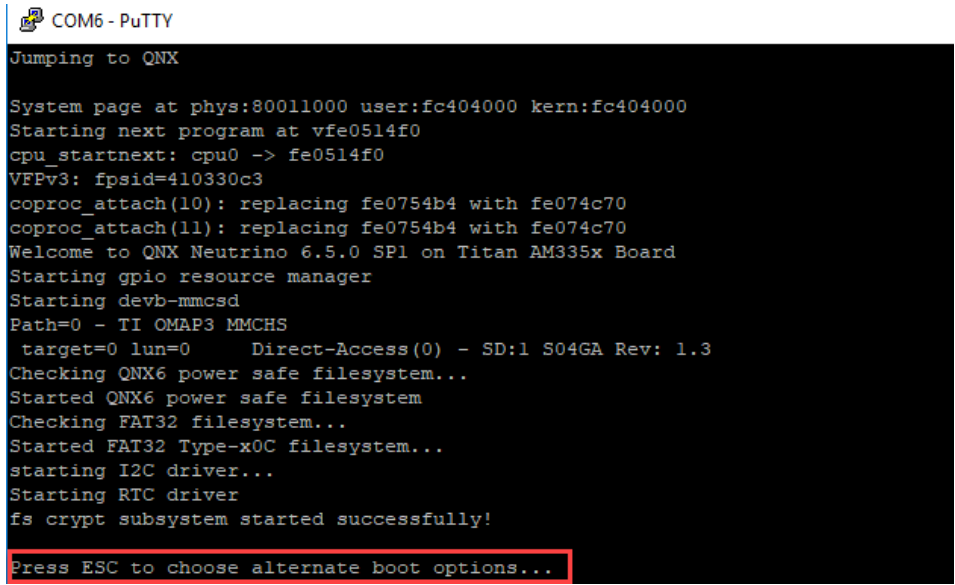
When the message
“Press ESC to choose alternate boot options…”
appears, press ESC.
-
-
Select the Reset Option
-
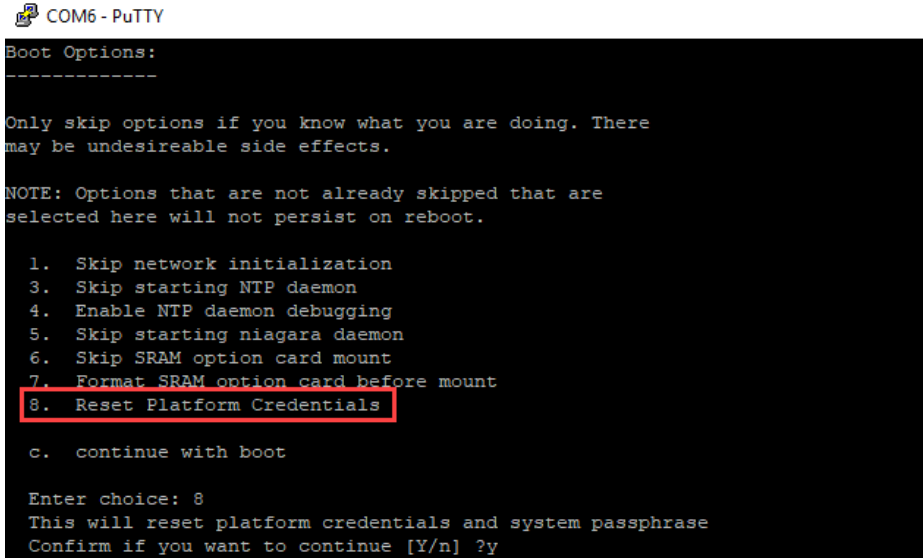
In the Shell menu, press 8 – Reset Platform Credentials.
-
-
Capture Details We Need
-
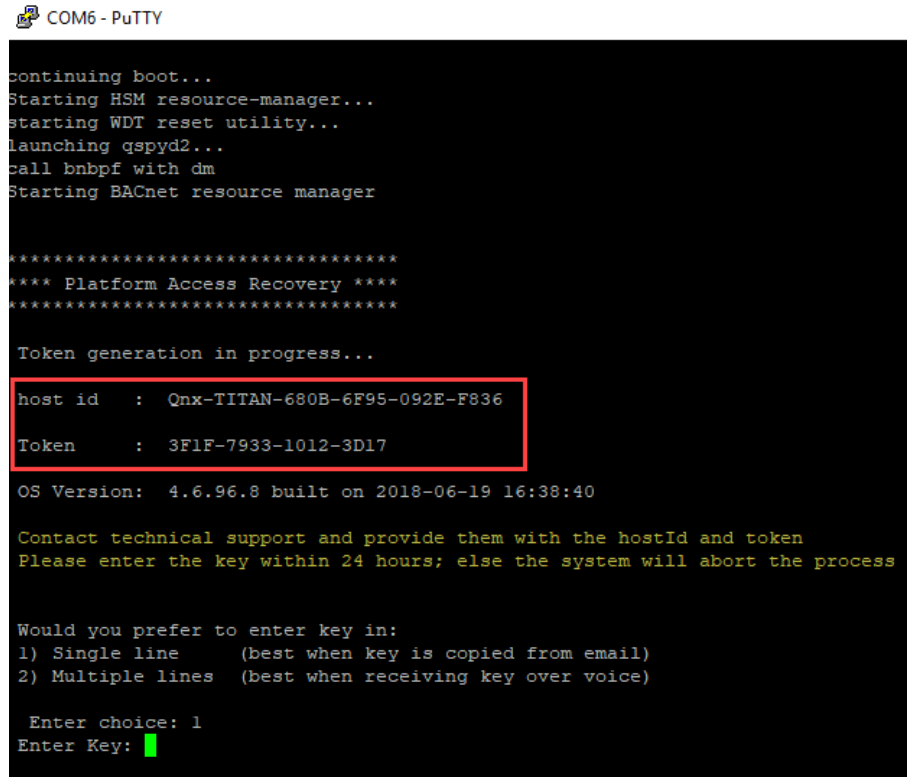
Copy the HostID, Token and OS Version displayed in Shell Mode.
-
Send the above details to Forest Rock Technical Support: support@forestrock.co.uk
(Forest Rock will submit the HostID, Token and OS Version to Tridium and, once validated, provide the resulting Reset Key.) -
-
-
Receive and Enter the Reset Key
-
After processing, Tridium will provide a Reset Key.
-
Enter the key in Shell Mode within 24 hours to complete the credential and passphrase reset.
-
Important: Token Validity and Session Management
Once Option 8 – Reset Platform Credentials has been selected, the JACE generates a unique HostID and Token for that recovery session.
Do not exit Shell Mode or reboot the controller while waiting for the Reset Key.
If the shell session is closed or the controller is restarted, a new token will be generated and any previously requested Reset Key will no longer be valid.
This means the laptop used to access the serial console may need to remain connected to the JACE while Forest Rock Technical Support obtains the Reset Key from Tridium and this process can sometimes take up to 24 hours.
Site Planning Recommendation
Because the recovery process may take some time, engineers should plan accordingly.
-
Leave the serial console session connected and active.
-
Avoid using the connected laptop for other site activities while awaiting the Reset Key.
-
Where possible, bring a second laptop or use an apprentice's laptop for ongoing maintenance, commissioning, backups or fault-finding tasks.
-
If only one laptop is available, be aware that it may be tied up maintaining the shell session until the recovery process is complete.
Common Mistake
A common mistake is to exit Shell Mode after sending the HostID and Token to Technical Support, then reconnect later when the Reset Key arrives. Doing so will generate a new token, causing the previously issued Reset Key to be rejected and requiring the process to be started again.
Steps
1. JACE-8000 Shell Mode: Look for “Press ESC to choose…” and press ESC
-
Select “Reset Platform Credentials” In the Shell menu, press 8 – Reset Platform Credentials.
-
Copy the HostID, Token and OS Version and send them to Forest Rock Technical Support (support@forestrock.co.uk). This information is required to process the reset token request.
-
Once received, enter the Reset Key to complete the process (within 24 hours).
Single-Line vs Multi-Line Token Entry
Support regularly gets calls from engineers wondering which option to choose.
When the reset token is received, select either the Single-Line
or Multi-Line option depending on the format supplied by Technical Support.
Result
Once the Reset Key has been accepted, the JACE platform credentials and system passphrase can be reset without performing a factory reset or affecting the station database.

Other Resources & Customer Survey:
💬 Don't miss out! Follow the Forest Rock News channel on WhatsApp Click Here!
💬 We’d also love your feedback! Please take a moment to complete our quick Customer Survey
It only takes a minute and helps us serve you better!

IoT Devices for BMS, Automation & Smart Connectivity | Forest Rock