

Troubleshooting Niagara FOX / FOXS Connectivity Issues (Workbench and Niagara Network)
The Problem
Niagara Workbench or Niagara Network FOX/FOXS connection to a remote Niagara station is unsuccessful.
Users require a structured method to diagnose and resolve connectivity issues between stations or when connecting via Workbench.
Overview
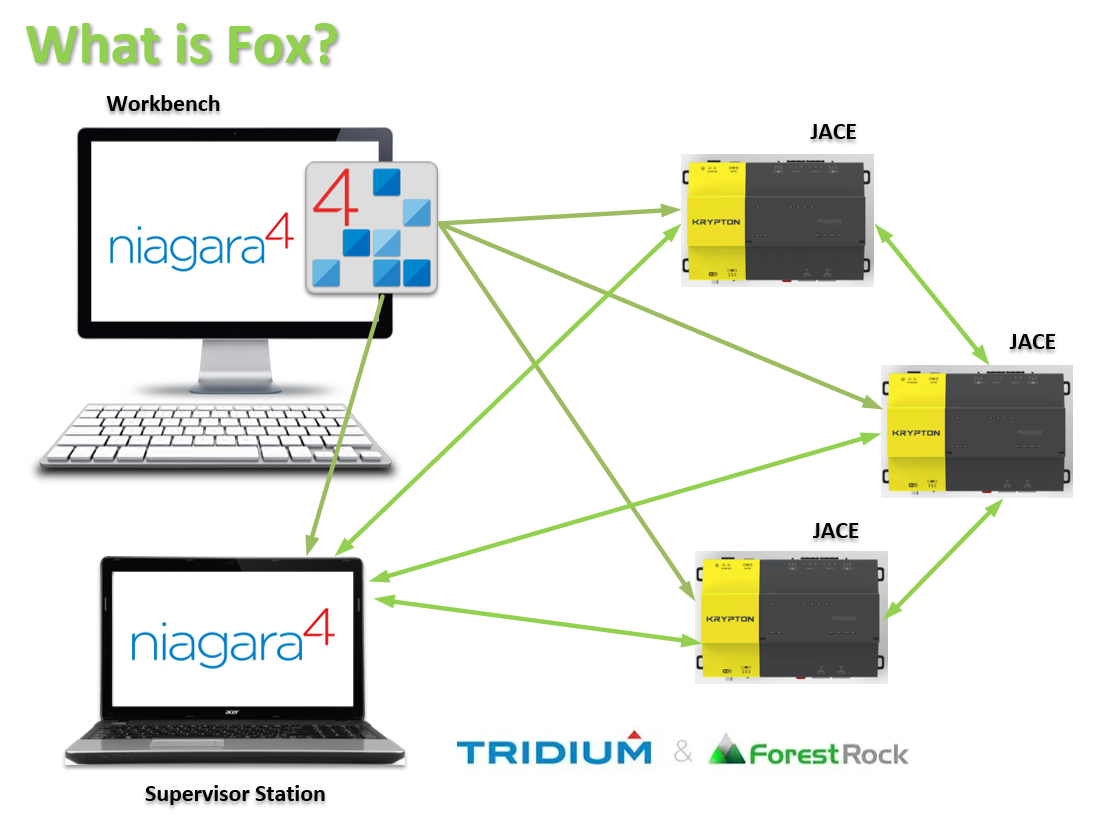
Niagara Workbench and Niagara Network both use the FOX protocol for communication.
-
Workbench acts as a client connecting to a remote station (server).
-
Niagara Network connections are peer-to-peer, where stations act as both clients and servers.
Understanding this client/server relationship is critical:
-
The Client = station initiating the connection
-
The Server = remote station being connected to
Most FOX connectivity issues are caused by:
-
Incorrect NiagaraStation configuration
-
Firewall blocking ports
-
Version or security compatibility issues
Applicable Systems
-
Niagara AX (with Security Update versions)
-
Niagara 4 (all supported versions)
Key Requirements for FOX Connectivity
Each station involved must contain:
Niagara 4
-
FoxService → Located under
Services -
NiagaraNetwork → Located under
Drivers
Niagara AX
-
FoxService → Located under
NiagaraNetwork
Common Causes of Failure
1. Firewall Blocking Ports
Default FOX ports:
-
FOX (non-secure): TCP 1911
-
FOXS (secure): TCP 4911
✅ Confirm:
-
Ports are open on:
-
Local PC firewall
-
Site firewall / VLAN
-
Any routed network path
-
2. Incorrect NiagaraStation Configuration
Check the following properties:
|
Property |
Requirement |
|---|---|
|
Enabled |
Must be |
|
Address |
Correct IP address (avoid hostname) |
|
Port |
Must match remote FoxService |
|
Use Foxs |
Must match remote configuration |
|
Username |
Must exist with correct permissions |
|
Password |
Must be valid |
FOXS-specific requirements:
-
Remote station Foxs Enabled = True
-
Port must match Foxs Port (default 4911)
-
Certificate must be approved in Certificate Manager → Allowed Hosts
3. Certificate Approval (FOXS Only)
When using FOXS:
-
First connection triggers certificate exchange
-
Certificate must be manually approved
✅ Navigate:
Station → Certificate Manager → Allowed Hosts
Approve any entries with:
-
Approval = No
4. Niagara AX ↔ N4 Compatibility Issues
To connect AX → N4 via Niagara Network:
Required AX versions (Security Update builds only):
|
Version |
Minimum Build |
|---|---|
|
AX 3.5 |
3.5.406 |
|
AX 3.6 |
3.6.407+ |
|
AX 3.7 |
3.7.108+ |
|
AX 3.8 |
3.8.111+ |
Cipher Suite Requirement
If connecting older AX (< 3.8u3 / 3.8.311):
-
Set in N4 FoxService:
Cipher Suite Group = Supported
❗ If set to Recommended, connection will fail.
Known Error:
IncompatibleVersionException: NiagaraAX Station Connections Unsupported
✅ Resolution:
-
Change Cipher Suite Group → Supported
5. FoxService Configuration Issues
Verify the following:
|
Property |
Requirement |
|---|---|
|
Fox Enabled |
True (for FOX) |
|
Fox Port |
Default 1911 |
|
Foxs Enabled |
True (for FOXS) |
|
Foxs Port |
Default 4911 |
|
Foxs Only |
Forces secure connections |
|
Authentication Policy (AX) |
Must be "Digest" when connecting to N4 |
Timeout Settings
Typically leave default:
-
Request Timeout = 1 min
-
Socket Timeout = 1 min
Increase only if latency is confirmed.
6. Reciprocal Niagara Station Issue
When a station connects:
-
The remote station automatically creates a reciprocal NiagaraStation
-
This is:
-
Disabled
-
Often incorrectly configured
-
Common issue:
-
Address set to hostname instead of IP
Fix:
-
Replace hostname with IP address
-
Fully configure if required
7. Workbench Connection Issues
Common issues:
-
Corrupt or stale Nav entries
-
Duplicate station names
-
Cached credentials
Steps to resolve:
-
Re-enter credentials
-
Remove node from Nav
-
Reconnect via:
File → Open → Open Station
8. Duplicate Hosts in Workbench
Having multiple entries for the same station name can cause:
-
Hanging connections
-
Failed authentication
Resolution:
-
Remove duplicate hosts
-
Leave only one instance per station
9. Basic Network Verification
Always validate before deep troubleshooting:
From Command Prompt:
ping <IP address>
Confirms:
-
IP reachability
-
Network path availability
Best Practice Checklist
Before escalating, confirm:
-
Correct IP address (no hostname issues)
-
Ports 1911 / 4911 open end-to-end
-
NiagaraStation enabled and correctly configured
-
FoxService enabled on remote station
-
Cipher Suite compatibility verified
-
Certificates approved (FOXS)
-
No duplicate Workbench Nav entries
-
Network connectivity confirmed (ping test)
Summary
FOX connectivity failures are typically not caused by defects, but by:
-
Configuration mismatches
-
Firewall restrictions
-
Security/cipher incompatibility
-
Certificate approval issues
Systematic checking of NiagaraStation configuration, FoxService settings, and network accessibility will resolve the majority of cases.
Troubleshooting a Niagara Network connection failure-
Things to check when there are Fox connectivity problems between Niagara Stations. Much of the troubleshooting can be performed using Workbench. This troubleshooting list assumes that any physical LAN issues affecting connectivity have been addressed.
-
Often the fix is to simply re-enter the client connection password. The password could be lost during an upgrade or station install if the security folder is lost or corrupt.
-
Check with IT and make sure that the Fox ports in use are not being blocked by any firewall (default 1911 and 4911). Also check the Supervisor PC for virus protection software and Windows Firewall. You may need to add an inbound rule to Windows Firewall to open the Fox port(s).
-
You see the error in the Station Dialog ERROR: MessageReader: Expected 'f', got <something else> . This symptom is is consistent with attempting to connect to a foxs port with a fox connection. It can also occur when our device is scanned by a cybersecurity scanner (or a malicious tool probing for vulnerabilities). Insure that the Fox ports in all stations are correct. Make sure that foxs=true/false is set correctly. If the issue persists, then you should use Wireshark or a similar tool to determine what network traffic corresponds with the error message, and what host it is coming from.
-
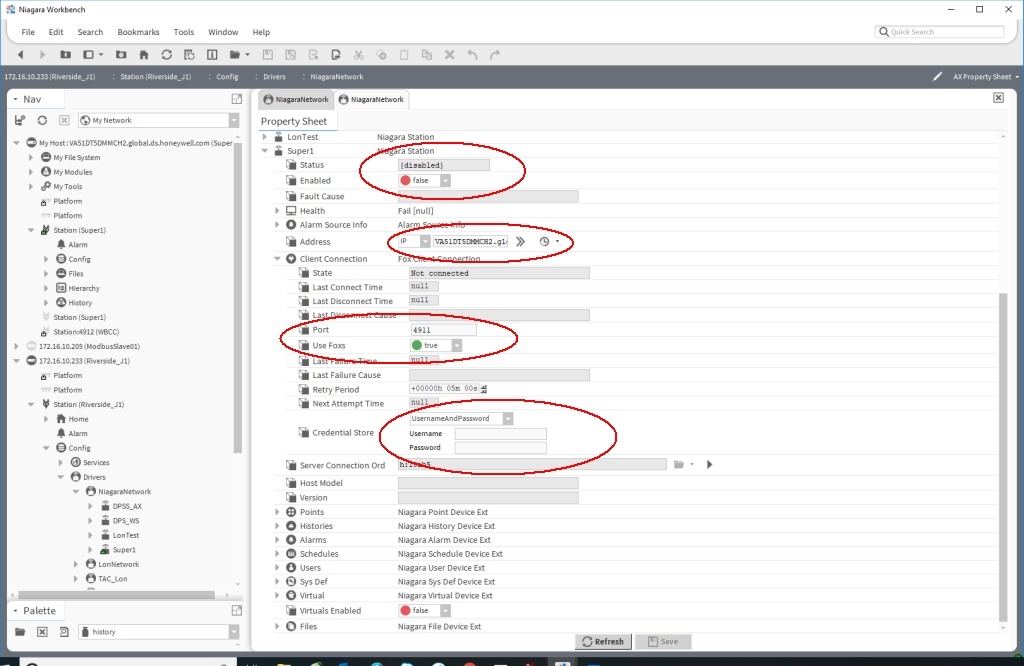
Using Workbench, open the client side Niagara Network property sheet. Expand the Niagara Station having connectivity issues. Review the Niagara Station properties listed above, making sure they are configured correctly. Verify that the ‘Address’ property is correct. It is recommended that the ‘Address’ property contain an IP address and not a Host Name.
-
Using Workbench, open the server station (the remote station to which you are trying to connect via Niagara Network). Open the User Manager and verify the that the Fox user (#5 above) is correctly setup in the remote station. Verify the user in the remote station has an Authentication Scheme and a Role.
-
Using Workbench, on the remote station, open the property sheet of the Fox Service. If using Foxs, make sure that 'Foxs enabled' is set to true and also make sure that the TCP port settings match.
-
Duplicate station names will generate 'Rejected' messages in the application director, which is a clue that two or more stations are using the same station name. These duplicate stations will fight for a Fox connection, kicking each other out. Look in station 'Spy'. Click on 'fox', then 'Fox log index'. Scroll down the list of stations listed in the log and look for duplicate station names [inside square brackets] having different IP addresses. You must change the station names so they no longer match. This will involve saving the Jace station to your local PC, renaming the folder and then re-installing the station.
-
Duplicate stations within the same station's NiagaraNetwork can cause failure to load the Niagara Station Manager and also failure to expand the nav tree.
-
You will see a 'javax.baja.naming.UnresolvedException: e6b27b' exception (the characters after the colon will vary).
-
You need to find and remove the duplicate station(s).
-
Use this BQL to find the stations - 'station:|slot:/|bql:select * from niagaraDriver:NiagaraStation' (control key + L and paste in the ord).
-
After the duplicate station is removed you will need to restart the station for the Niagara Station Manager view to display correctly.
-
-
If using Foxs make sure the certificate in the server station is valid. Using Workbench open the station's Certificate Manager and view the certificate. Check the ‘Not Before’ and ‘Not After’ dates of the certificate. Verify that the certificate under 'Allowed Hosts' has been approved.
-
If wanting to use Fox (not FoxS) and unable to connect, use FoxS in Workbench to open the Fox Service property sheet and make sure that 'Fox Enabled' is true and the correct TCP port is set (default is 1911). Also verify that 'Foxs only' is set to FALSE. Again, make sure the Fox TCP port is not being blocked.
-
You can look in the Workbench Application Director and verify that the correct Fox ports are showing up under 'Details'.
-
Check the Station Date and Time and make sure they are correct and that the certificate times are valid. A valid certificate is required for FoxS connectivity. Use Workbench, right click on the station in the tree, 'Views', 'Station Summary'. Check current time. You can also look in Services, Platform Services.
-
Check the ‘Last Failure Cause’ in the Client Connection property sheet. This can be helpful in finding the reason for failure to connect.
-
Using the property sheet of the Niagara Station that is acting as the client, right click on the ‘Client Connection’ and perform the action ‘Manual Connect’. You can also select the Niagara Station and perform the action ‘Ping’. This can quickly test connectivity to see if your changes have corrected the problem.
-
If you are troubleshooting AX to AX fox connections, verify that the 'Legacy Authentication' property of the Fox Service matches in all stations.
-
A more advanced check is using a serial shell connection. From the Main Menu in serial shell, try pinging the remote host to verify LAN connectivity. Correct any LAN issues or TCP/IP settings.
-
PENDING SUBSCRIBE/UNSUBSCRIBE is typically caused by having more than one Fox Service in a station. Use the Batch Editor to search for 'Custom Type', 'Fox', 'FoxService'. AX 'FoxService' lives under the Niagara Network. N4 'FoxService' lives in the 'Services' folder. Remove any extra 'FoxService' from the station and restart.
-
'java.io.IOException: Could not acquire peer certificate to process exemption.' Generally seen when you ask for an encrypted connection but use the non-secure port.
Also could happen if the port needed is blocked. This error can happen when a legacy JACE (Jace600, Jace300) is slow to process a request for a certificate when using FoxS (TLS). In the last case adding a delay in the Supervisor's 'system.properties' file will often correct the problem.-
Add this line and restart the Supervisor (time is milliseconds) - niagara.socketFactory.hardTimeout=75000
-
The 'system.properties' is located in the 'defaults' folder where Niagara build is installed.
-
Start with 75000 milliseconds. Might increase the time slightly by a few more milliseconds if needed.
-
-
Seeing 'SEVERE [08:22:26 12-May-21 EDT][fox] Failsafe timeout on read 129610ms > 60000ms' in station dialog and fox connections closing. Followed by 'javax.baja.xml.XException: java.io.IOException: circuit closed'
-
This could be caused by an actual network problem such as bad switch or NIC card.
-
Using Wireshark to capture network traffic can be helpful.
-
Look in station Spy, fox, log index and examine the fox connections.
-
Note the Niagara Stations circled in red. These Niagara Stations represent the other stations involved in the Fox connection with the station. These Niagara Stations will be clients to the remote station they represent. And these remote stations will be clients to the Fox Service of this station. You can view all server connections on the Property sheet of the Fox Service (see Figure 8).
Figure 1
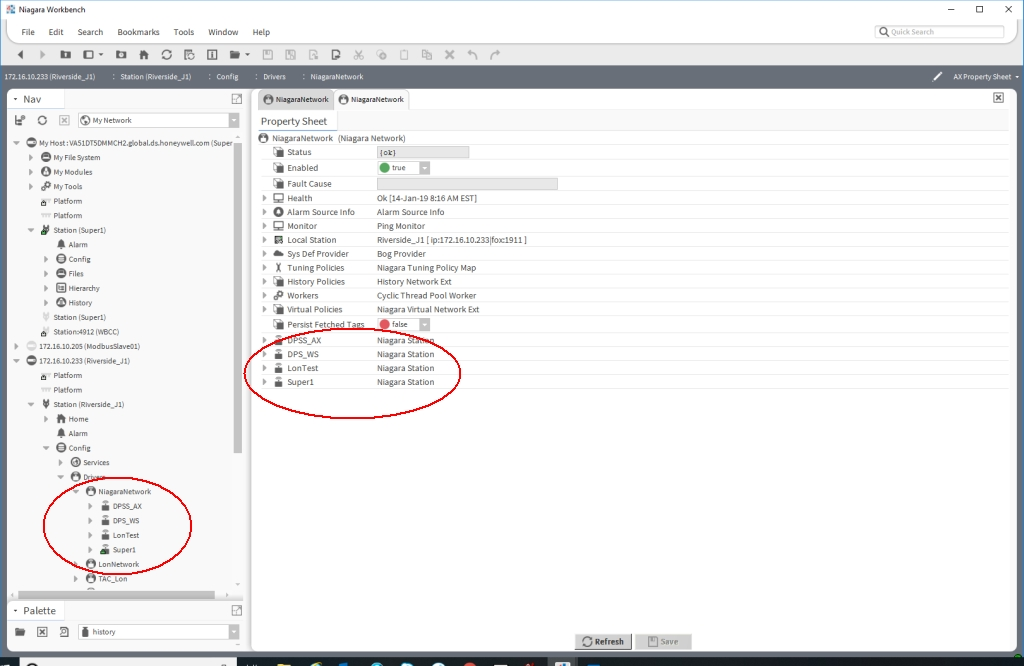
Figure 2
Always check the ‘Last Failure Cause’ in the client connection property sheet.
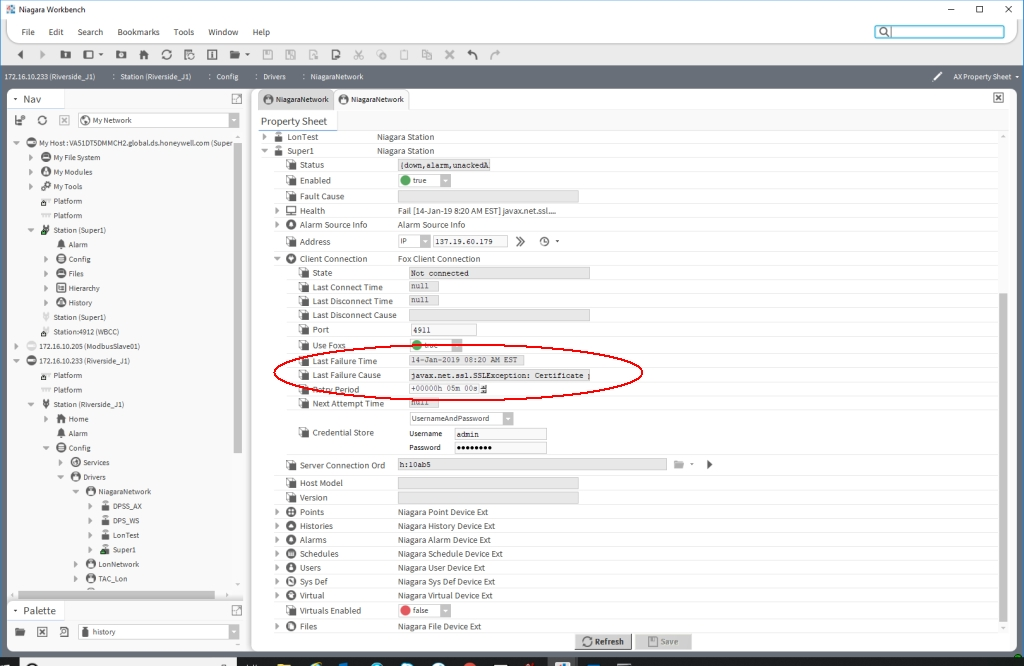
If the Last Failure Cause is “javax.net.ssl.SSLException: Certificate private key for exemption <137.19.60.179:4911> has changed”
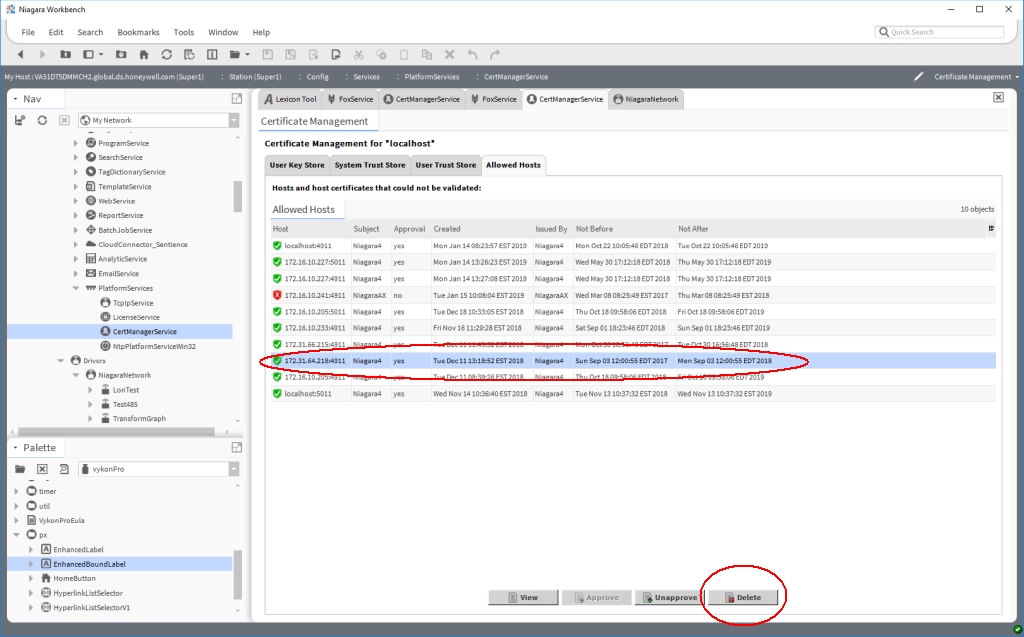
Then you need to delete the certificate in the client’s Certificate Manager ‘Allowed Hosts’ and attempt a new connection. After deleting the certificate, simply right click the Niagara Station in the property sheet and perform the action ‘ping’. This will cause the remote station to reply and resubmit its certificate.
Figure 4
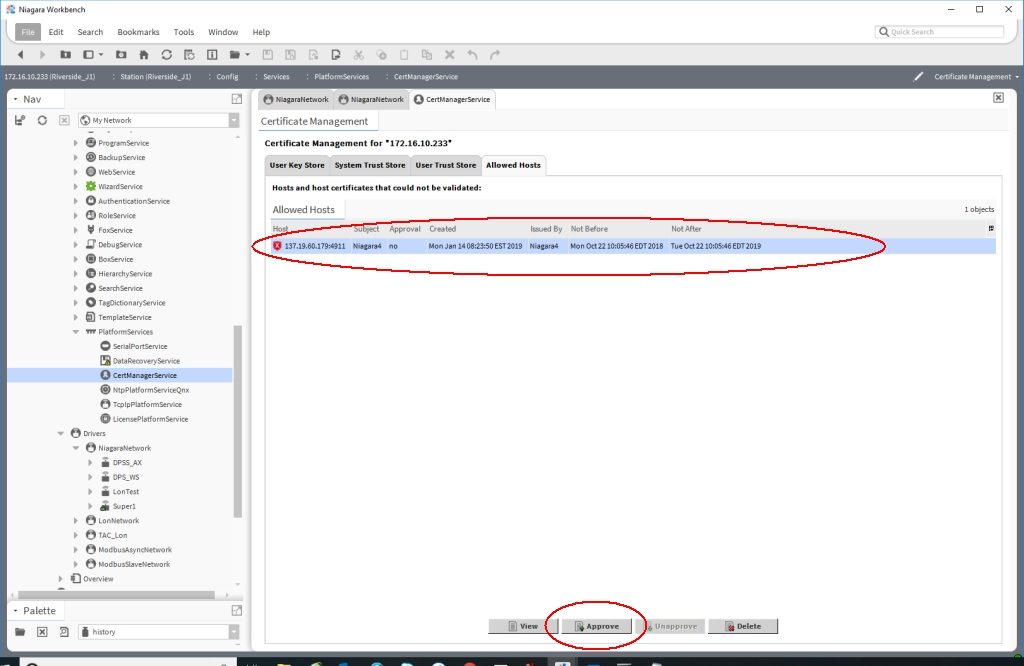
Check the Certificate Manager ‘allowed hosts’ and approve the new certificate. Connection should now be successful.
Figure 5
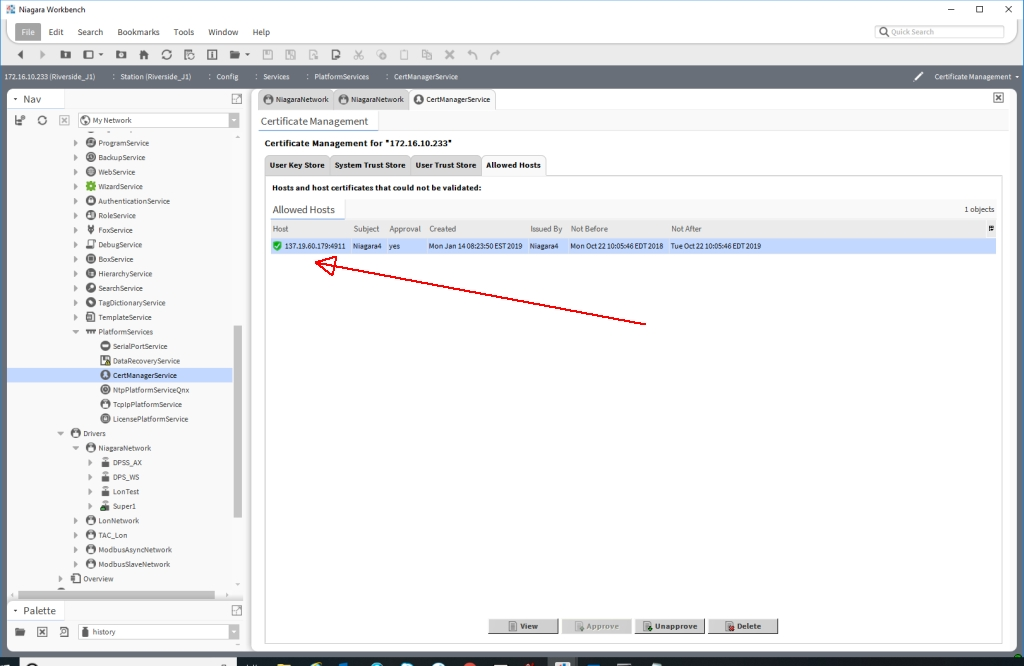
New certificate in the client has been approved.
Figure 6
Client connection now successful.
Figure 7
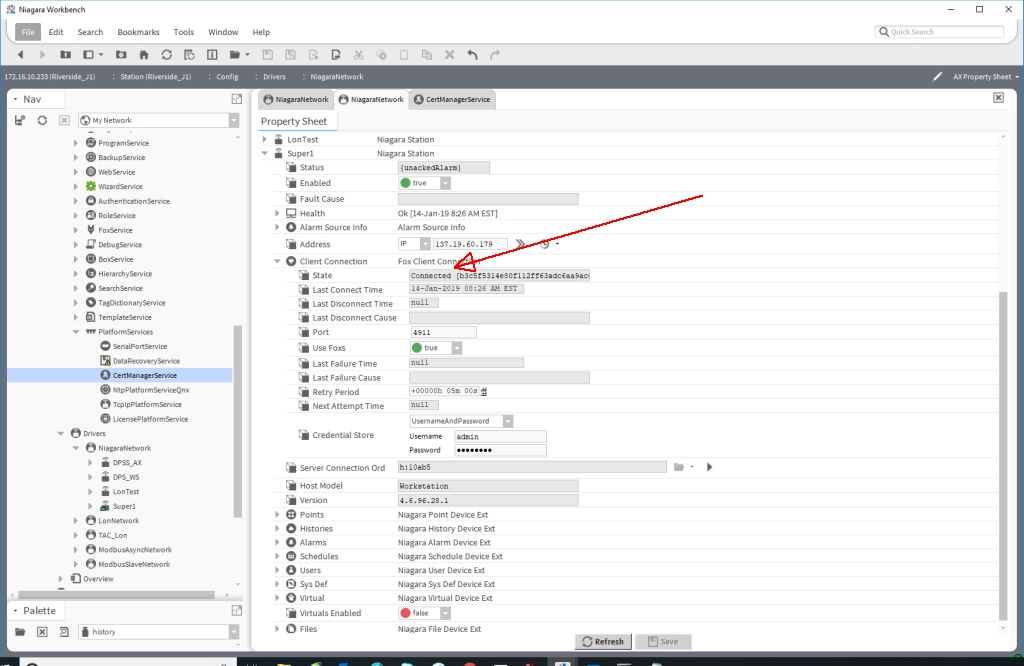
The server connections can be viewed in the Fox Service property sheet. You can verify a Niagara Station has connected by looking at the State of the server connection.
Figure 8
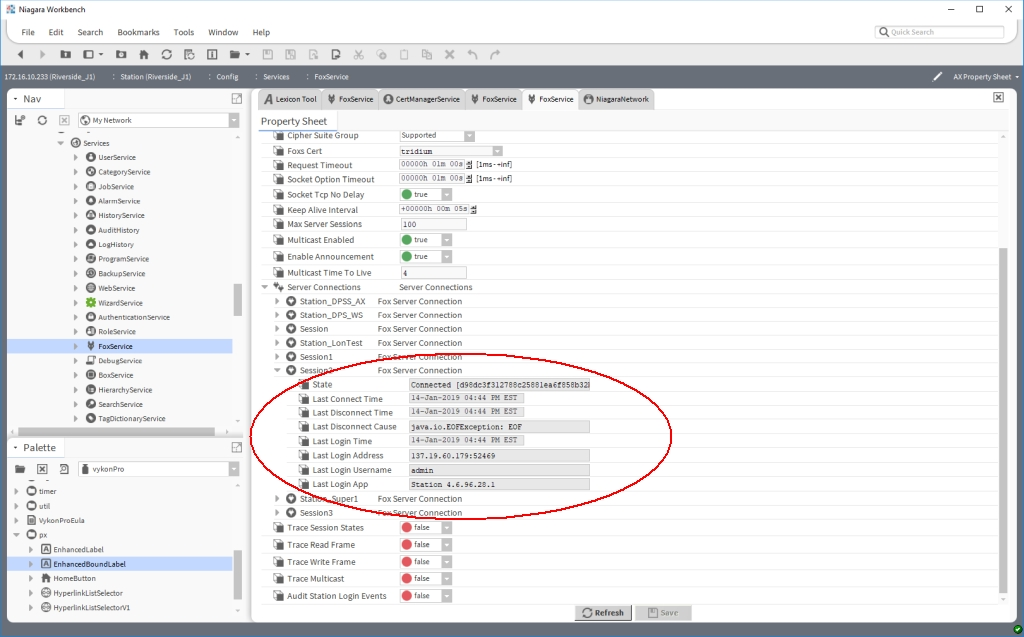
Problem:
Supervisor will not stay connected to subordinate JACE hosts. Client connection state goes from connected to not-connected. Client Connection's Last Fault Cause is "java.io.EOFException: EOF". Points may be stuck in pending-subscribe state.
Solution:
This problem state can occur when there's an extra instance of the same station running on the network.
Login to the Station on one of the affected subordinate hosts. Navigate to Services>FoxService>ServerConnections. Find and expand the connection for the Supervisor Station connecting to the JACE, as seen in the image below:
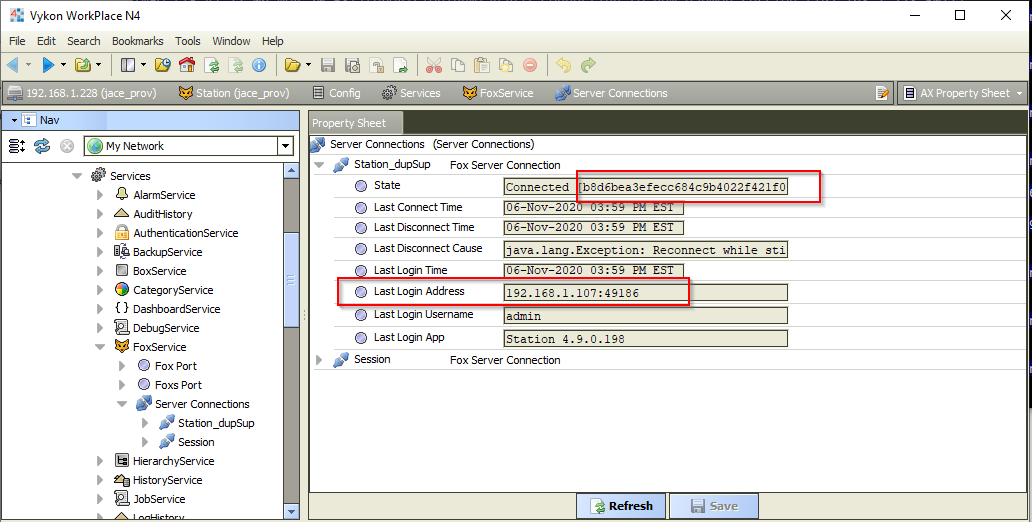
If you observe that the blob-value in the state property keeps changing, in sync with the value for the last-login-address property also changing, then you know that two hosts with the same Station name, are both trying to stay connected simultaneously. This problem should be resolved by using the two changing values of the last-login-address property, to identify both hosts, and shut down the one that should not be connecting.
Problem:
Station object in Niagara Network won't ping.
On the Client Connection:
-
lastConnectTime and lastDisconnectTime are hours or days old, despite recent attempts to ping
-
lastFaultCause is consistent with a timeout
Solutions:
Option 1) Restarting the Station will fix this.
Option 2) On the Station object, modify the name, IP address, and set enabled=false . Create a new Station object that matches the original configuration, and invoke ping, insuring that ping is successful. If needed, make an exception for self-signed certificate in Certificate Manager, and invoke ping again. Once connection is established, delete the new Station object, and restore the original Station object properties, and then invoke the ping action.
Problem:
Fox connection unstable due to incorrect concurrent-session setting on User Object.
Solution:
The Allow Concurrent Sessions property should normally be set to true on the User that is used for Station to Station connections. When set to false, a new session connection will invalidate the previously opened session for that user, if one exists. If a second Niagara Station attempts a connection using the same User name, it can result in EOFException messages and other undesirable symptoms for the Station that previously had a session open.
Problem:
Fox connection unstable on VPN networks reporting invalid MTU
On several sites, customers have encountered unstable Fox connections on sites with networks (primarily VPN connected networks) in scenarios where the reported MTU size is not valid.
Fox is a protocol that uses a subscriber/publisher mechanism to optimize use of network bandwidth for points subscriptions. The publisher updates the points subscriber in batches, using packets that match the maximum transmission unit (MTU size). When a network router advertises an MTU size greater than what it can actually handle, Fox communications fail in unexpected ways. This may manifest problems like, failure to replicate in the case of Enterprise Security.
The following are some examples of Station Output that has a correlation with this problem:
|
java.io.EOFException: EOF
|
|
SEVERE [11:53:46 14-Apr-21 EDT][fox.point] Sending batches
|
|
java.io.InterruptedIOException
|
|
Failed [08:54:43 25-May-22] Job Failed
|
|
SEVERE [10:53:25 19-Jul-21 EDT][orionTools.replicate] Failed replicating station Bldg_40_Security: entsec:AccessControlService
|
Solution:
Ultimately, the solution will be provided by the site's IT department, or whoever manages the router that reports the MTU size to the networks that the Niagara hosts reside on. It must report the correct MTU size. But you can test to see whether or not this is truly the source of your problems.
To test MTU size using Windows:
-
From a command prompt on a Windows PC connected to the network, run "ipconfig /all". Identify which network adapter is connected to the network you are troubleshooting. Note its name, IP address, subnet mask, and default gateway.
-
Run "netsh interface ipv4 show subinterfaces". In the table that is printed, find the row where _interface_ name matches network adapter name from step 1. Find the corresponding MTU (first column).
-
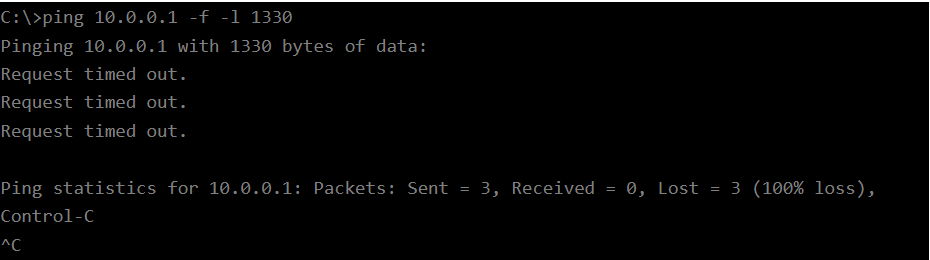
Subtract 28 from the reported MTU size (that's what the router told us it can support). For example, if MTU is 1358, then 1358-28=1330. Use that number in the following command: "ping <host> -f -l 1330". The first argument will be an IP address or host name. Try a reachable IP address that will go through the router (i.e. a remote Niagara host). The "-f" flag instructs the ping command not to fragment. In this way, we get an error if we our packet is too big. The "-l" flag sets the buffer size. 28 bytes are used for headers - so, that's why we subtract 28. The result *should* be the same as the response to a standard ping message (i.e. "Reply from 4.2.2.1: bytes=1330 time=55ms TTL=54"). If standard ping works, but you get 100% packet loss when using the calculated maximum buffer size, then the network does not support the MTU size that it claims it does. Note: If the command prints "Packet needs to be fragmented but DF set", then the buffer size exceeds the reported MTU size and no packet has been sent. Check your math, and try a smaller buffer size.
Example of 100% loss, indicating a failure to deliver packets:
To test MTU size using QNX:
-
Connect to serial shell or via SSH and enter "sh" to exit the menu and drop to a shell
-
Send the command "ifconfig". The MTU value will be identified for each adapter.
-
Subtract 28 from the reported MTU size (that's what the router told us it can support). For example, if MTU is 1358, then 1358-28=1330. Use that number in the following command: "ping -D -s 1330 <host>". The argument "-D" sets the "Don't Fragment" bit in the IP header. And "-s 1330" sets the buffer size. If standard ping works, but you get 100% packet loss when using the calculated maximum buffer size, then the network does not support the MTU size that it claims it does. Note: If the command prints "ping: sendto: Message too long", then the buffer size exceeds the reported MTU size and no packet has been sent. Check your math, and try a smaller buffer size.
Example of 100% packet loss, indicating a failure to deliver packets:

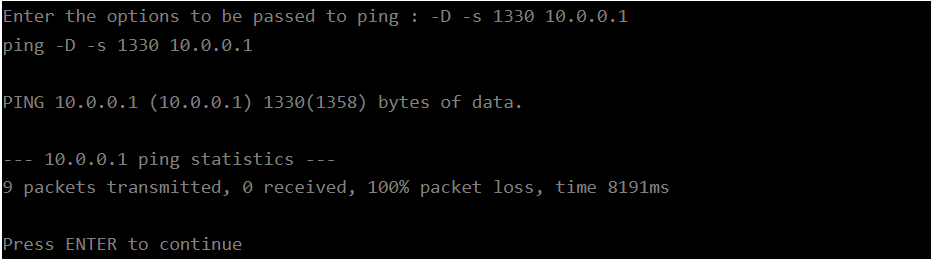
To test MTU size using JACE-9000:
-
Connect to serial shell and login.
-
Choose the option to Ping Host.
-
Subtract 28 from the reported MTU size (that's what the router told us it can support). For example, if MTU is 1358, then 1358-28=1330. Use that number in the following command options: "-D -s 1330 <host>". The argument "-D" sets the "Don't Fragment" bit in the IP header. And "-s 1330" sets the buffer size. If standard ping works, but you get 100 when using the calculated maximum buffer size, then the network does not support the MTU size that it claims it does. Note: If the command prints "ping: sendto: Message too long", then the buffer size exceeds the reported MTU size and no packet has been sent. Check your math, and try a smaller buffer size.
Example of 100% packet loss, indicating a failure to deliver packets:
This article will be updated over time to reflect new suggestions and features with the JACE 9000 Hardware