

Our Dev Team Have Released A New SMS Driver Module
Last Updated:
Applies To: Teltonika RUT241 with a compatibility matrix of six options, combining the following three Teltonika firmware versions:
-
RUT2M_R_00.07.14.3_WEBUI.bin (the earliest we now support because of TLS)
-
RUT2M_R_00.07.19.4_WEBUI.bin
-
RUT2M_R_00.07.23.4_WEBUI.bin (latest but not yet marked by Teltonika as stable)
Audience: Field Engineers, Support Technicians
Purpose: Ensure that Teltonika modems are running a firmware version that is compatible with the latest Forest Rock SMS Driver with the following two Tridium Niagara versions:-
Daemon and workbench N4.10.1
-
Daemon and workbench N4.15.1
TeltonikaSMS Module Guide: New SMS Guide available from our download site.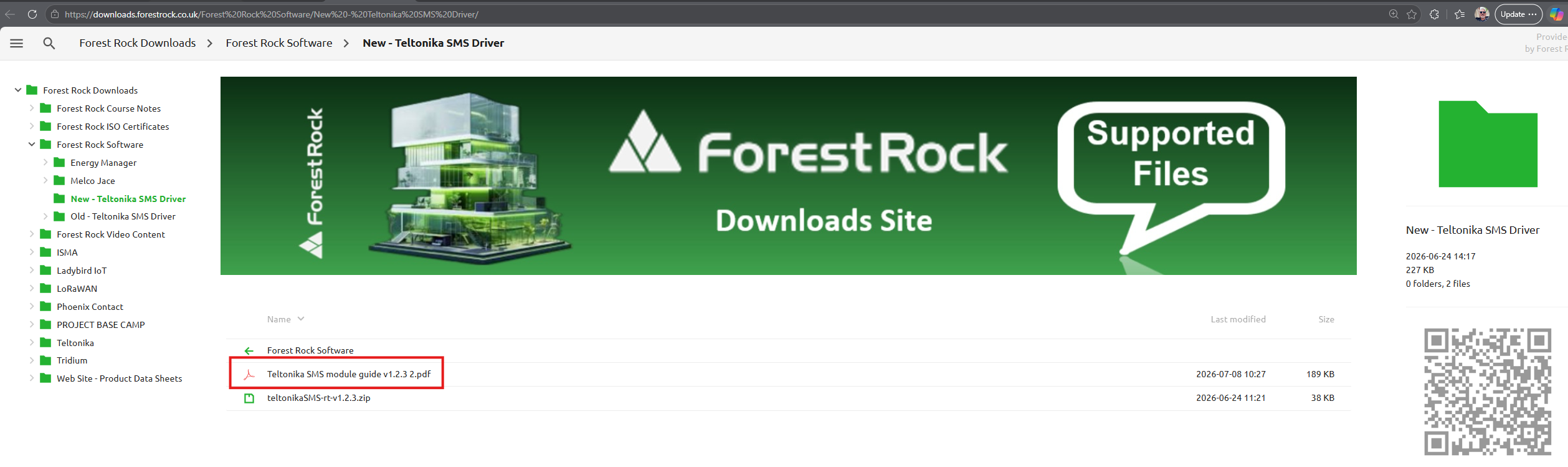
-
TeltonikaSMS Module Guide (Version: 1.2.3.2)
Introduction
Forest Rock previously needed to provide multiple releases of this module to accommodate firmware changes introduced in Teltonika versions up to and including 7.14.
We recognised the inconvenience this caused and have now enhanced the driver to improve compatibility with future Teltonika firmware revisions, reducing the need for version-specific updates wherever practical and reducing the need to downgrade the firmware in the Teletonika router.
The main breaking change occurred when Teltonika withdrew support for an older, less secure style of application programming interface (API). This API handled essential driver functions such as:
-
Determining the router's modem ID
-
Sending SMS messages
This older API did not use Transport Layer Security (TLS) and has now been replaced by a new:
-
REST-based API
-
Communicating over secure HTTPS only (no HTTP support)
TLS and Certificate Handling
A natural consequence of this change is that the Teltonika router will now present a signed digital certificate to the driver.
-
The certificate must be approved by the user
-
The driver will not automatically trust certificates
Instead, the TeltonikaSMSService property sheet will:
-
Notify the user via Workbench that approval is required
-
Require a station restart after approval
Prerequisites
Before configuring the TeltonikaSMS module, ensure the following:
-
A Teltonika router with SMS support
-
Router and host machine connected on the same network
-
TeltonikaSMS module installed on the host
NOTE: The host is correctly licensed by Forest Rock to use the module
Configuration
Follow these simple steps to install and configure the module:
1. Install the Module Locally
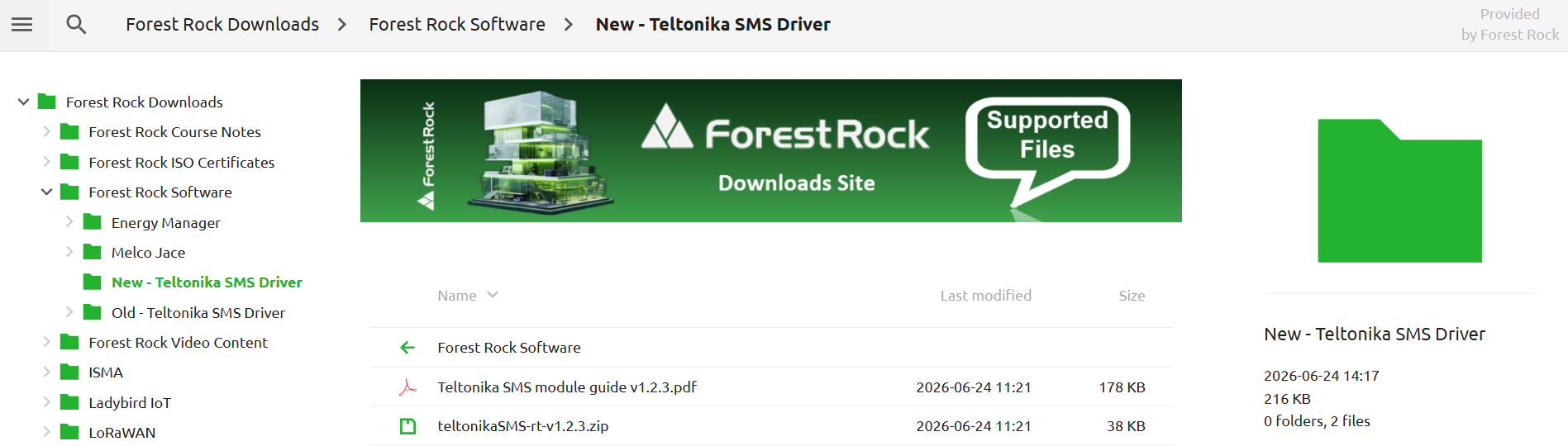
Download and copy the file: New SMS Driver ZIP
teltonikaSMS-rt.jar
Into:
C:/Niagara/Niagara-4.X/modules

2. Restart Workbench
Launch or restart the appropriate Workbench version.
3. Connect to Platform
Connect to the platform of the target host.
4. Deploy Module
Using Software Manager:
-
Copy the module to the required host
5. Restart Station
Restart the remote station using:
Application Director
6. Connect to Station
Reconnect to the remote station via Workbench once it has launched.
7. Open Palette
Open the:
TeltonikaSMS palette
8. Add SMS Service
Copy:
TeltonikaSMSService
Into:
Config → Services
9. Configure Service Fields
Complete all required fields:
-
IP address
-
Username
-
Password
Notes:
-
Protocol is read-only (https://)
-
Port is read-only (443)
10. Enable the Service
Ensure:
Enabled = true
This should only be set to false if you intentionally want to pause driver operation.
11. Certificate Approval (First Use Only)
On initial setup:
-
The Teltonika router presents a TLS certificate
-
Service status will show as:
DOWN
Check Service Health
Open the Service Health component and review:
-
Is Certificated -
Last Failed Certificate Timestamp -
Certificate Diagnosis
Approve Certificate
-
Go to Workbench → Certificate Management
-
Approve the Teltonika certificate
-
Restart the station
12. Confirm Successful Connection
After restart:
-
Service status should be:
OK
-
In Service Health:
Is Certificated = true
13. Add SMS Recipient
Copy:
SMSAlarmRecipient
Into the desired wiresheet.
14. Enter Mobile Number
Enter the destination mobile number following these rules:
-
Do not include
+ -
Do not include spaces
-
Do not include leading zero
Example (UK)
Original:
07475 411668
Correct format:
447475411668
15. Customise Message
Modify the message format using the available variables.
16. Test the System
Either:
-
Wait for an alarm event
-
Or use:
Send Test Message
Troubleshooting
If SMS delivery fails:
-
Check fault details in:
TeltonikaSMSService
-
Review additional diagnostics in:
Service Health
Key Diagnostic Fields
-
Is Certificated → Certificate trust status
-
Last Failed Certificate Timestamp → Time of last TLS failure
-
Certificate Diagnosis → Detailed failure information
Summary
This module has been updated to:
-
Support modern Teltonika firmware
-
Enforce secure HTTPS communication
-
Provide clear certificate approval workflow
NOTE: The JACE-8000/9000 must be correctly licenced to use the TeltonikaSMS module
This guide will be updated once that driver is released.
If you need more help:
Then why not contact our sales or support team.

sales@forestrock.co.uk or support@forestrock.co.ukOther Resources & Customer Survey:
Other Resources & Customer Survey:
💬 Don't miss out! Follow the Forest Rock News channel on WhatsApp Click Here!
💬 We’d also love your feedback! Please take a moment to complete our quick Customer Survey
It only takes a minute and helps us serve you better!

IoT Devices for BMS, Automation & Smart Connectivity | Forest Rock