

Applies to: Niagara 4 Supervisors and JACEs
Author: Forest Rock Technical Support
Estimated Time: 10-15 minutes (excluding certificate issuance time)
Overview
This article explains how to install a third-party SSL/TLS certificate in Niagara 4 and correctly configure the certificate chain so that it is trusted by Niagara, web browsers, and client applications.
The most common cause of certificate import failures in Niagara is an incorrectly constructed Chain of Trust. Understanding how Niagara handles certificates, the User Key Store, and the System Trust Store is critical to a successful deployment.
This guide covers:
-
Creating a certificate in Niagara
-
Generating a Certificate Signing Request (CSR)
-
Obtaining a signed certificate from a Certificate Authority (CA)
-
Building a valid PEM chain file
-
Importing certificates into Niagara
-
Assigning the certificate to Platform, Foxs, and Web Services
-
Common troubleshooting scenarios
Understanding the Chain of Trust
Before starting, it is important to understand that the certificate trust chain is not a Niagara feature. It is a standard SSL/TLS requirement.
A trusted certificate chain typically consists of:
-
Server Certificate
-
Intermediate Certificate(s)
-
Root Certificate
-
When building a PEM file for Niagara, the typical order should be:
-
Private Key
-
Server Certificate
-
Intermediate Certificate(s)
-
Root Certificate
When building a PEM file for Niagara, the typical order should be:
-
Private Key
-
Server Certificate
-
Intermediate Certificate(s)
-
Root Certificate
If multiple intermediate certificates exist, each certificate must be signed by the certificate directly below it.
Certificate Stores in Niagara
Niagara uses two certificate stores:
User Key Store
Stores:
-
Server certificates
-
Client certificates
-
Private keys
Your signed server certificate is imported here.
System Trust Store
Stores:
-
Root CA certificates
-
Intermediate CA certificates
Certificates imported here become trusted by the platform.
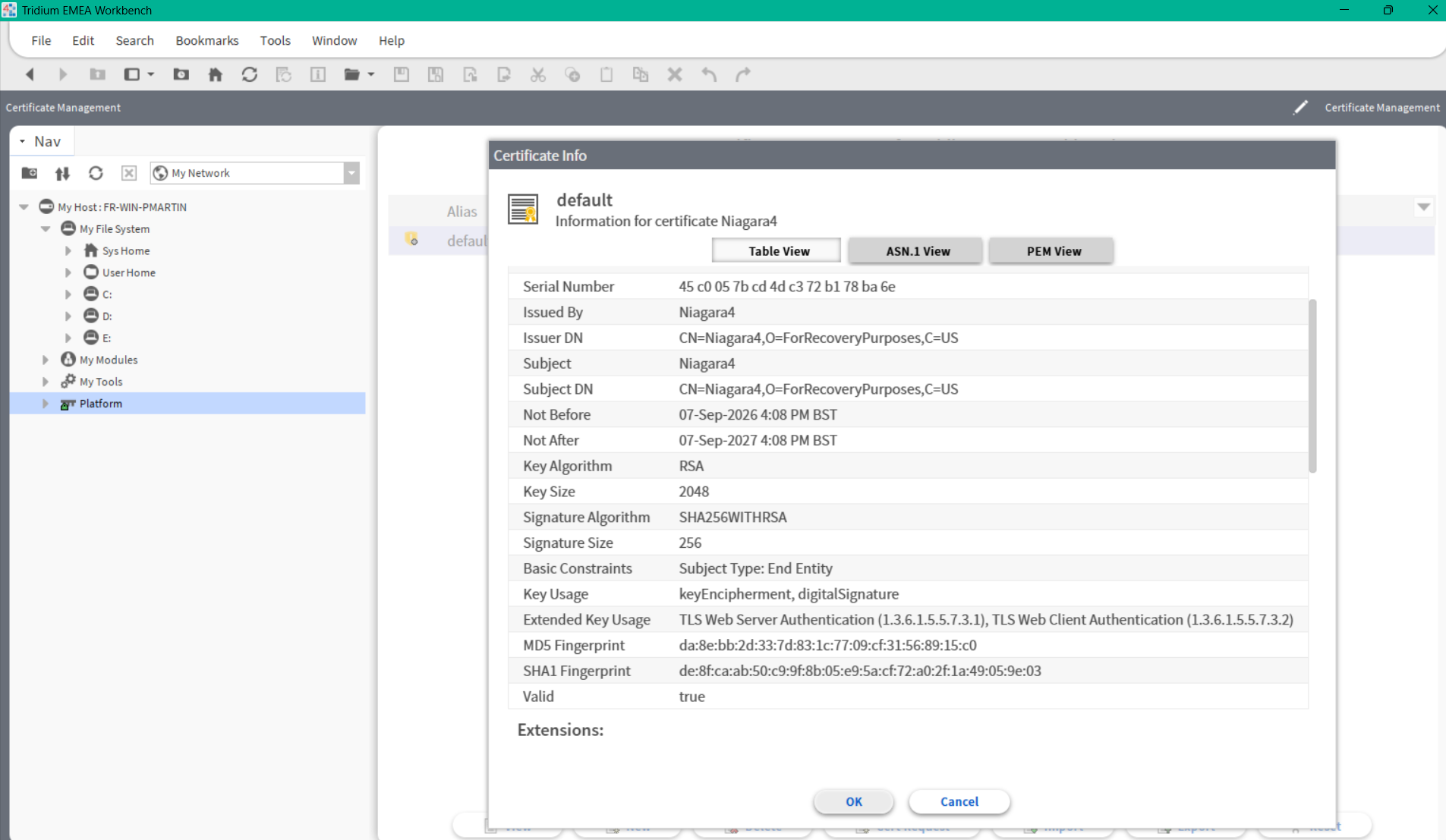
Step 1: Create a Certificate
-
Connect to the target JACE or Supervisor platform.
-
Open Certificate Management.
-
Select User Key Store.
-
Click New.

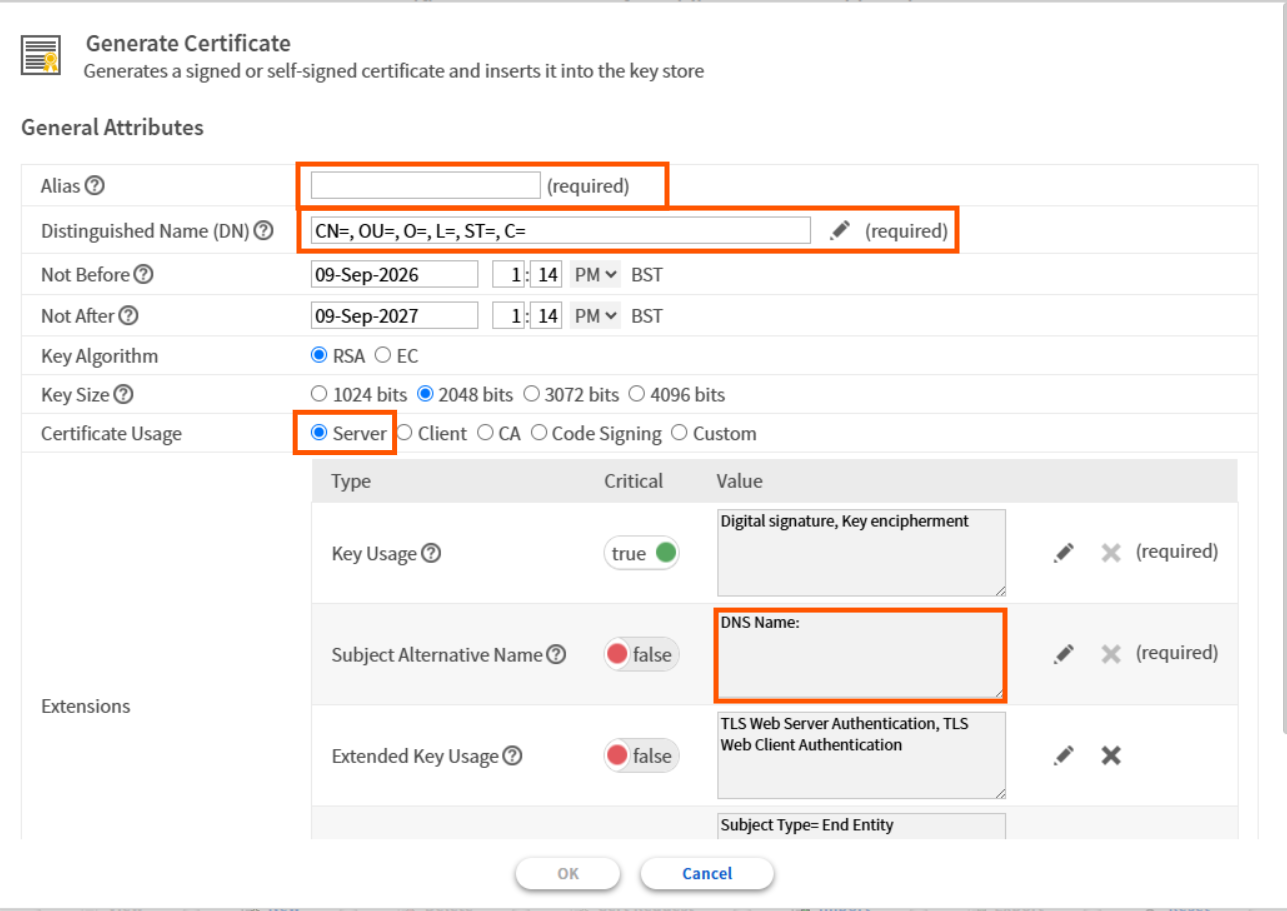
In the Generate Self Signed Certificate window:
-
Select Server as Certificate Usage.
-
Enter the certificate details.
Recommended settings:
|
Field |
Recommendation |
|---|---|
|
Alias |
Descriptive name such as |
|
Common Name (CN) |
DNS hostname clients will connect to |
|
SAN |
Additional DNS names if required |
|
Organisation |
Customer or company name |
Note: Modern browsers validate the Common Name and Subject Alternative Names against the URL used to access the station.
Click OK to create the certificate.
Step 2: Export the Private Key
Although Niagara stores the private key internally, exporting it provides a recovery option and makes PEM construction easier.
-
Select the certificate.
-
Click Export.
-
Export the private key.
Save as:
-
MyServerKey.pem
-
Store this file securely.
Important: Export the key without encryption if you plan to include it in a PEM chain file. Mismatched or encrypted keys are a common cause of import failures.
Step 3: Generate a Certificate Signing Request (CSR)
-
Select the newly created certificate.
-
Click Cert Request.
-
Save the CSR file.
Example:
-
MyServerCertificate.csr
-
Submit this file to your Certificate Authority.
Step 4: Obtain a Signed Certificate
Submit the CSR to your chosen Certificate Authority.
Common providers include:
-
GoDaddy
-
Sectigo (Comodo)
-
DigiCert
-
Entrust
Once approved, the CA typically supplies:
-
Signed server certificate
-
Intermediate certificate(s)
-
Root CA certificate
Some providers may bundle the intermediates and root certificates together.
Step 5: Build the Master PEM File
This is the most important step.
Niagara is particularly sensitive to certificate ordering during import.
Create a new text file and combine the certificates in the following order:
Below is a text editor view of a typical '.pem' file.
You must include the BEGIN and END statements
when you copy the text to build up a master PEM file. You could also copy in the key as well.
-----BEGIN RSA PRIVATE KEY-----

Proc-Type: 4,ENCRYPTED

DEK-Info: AES-256-CBC,e794167aabc334a8ce2a8d660585e9a7

+vdLkLDDX7uao1d7uUchem8WayLN8oKTKaeZYWrUXc9TN37Iw3Ny/32UwifhL8ao

yAW9wZxVUA8gYmEZ0uNyDoxGoLWwe9pTiu7+4co7qLIpPPp21L13vbeF5LD+UUd9

EH+DZ0T9i9X7ePEVI9jzwYvRRY3RUnvO/2mBZS8CXTvzPEEdiRAmTV1DrDhEguVI

yjRldt9Emy985Quf118XfJCKk1Faw1yNFgA3cUmjw81E+22qJBK1nvvKlNiBRLav

e6D+fzYPOD0eEXJACf0shR7bdAJ1LSf8+bET/PuC6xYCeQRDq4piEN/bRuut2xn5

rCWkfwp0EmBKLDjTXSjbx9sDi5YNaFIw01xcIyquYWIxhoIEUpjsFqaipYRCDPzq

X7Uaud/RdfFSrrDTvtHtAmaYr1WYalTNWGrg/9jYeQwNPJBDI8/AlhFqtjsDOUY+

u/4Y3Cw99U9rAZSs6iXEhVO5GmSQzveDCt5gUtRBb95yCr9otVRwJsrPACCA77Wr

WGELnZmbxYoKUHOFAWxiRJdA9jzyjvzYmRp+Szf1Lvvo2Lg26el/+4iGV+aEnTfB

WoE+krLaTGkimyVRNVibiXVTEpUqDpnl/wYjJJtdyvy7zgA/MyJZe//tT62+bwPY

3I7bGQqOn9yPxHmcEZsdhHgXMtHvpvUJyD92vZMaaSFAkiFCwFqJD6QvpGsvIa2c

jOua46phvMDBeIytohMFtqiLHKNNFidEPqwXJJmd5aYCqeKLyNS0tSEIMsZiL7pK

bzr838T1/BDs6sBXznB2hUco1vod9i85uNLO56+BXuL8YX1oFo3wiuW+xdmyEFh5

VYSzak8unnqG5ZOtgjLVwE3ZenQVeOmmBcOY0MHMouLRGrZnXiwfYjMs54mH71jx

RHhQfE2WAcg1wltYF5C7F8hLViwMwo7VpeQo1dA1+Pmaszkubp27MQucXNOKBf5t

udeosUr58J++sTvcZ8OC7+t7+WtZTyo0RqoHpyCttSOfotetR2cMu0L7WEHjBPcj

d790AFduJfzUoP1hjleCpXiQJE1FRCqjn7JJ5C7WTzbZTSoou/5WBgquXnQFYfRC

dgkOACLPQju6xOjZSwX5dpTEeqXgOd1vapl2d5IgMT322hSd04NcxPaQXZHKEPGK

AthzhwsWX+Arf9EpI+3Ow7UXqeTBHlHZkbQQRjqw0vUn/w+xrC+LemGs4BbrDcKk

3zaG2kh2mTgsZqTOmYQzXHD2Xga7KJT2lTxzA0R8+gVe/IU7WqR58AJ5ZP+qocZE

qe+UZR4jz8b4G7HJR9Z/j92Ez3K+Mr+RZXoQ91ee5y0pKh0vEcM/sSbjDF2eQGe8

zXc7FDoUG+SDdYsBoSDsNNez2jS2XS2DH9Bt5pDtNF3AC1HSFyOoXKc3l++KOmmX

FJCbCBAoYnr8I7U7th5DFFfJPrx/RBTQYYgblZJWsIW/rIxvEtkuYxkSirwmfMVc

N7YqhFBXNe66TjXTRYm7cIuqBHz2cueYE6ZeCtnLthA7WpjIHpSEuGEcaX7M3P33

MasI8xnp3X1pyu3xN1bM1XuW3IM4V8Pd6gj0wcdLjgMg5WehOufkz3v2oLx0xCaq

-----END RSA PRIVATE KEY-----

-----BEGIN CERTIFICATE-----

MIIDxjCCAq6gAwIBAgIMShwF0wlSHX612JK/MA0GCSqGSIb3DQEBCwUAMGcxFDAS

BgNVBAMMC1RyaWRpdW1DZXJ0MRAwDgYDVQQLDAdTdXBwb3J0MRAwDgYDVQQKDAdU

cmlkaXVtMREwDwYDVQQHDAhSaWNobW9uZDELMAkGA1UECAwCVkExCzAJBgNVBAYT

AlVTMB4XDTE0MTAxMDE4MjczN1oXDTE1MTAxMDE4MjczN1owZzEUMBIGA1UEAwwL

VHJpZGl1bUNlcnQxEDAOBgNVBAsMB1N1cHBvcnQxEDAOBgNVBAoMB1RyaWRpdW0x

ETAPBgNVBAcMCFJpY2htb25kMQswCQYDVQQIDAJWQTELMAkGA1UEBhMCVVMwggEi

MA0GCSqGSIb3DQEBAQUAA4IBDwAwggEKAoIBAQDSm7PgMQB1ZBJW9ECELGvca8on

yhx35xLUeD9y9QkjJrNBWWmdf9MpWWLwrT1yB06miiyZ1OhQk6eJkaQ7D6HYbbul

/VuwZMTIBFqh3JD7D0gZNRpQVSLNVBFIfcrUy5DxSEFjlCrIwdcxFYOf/Q/u+IfF

/SSEd2mPnH+2E2bfIqRu2RqAEIEeA36sarwpC/eItpPVoNQUOyPi0sOD8Pt3oleS

YfoZI2MBr0G3jEd3c1ZEtkEVTZqGC7hw+PZe++FeHISe/bYwFvqZ2LUR/S24u5mH

L5Pb9HchCz7czWzX9enPAke7gt8ho7xCaxChXenqrvjJ/C6W0cHs4H2GrWwhAgMB

AAGjcjBwMB0GA1UdDgQWBBSjuGuJ+DQ/0UzxejMvQLEU6kYAaDAOBgNVHQ8BAf8E

BAMCAQYwDwYDVR0TAQH/BAUwAwEB/zAuBgNVHRIEJzAloCMGCCsGAQQBoCMCDBdX

aW4tQ0VBOS1CNUNFLTFEMUYtNkJFRjANBgkqhkiG9w0BAQsFAAOCAQEAl8N1a4eU

FqH2L5b8atAzluw9lVhOob46sGDPA6h2KCcKoBtWJjfrb4aRHVIdodxMP99/QUNI

Ffa/nJmGJn6Qhh63+6T7bjF97LSb79jQwEvnpe+9DDjlswr9eH15nEtoBoItMxjQ

fiJ56LctjSkczFHta/iRm9Shg2t7BBAdauyKPADMqhSbF7+ParRLibJL9Ndgoj8a

jC/sa1RPFlrFYaQosUpQhQXNjvMQJqRMQh97d8Vo+0gbBlORrYEujaF4qwRbTxXR

1EI3oCu9KFDGsYg+o8o4rbsQj6brGNSWRExQ/lcPv6MFNS3/yMBgyoVuVw8dqWwW

gqYW5xcuwtxesA==

-----END CERTIFICATE-----

MASTER PEM FILE-
In a nut shell, typically just copy all of the intermediate and root certificates into the same text file with the signed certificate before importing. This master file would have a .PEM extension.
Tips for Building a PEM File
When editing PEM files:
-
Use a text editor.
-
Include all BEGIN and END statements.
-
Copy the entire contents of the certificates.
-
Do not alter formatting.
-
Do not add extra characters or spaces.
Workbench can be used to view certificate files:
-
PEM View for inspecting certificates.
-
Text View when copying certificate contents.
Step 6: Import Root and Intermediate Certificates
Before importing the server certificate, Niagara must trust the issuing CA.
-
Open Certificate Management.
-
Select System Trust Store.
-
Click Import.
-
Select the completed PEM file.
Niagara displays every certificate found in the file.
Import only:
✅ Intermediate certificates
✅ Root certificate
Do not import:
❌ Private key
❌ Server certificate
The System Trust Store should only contain trusted CA certificates.
Step 7: Import the Signed Server Certificate
-
Return to User Key Store.
-
Click Import.
-
Select the same PEM file.
-
Complete the import.
If successful:
-
The certificate icon changes from a yellow warning symbol
-
To a green check mark
A green check mark confirms Niagara can validate the complete chain of trust.
Step 8: Configure Niagara Services
The certificate must now be assigned to the services that require secure communications.
Platform Administration
-
Open Platform Administration.
-
Select Change TLS Settings.
-
Replace the default Tridium certificate with the newly imported certificate.
This secures platform connections.
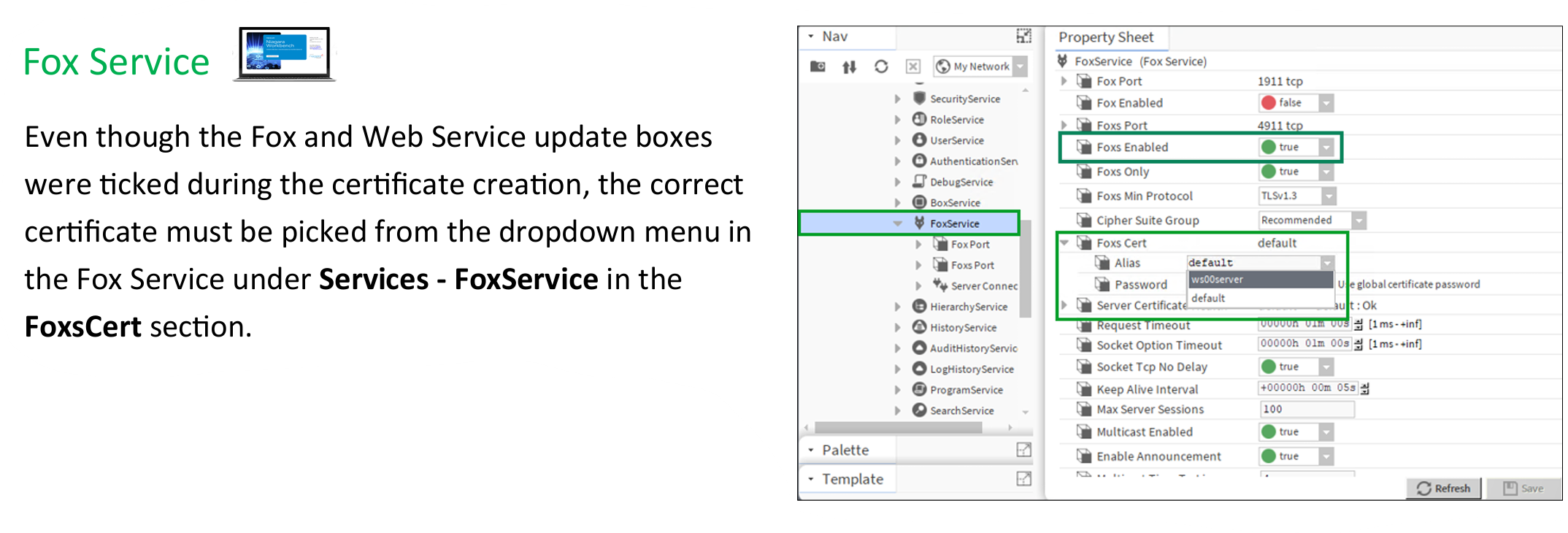
Fox Service
Navigate to:
Config |Services | Niagara Fox Service
Configure:
-
Foxs Enabled = True
-
Foxs Cert = Your New Certificate
This secures Fox communications.
Web Service
Navigate to:
Config | Services | WebService
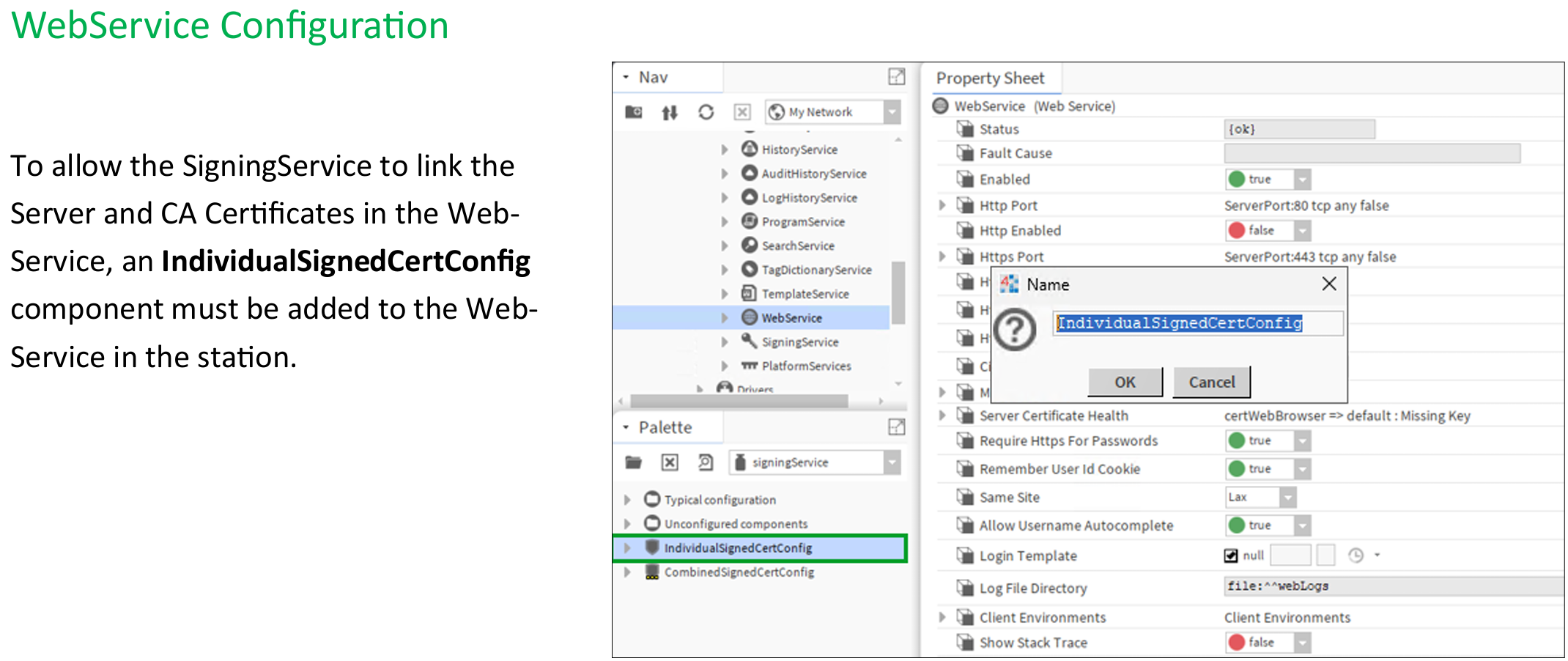
This secures HTTPS browser access.
Browser Trust Considerations
Even if Niagara trusts the certificate, a browser may still show warnings.
For a browser to trust the site:
-
The certificate must be signed by a trusted CA.
-
The Root CA must exist in the client device trust store.
-
The DNS name used to access the station must match the certificate CN or SAN.
Best Practices
Use Unique Certificates
Each JACE and Supervisor should have its own:
-
Private key
-
Server certificate
Sharing certificates across multiple devices increases risk if one device becomes compromised.
Maintain a Complete Trust Chain
Always obtain:
-
Server certificate
-
Intermediate certificates
-
Root certificate
directly from the Certificate Authority.
Do not copy certificates from a browser and assume they are correct.
Keep Services Consistent
Use the same trusted certificate for:
-
Platform TLS
-
Foxs
-
HTTPS
unless the project specifically requires separate certificates.
Restart Foxs if Required
If Foxs connections do not immediately reconnect:
-
Disable Foxs.
-
Save.
-
Re-enable Foxs.
This forces a new TLS handshake using the new certificate.
Common Errors and Resolutions
Trust anchor for certification path not found
Cause
Root or intermediate certificate missing.
Resolution
Verify the PEM contains:
-
Private Key
-
Server Certificate
-
Intermediate Certificate(s)
-
Root Certificate
Import the CA certificates into the System Trust Store first.
Unable to recover key
java.security.UnrecoverableKeyException
Cause
The signed certificate does not match the original CSR.
Resolution
Generate a new CSR from the original Niagara certificate and request a replacement signed certificate.
Certificate does not verify with supplied key
Cause
The private key and certificate do not match.
Resolution
Use the original private key exported from Niagara when rebuilding the PEM chain.
Mismatched public and private key
Cause
Encrypted or incorrect private key used during import.
Resolution
Export the private key again, ensure it is unencrypted, rebuild the PEM file and re-import.
Certificate Remains Yellow
Cause
The chain is incomplete or not trusted.
Resolution
Verify:
-
Root certificate imported to System Trust Store
-
Intermediate certificates imported to System Trust Store
-
Signed certificate imported to User Key Store
-
Certificate chain order is correct
Summary
A successful Niagara certificate deployment depends on two key principles:
-
The complete certificate chain must be available and correctly ordered.
-
Root and intermediate certificates belong in the System Trust Store, while the signed server certificate belongs in the User Key Store.
The recommended chain order is:
-
Private Key
-
Server Certificate
-
Intermediate Certificate(s)
-
Root Certificate
Once imported and assigned to Platform Administration, FoxService and WebService, the certificate should display a green check mark and provide trusted, encrypted communications throughout the Niagara system.