

HDMI TOUCH SCREEN PANEL FOR MAC36-PRO NOT FOR MAC36NL
Supported Controller
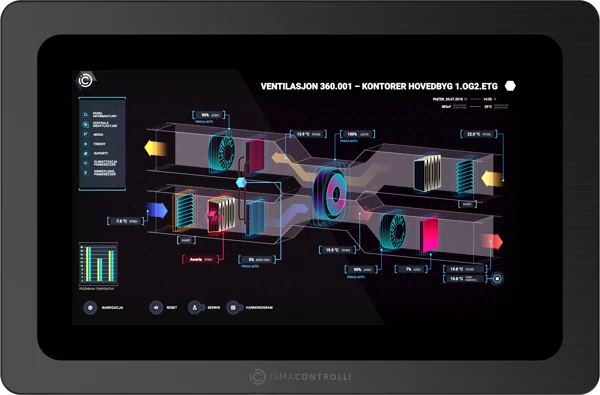
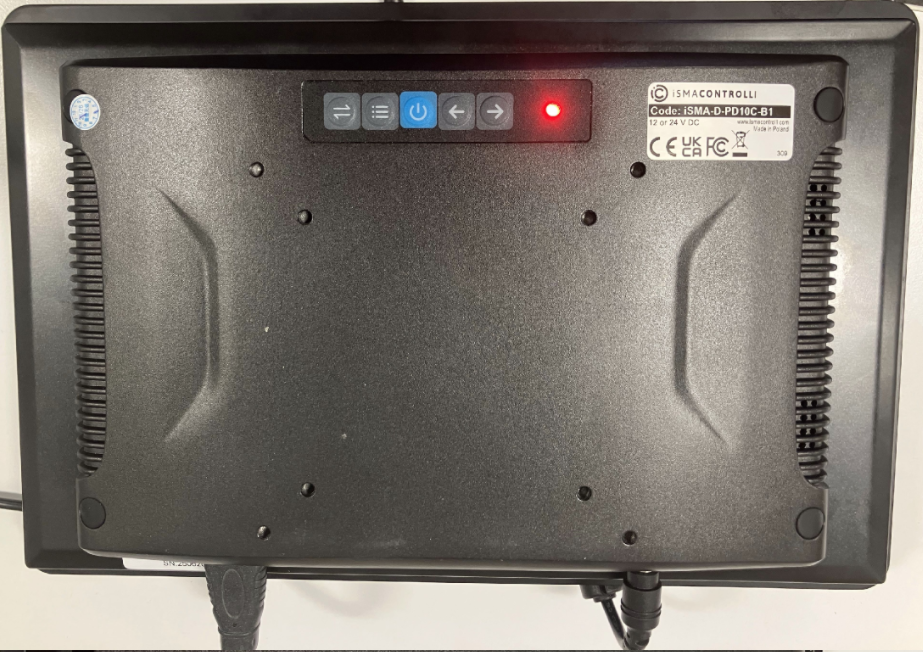
The iSMA-D-PD-10C-B1 HDMI touch screen is recommended for use with the iSMA-B-MAC36PRO controller only as reported by iSMA Technical Support.
During testing, the screen was successfully connected to a MAC36NL running Niagara 4.10 and 4.11 If you use Niagara version >=4.12 or the latest firmware, the screen is not supported by iSMA CONTROLLI Technical Support.
The touchscreen response and page navigation will be noticeably slower and the response will be quite laggy so not recommended. Due to the lower processing capability of the MAC36NL platform, performance may not meet user expectations when displaying PX graphics via HDMI.
The screen won’t respond as fast as an iSMA-D-PA because all graphic’s pixels in iSMA-D-PD are processed in MAC36 controller’s virtualized GPU and MAC36 must run a web browser. iSMA-D-PA includes its own GPU and its own web browser, and all graphic’s pixels are processed by PA panel.
MAC36PRO includes stronger microcontroller unit than MAC36NL, and yes iSMA-D-PD is more responsive in MAC36PRO than MAC36NL
Recommendation:
Use the MAC36PRO whenever a local iSMA-D-PD-10C-B1 HDMI touchscreen interface is required.
Before You Start
If the HDMI screen is not displaying the login page, verify the following configuration items first.
1. Confirm the HDMI Service is Installed
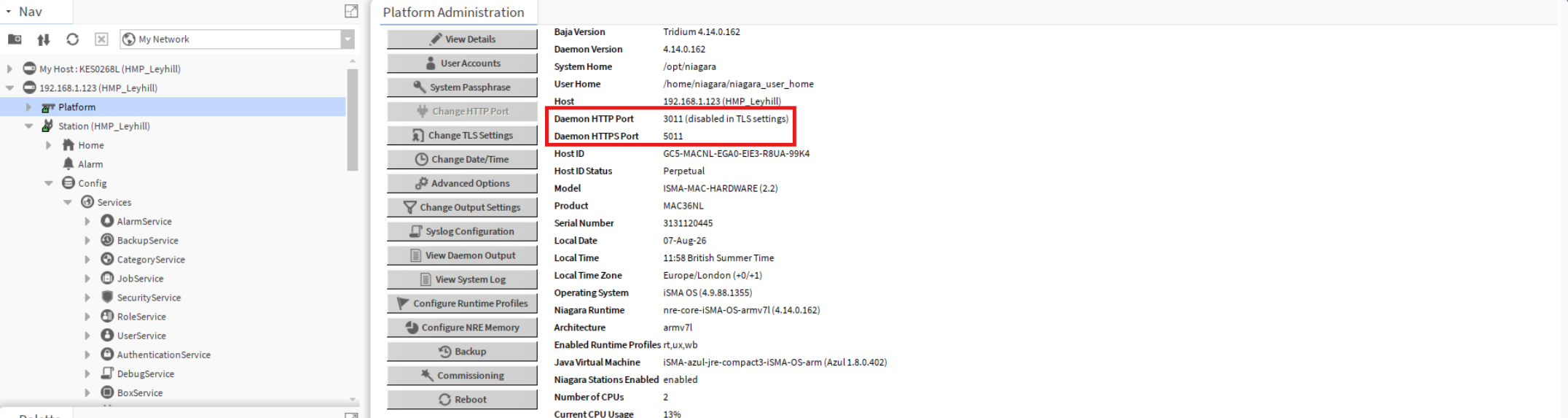
The iSMA_HDMI module must be installed on the controller and an iSMAHDMI Service must be present under:
Station → Config → Services
Ensure the webservice is enabled correctly and the station has been saved.
2. Check the Niagara Web Service Settings
Open:
Station → Config → Services → WebService
Verify the following settings:
|
Setting |
Value |
|---|---|
|
HTTP Enabled |
TRUE |
|
HTTPS Only |
FALSE |
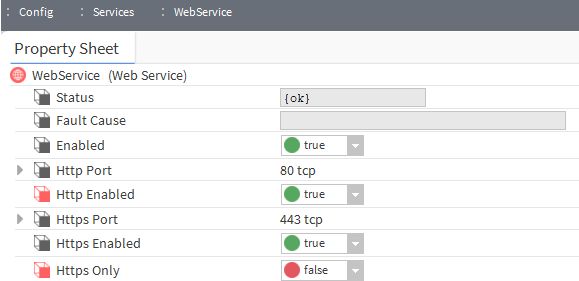
These settings are essential because the HDMI browser operates using HTTP.
If configured correctly, the controller should at minimum display the Niagara login screen on the connected HDMI display.
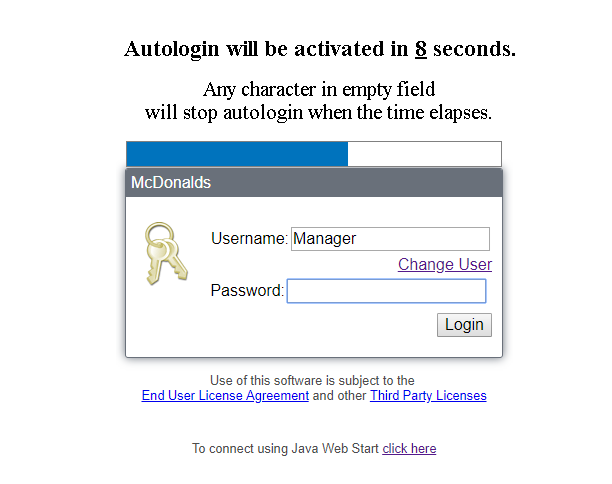
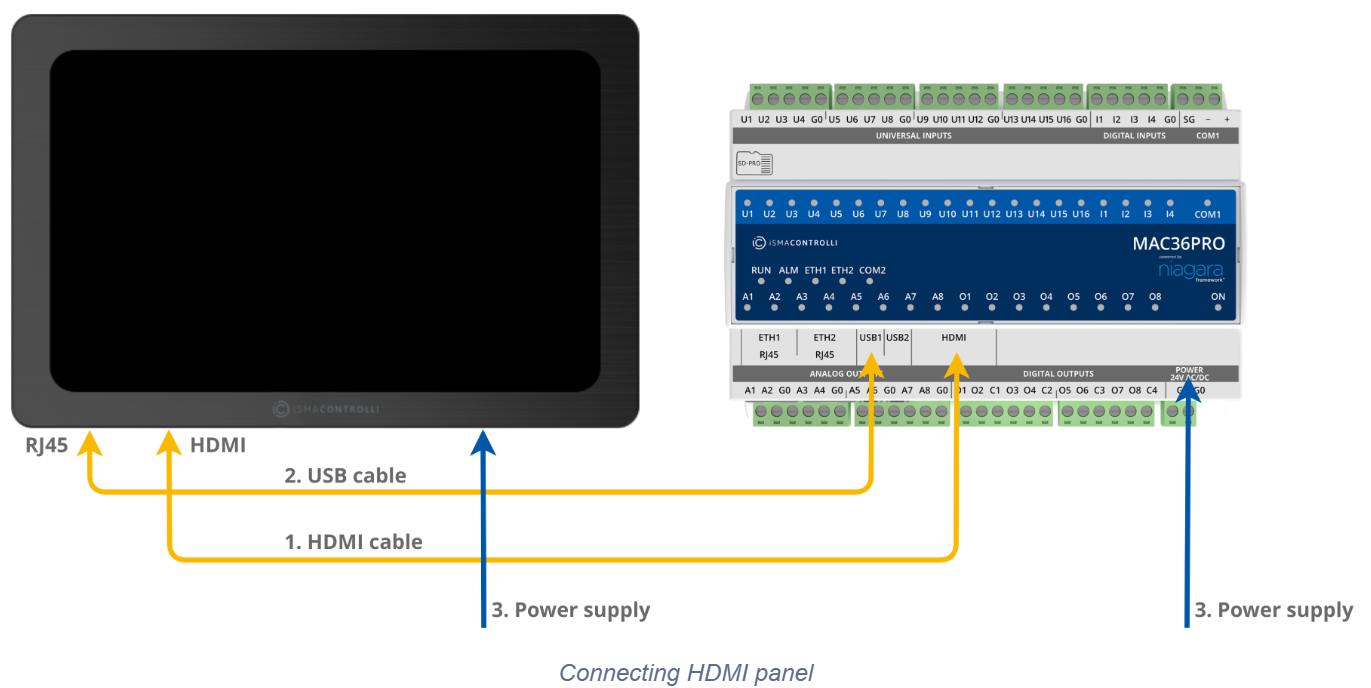
Connection Procedure
-
Shut down or power off the MAC36 controller.
-
Connect the HDMI cable between the controller and the iSMA-D-PD-10C-B1 display.
-
Connect the USB cable for touchscreen functionality.
-
Power the display.
-
Power the MAC36 controller.
Important: Connect the HDMI display before powering the controller. Hot-plugging the display may prevent it being detected correctly.
Touchscreen Not Responding
If the display image appears but touch functionality does not work:
-
Verify the USB cable is connected between the display and controller.
-
Reboot both devices.
-
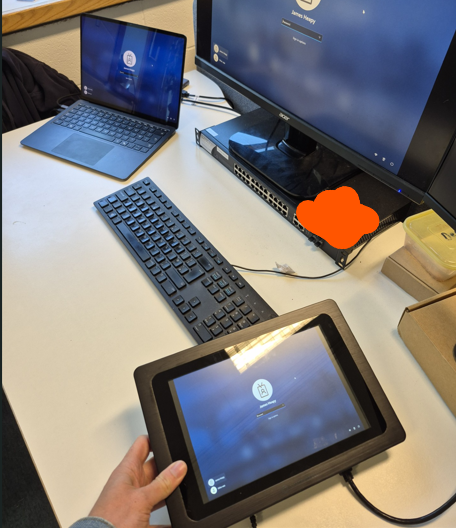
Test the display with a laptop using HDMI and USB connections to confirm touchscreen operation.
TOP TIP: You can try connecting the screen to your laptop with a HDMI cable and USB cable to ensure its not a faulty non-responsive screen.
-
Check for damaged USB cables or connectors.
Screen Displays "No HDMI Service"
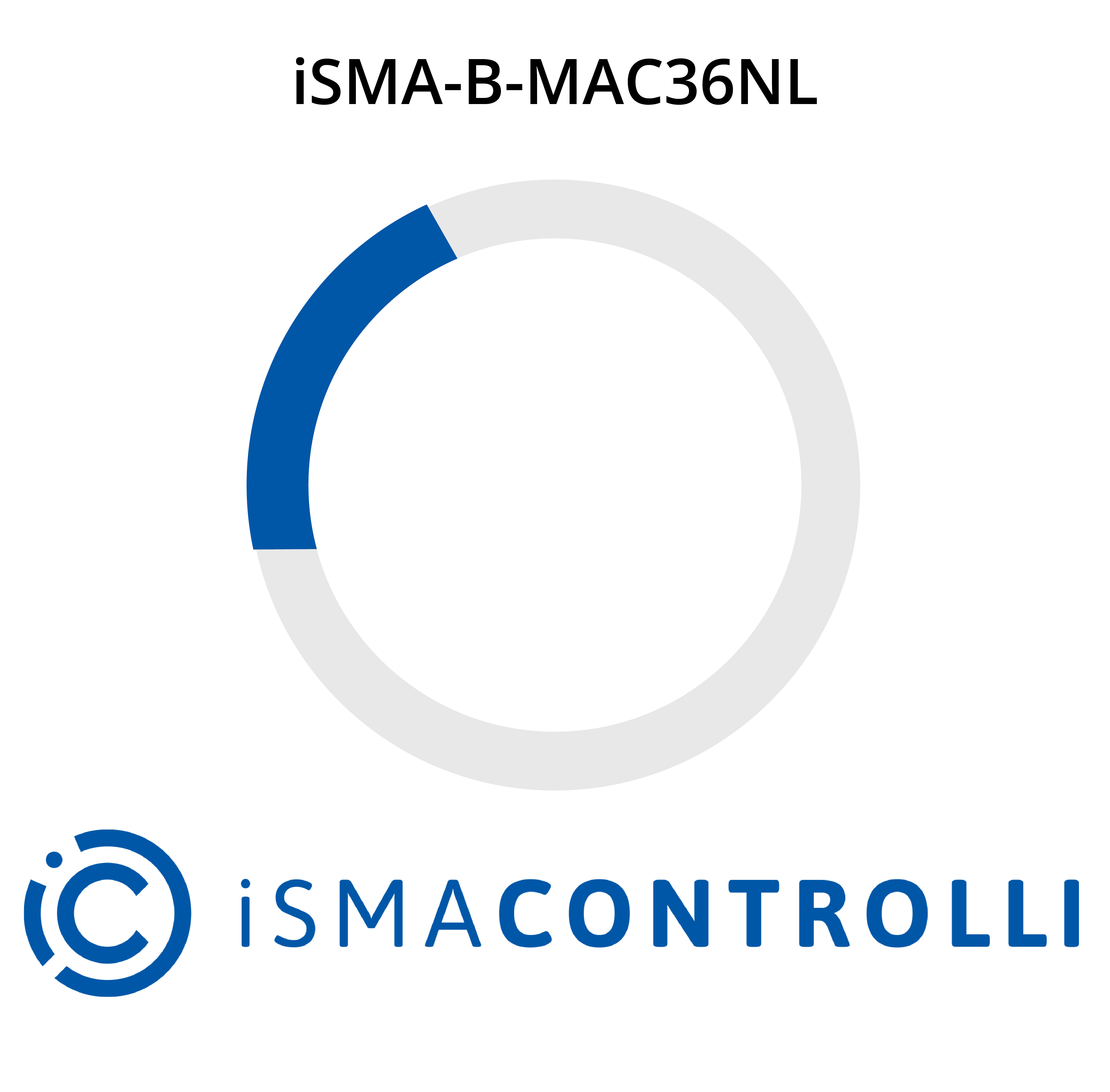
If the display shows a message indicating that no HDMI service is available:
-
Verify the iSMA_HDMI module is installed.
-
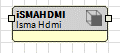
iSMA module -
Confirm the iSMAHDMI Service has been added to the station.
-
Save the station and reboot the controller.
Slow or Laggy Performance
If page changes are slow or touch response is delayed:
-
Reduce PX page complexity.
-
Minimise animated GIFs.
-
Reduce the number of widgets displayed simultaneously.
-
Check controller CPU utilisation.
While HDMI may operate on a MAC36NL, significant lag can occur. For a responsive user experience, Forest Rock recommends pairing the iSMA-D-PD-10C-B1 with a MAC36PRO controller only.
Additional Notes
-
HDMI operation increases controller CPU utilisation and operating temperature.
-
The screen resolution is natively supported by the HDMI interface and should not require manual adjustment. The resolution is 720x1080 on the new screens by the looks of things.
-
Unsupported custom fonts may render incorrectly. Install required fonts through the Niagara File Transfer Client and reboot the controller after installation.
This keeps the focus on the three things most likely to resolve support calls:
-
Use a MAC36PRO.
-
Install the iSMAHDMI Service.
-
Enable HTTP and disable HTTPS Only in WebService.
Performance Note: The MAC36NL is not a currently supported controller for this screen selection due to its limited processing resources compared to the MAC36PRO.
Note: MAC36Pro controllers include a built-in USB port that can be used to support touchscreen input devices connected to the display.
If you need more help:
Then why not contact our sales or support team.

sales@forestrock.co.uk or support@forestrock.co.uk
Other Resources & Customer Survey:
💬 Don't miss out! Follow the Forest Rock News channel on WhatsApp Click Here!
💬 We’d also love your feedback! Please take a moment to complete our quick Customer Survey
It only takes a minute and helps us serve you better!

IoT Devices for BMS, Automation & Smart Connectivity | Forest Rock