

For Trend Engineers New to N4

This article contains proprietary information that is familiar to Trend Engineers that are new to N4 and sometimes feel lost when they transition to Niagara. The article aims to help these engineers understand that whatever Trend was able to do, Tridium can do it as well, but it just needs a little bit more engineering and thinking about the solution to the problem.
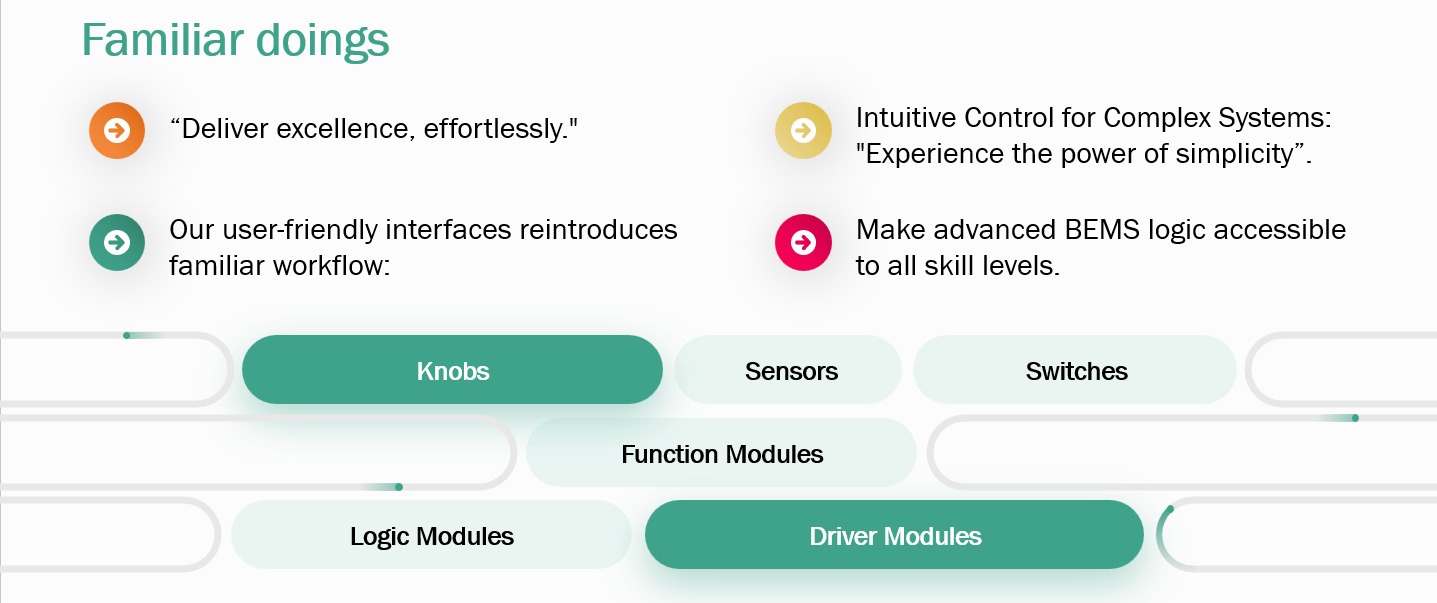
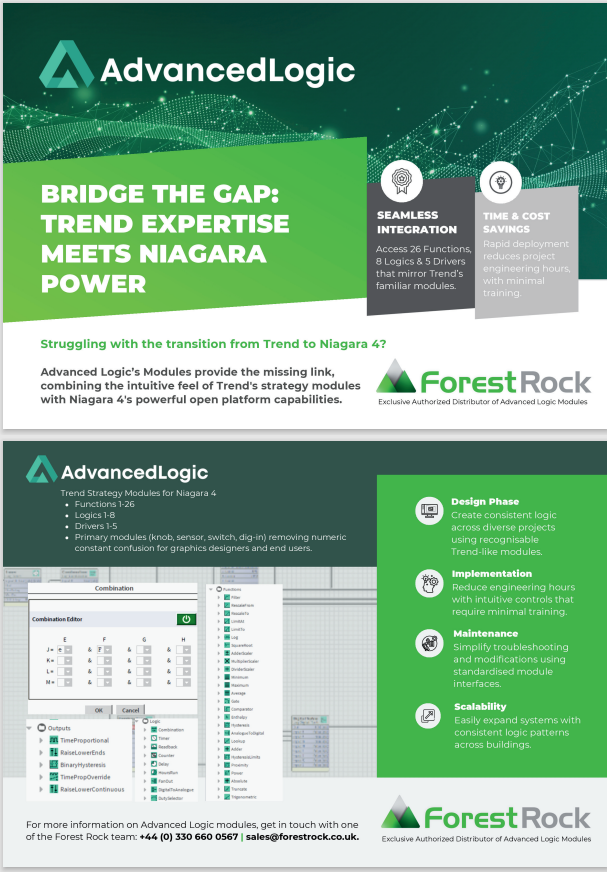
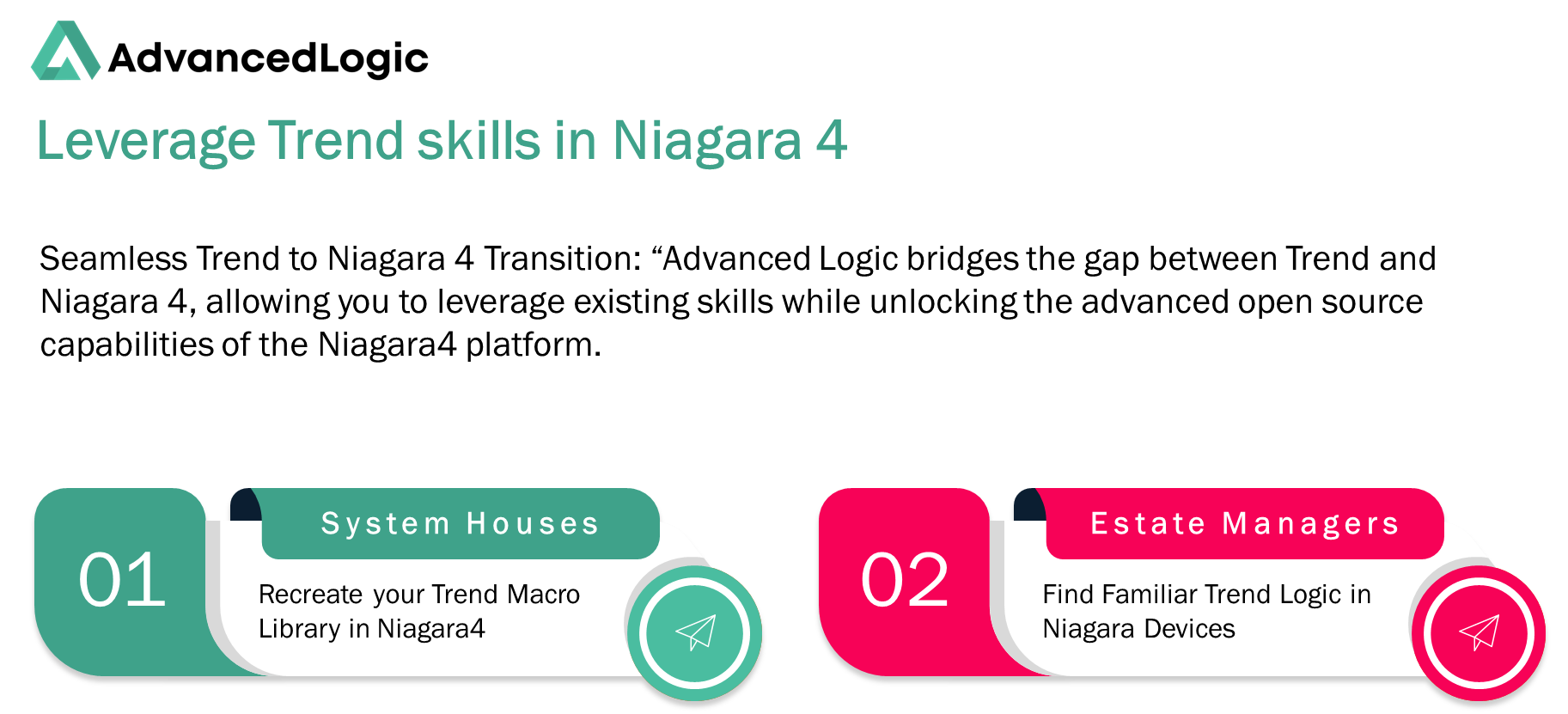
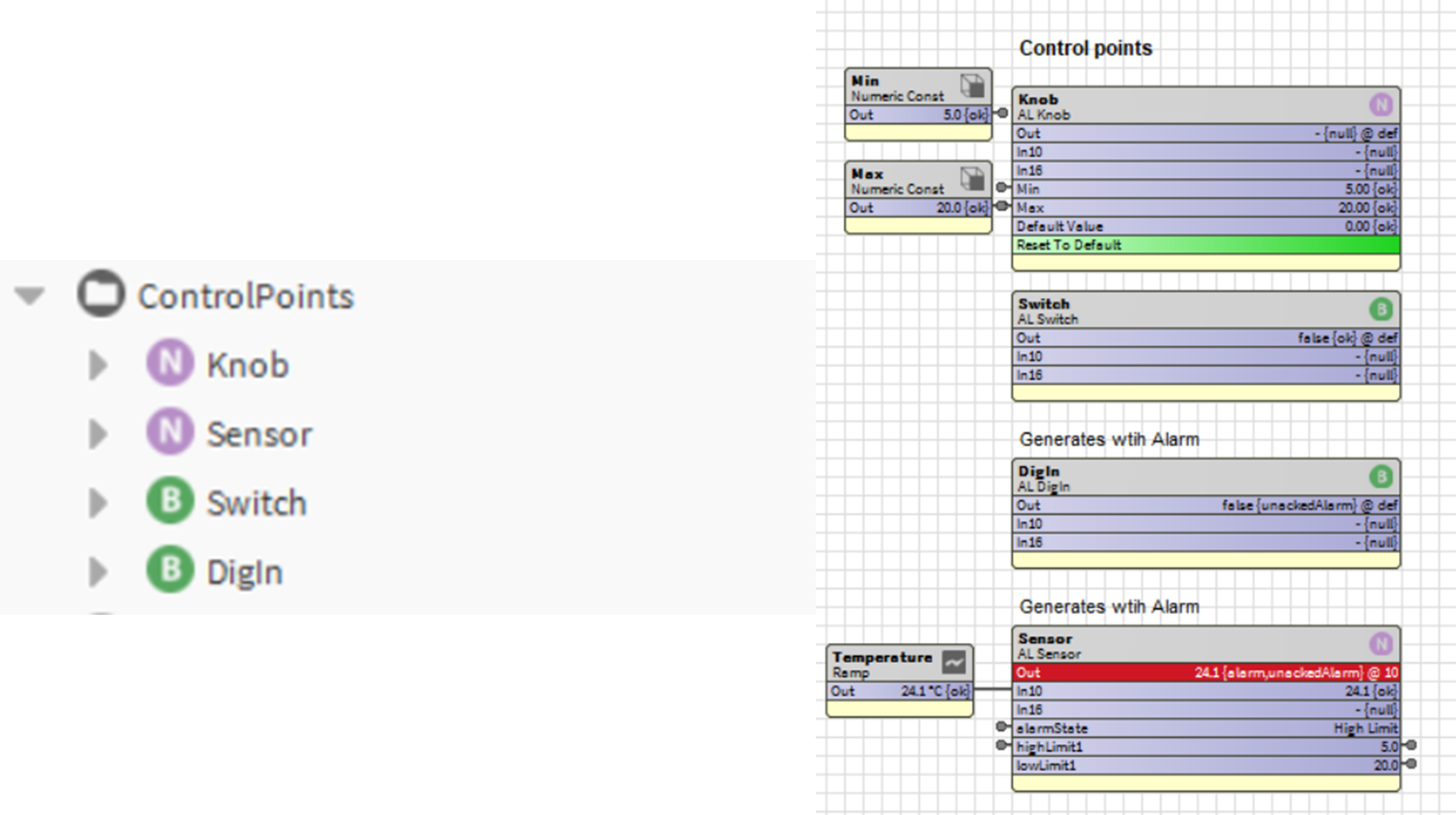
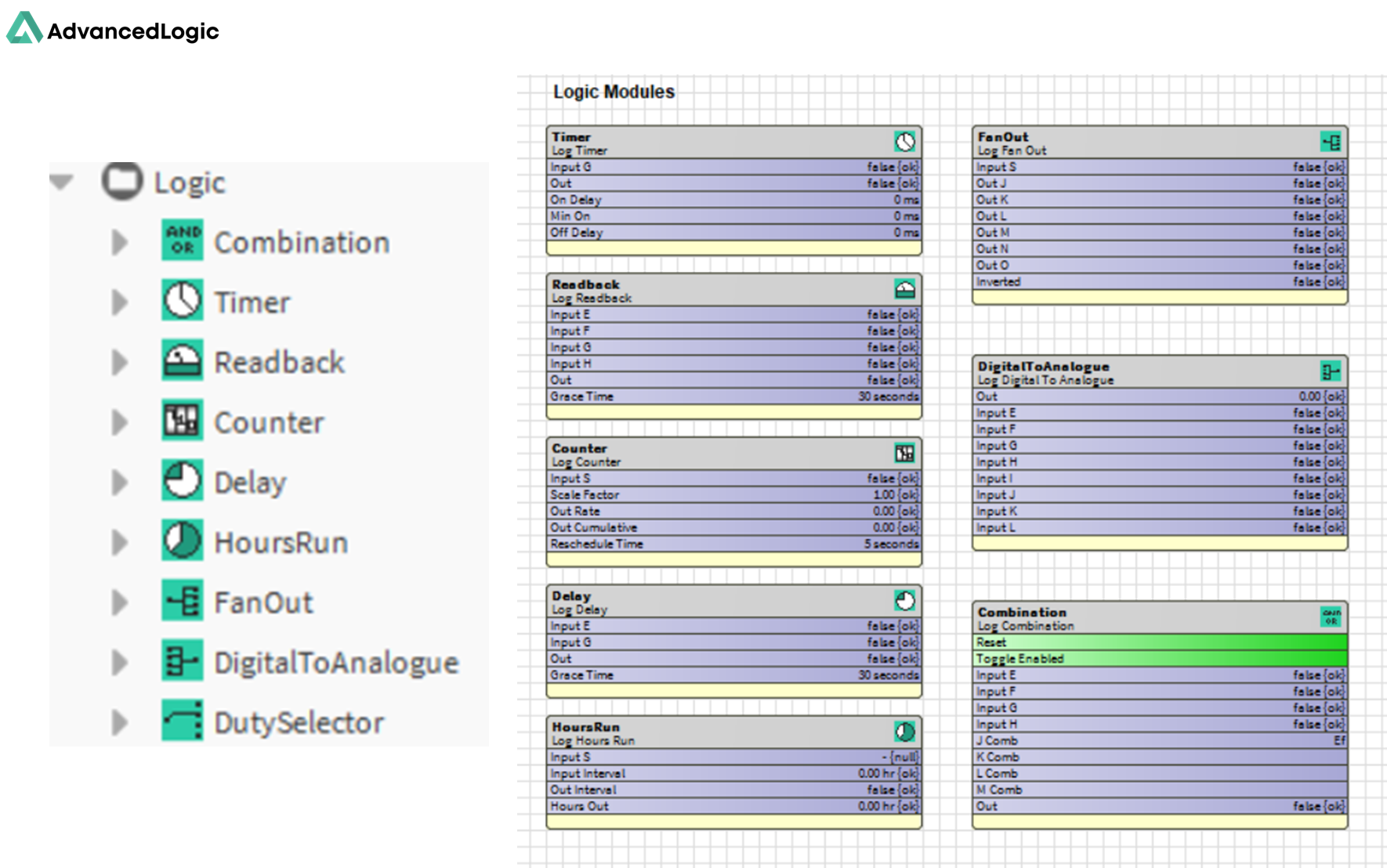
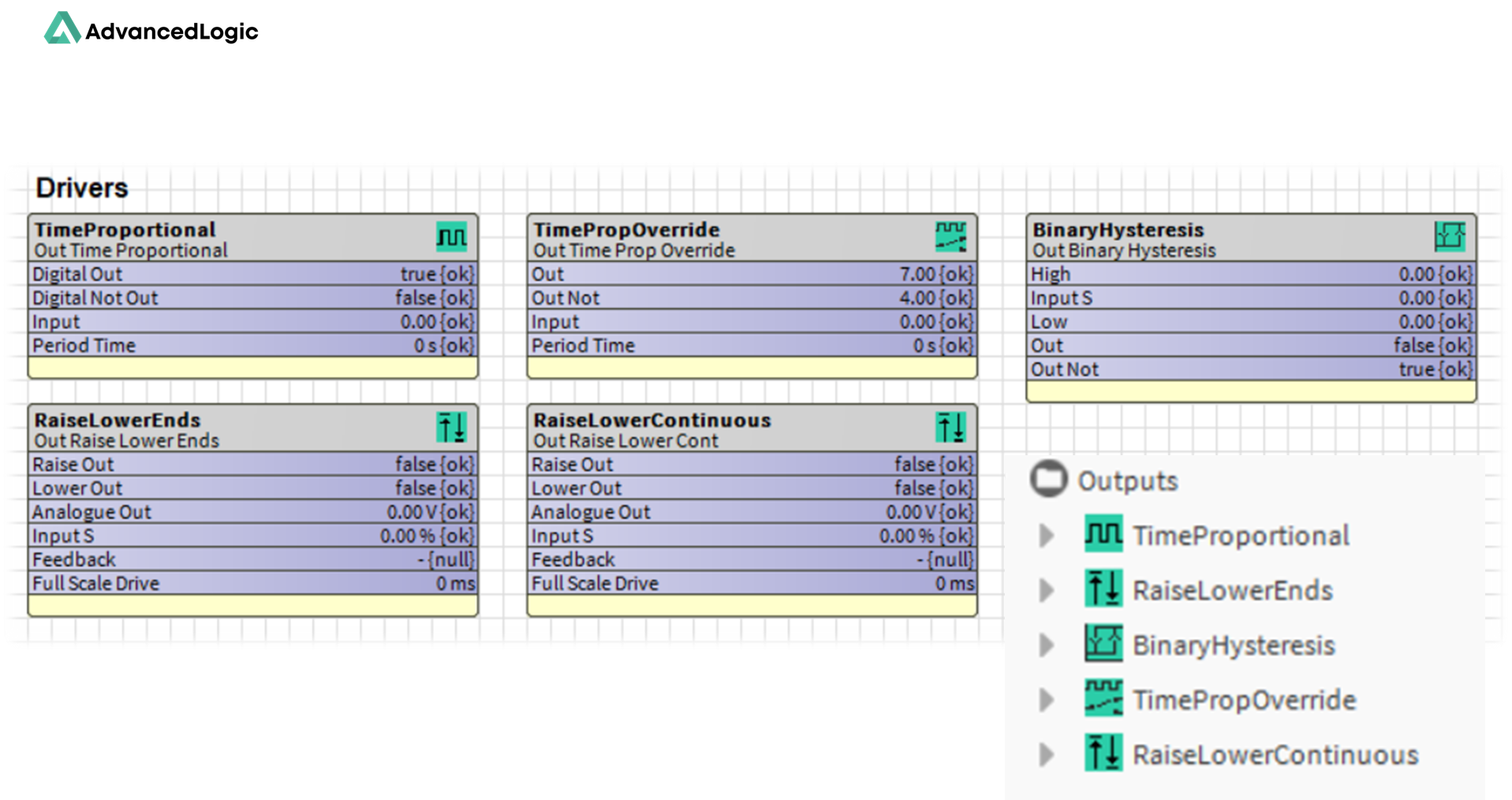
The Advanced Logic blocks are a new palette that can be purchased from Forest Rock that replicate the Trend SET palette almost identically and allow your Trend software design skills to be replicated and transferred to the world of Tridium N4 WireSheet.

Advanced_Logic__v2_0_.pptxBRIDGE THE GAP TREND EXPERTISE MEETS NIAGARA 4 POWER.pdf
Installing the Advanced Logic Modules to a Niagara Platform
-
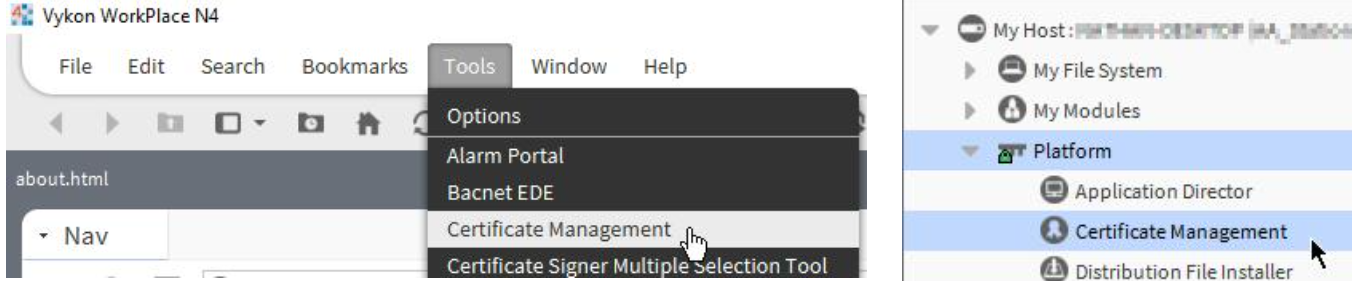
Install the provided certificate into the User Trust Store of both the Workbench (or other brand flavours) and the local (if installing on a local station) and/or remote (if installing on a controller or remote station) platform certificate managers.
-
Copy the freebirdLicensing-rt.jar and other purchased modules to your Niagara modules directory (e.g. C:\Niagara\Niagara-4.10.0.154\modules) and restart Workbench and any running stations.
-
If you are installing on a remote station, connect to the platform and use the Software Manager to install a. FreebirdLicensing-rt.jar b. AdvancedLogic-rt.jar
-
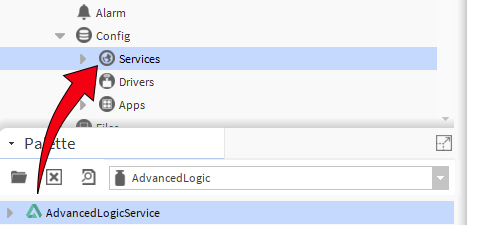
Connect to the local or remote station and open the AdvancedLogic palette then add the Service to the Station Services
-
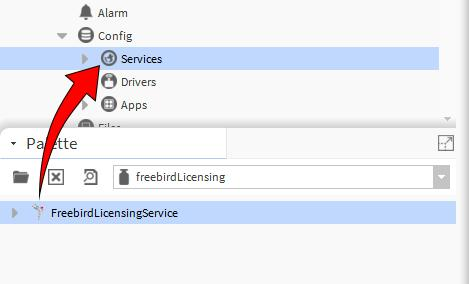
Open the FreebirdLicensing palette then add the Service to the Station Services
-
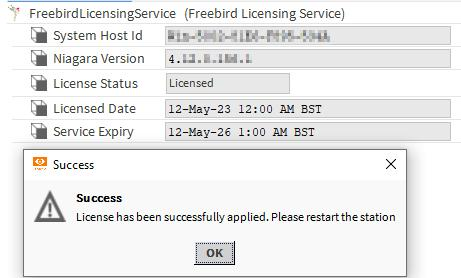
Right click the FreebirdLicensingService in the station and go to Actions>Update License. In the popup paste the provided license key then click ok.

-
If the license has applied successfully then restart the station. If it has failed then verify that the correct license key has been used.
-
If you have checked that you are using the correct license and it is still not validating contact Freebird for support.
Installing the Advanced Logic Macros
9.Select the “Template” side bar
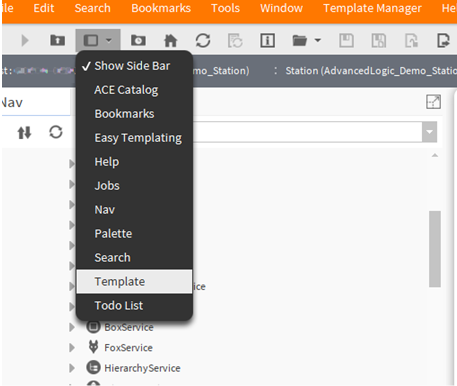
10. From there, Drop-down the options and select “Module”
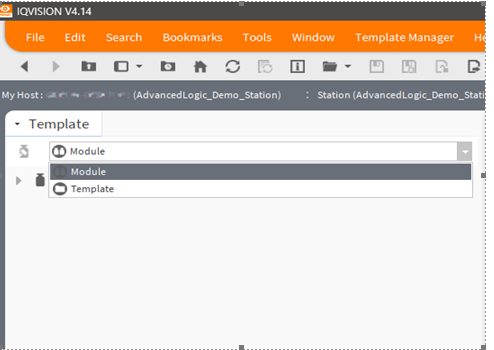
11. Drag and Drop the required Macro template.
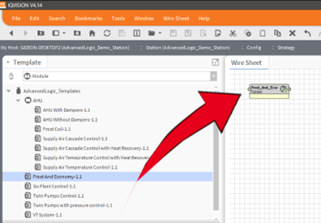
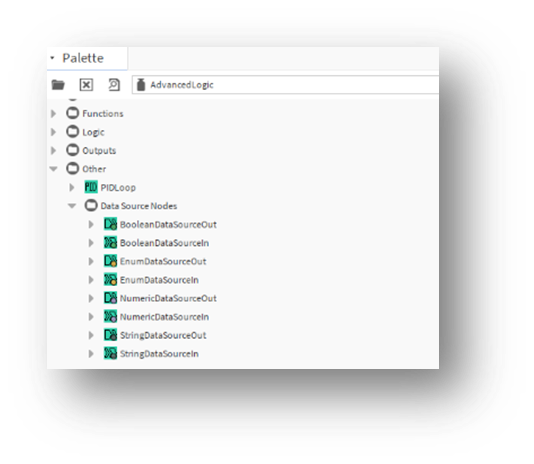
Use the Macro in your own strategy, “Link-Marking” in and out as required. For convenience, and to aid in housekeeping, we have created a “Data source in and out” array in the Advanced Logic Palette emulating the Connective nodes in Trend.
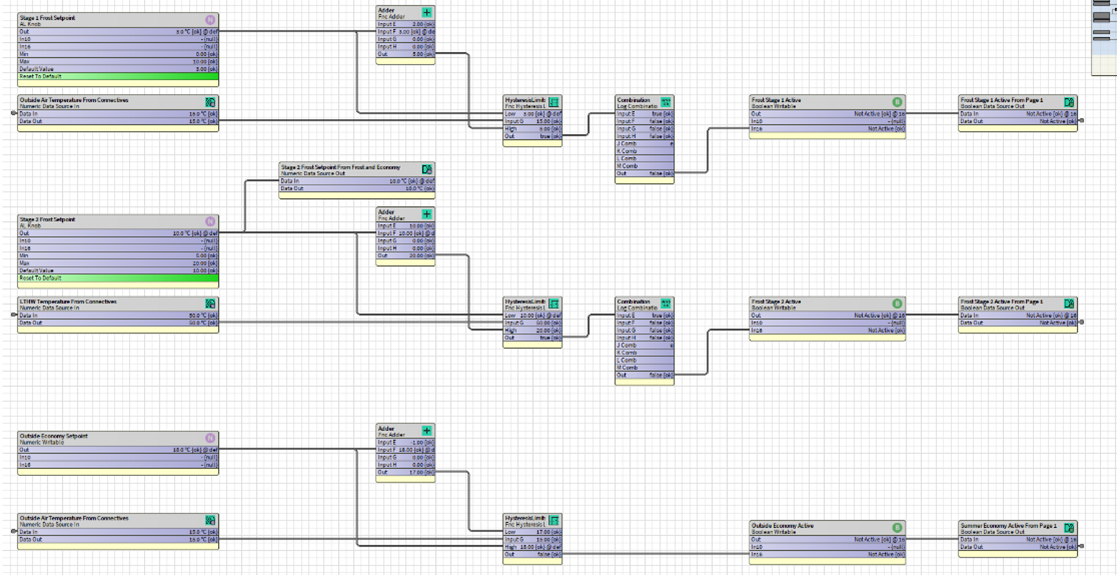
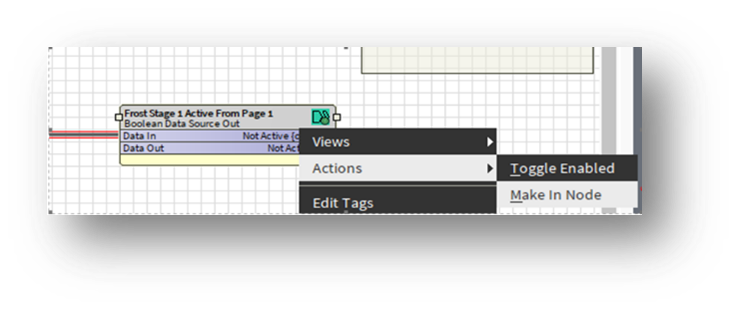
12. To create a duplicate node that retains a dynamic “updateable” label and State/Value of the source: Right-click>Action>“Make In-Node”, and then copy that newly created module to wherever you need require the source State/Value in your strategy. It will remain linked to the module it has been created from. If you change the donor module name, when a value changes, and is passed through the node all the subordinate nodes names update to match. This means no need to rename slots anymore
If you need more help:
Then why not contact our sales or support team.

sales@forestrock.co.uk or support@forestrock.co.ukOther Resources & Customer Survey:
Other Resources & Customer Survey:
💬 Don't miss out! Follow the Forest Rock News channel on WhatsApp Click Here!
💬 We’d also love your feedback! Please take a moment to complete our quick Customer Survey
It only takes a minute and helps us serve you better!

IoT Devices for BMS, Automation & Smart Connectivity | Forest Rock