

Author: Paul Martin
Applies To: iSMA-B-MAC36NL Series Controllers
Estimated Reading Time: 5 Minutes
Overview
This article describes the commissioning process for an iSMA-B-MAC36NL controller using Niagara WorkPlace.
Before following this procedure, ensure the controller has been prepared according to:
-
MAC36NL - Distribution Files - Downloading and Installation
-
MAC36NL - First Commissioning
The Commissioning Wizard simplifies deployment by allowing licences, runtime profiles, stations, modules, and network settings to be installed and configured in a single workflow.
Prerequisites
Before commencing commissioning, ensure:
-
The controller has completed the First Commissioning procedure.
-
The required Niagara distribution files have been downloaded and installed on the engineering workstation.
-
The MAC36NL is powered and accessible over the network.
-
You can successfully connect to the platform using Niagara WorkPlace.
-
Any station files required for deployment are available locally.
Launching the Commissioning Wizard
-
Open Niagara WorkPlace.
-
Connect to the MAC36NL platform.
-
In the Nav Tree, right-click Platform.
-
Select Commissioning Wizard.
The wizard will guide you through the remaining commissioning steps.
Step 1 - Select Commissioning Tasks
The first screen allows you to choose which commissioning actions will be performed.
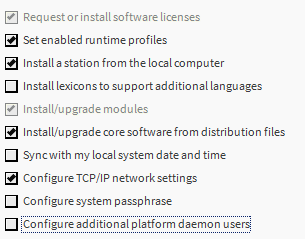
For a typical installation, all options can remain enabled.
To speed up the process, deselect:
-
Configure Additional Platform Users
This step can be completed later if required.
Recommendation: Leave all remaining options enabled for a complete commissioning process.
Figure 1: Available Commissioning Wizard options
Step 2 - Install the Licence
The wizard will prompt for licence installation.
Recommended Method
Select:
Install License from License Server
This method automatically retrieves the appropriate licence from the Niagara licence server.
Alternative licence installation methods can be used if working in an offline environment.
Best Practice: Verify Internet connectivity before starting the wizard if using licence server installation.
Step 3 - Enable Runtime Profiles
The next screen allows selection of Niagara runtime profiles.
Recommended Profiles
Enable:
-
UX
-
WB (Workbench)
These profiles support modern user interfaces and engineering functionality commonly required during installation and maintenance.
Note: Additional profiles should only be enabled where specifically required by the application.
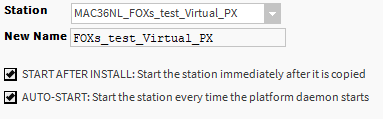
Step 4 - Install a Station
The wizard can install a station directly onto the controller.
Options available include:
-
Skip station installation
-
Install an existing station from the engineering workstation
If installing a station:
-
Select the desired station from the drop-down list.
-
Specify the target station name if different.
-
Configure startup behaviour.
-
Enable auto-start if required.
Recommendation: Enable automatic station startup for production systems.
Figure 2: Station Installation Configuration
Step 5 - Select Station Files
If a station installation was chosen, the wizard will request the file transfer method.
Recommended Option
Select:
Copy every file in the station directory and its subdirectories
This ensures that all supporting files, graphics, histories, PX files, templates, and resources required by the station are transferred correctly.
Best Practice: Always use this option unless there is a specific reason to limit transferred files.
Step 6 - Update Modules
The wizard will display the list of Niagara modules (.jar files) required for the controller.
After reviewing the modules:
-
Click Update All Out of Date.
-
Allow the wizard to identify and update any outdated modules.
This ensures the controller software matches the engineering workstation distribution.
Important: Module mismatches can cause station startup failures and unexpected behaviour.
Step 7 - Review Module Updates
The next screens provide:
Module Change Summary
Displays:
-
New modules
-
Updated modules
-
Removed modules
Distribution Update Summary
Displays:
-
Distribution files that will be transferred
-
Version changes
Review both screens before continuing.
Step 8 - Configure TCP/IP Settings
The wizard now presents TCP/IP configuration options.
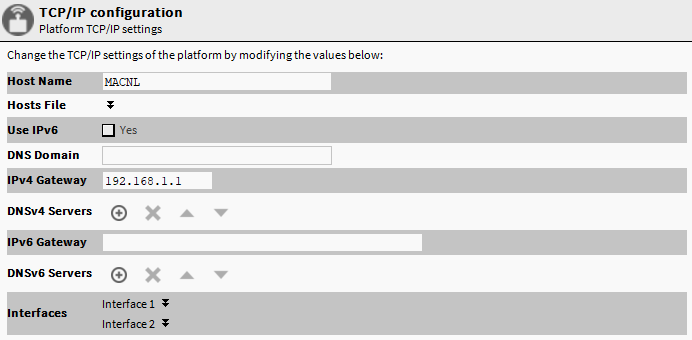
Interface 1
-
Enabled by default
-
Typically used as the primary network connection
Interface 2
-
Disabled by default
-
Can be enabled if a secondary network connection is required
Configure:
-
IP Address
-
Subnet Mask
-
Default Gateway
-
DNS Settings (if required)
Figure 3: Ethernet Interface Configuration
Important: Verify all network settings before proceeding, as incorrect values may prevent future access to the controller.
Step 9 - Review and Execute
The final screen displays a summary of all selected commissioning actions.
Review:
-
Licence installation
-
Runtime profiles
-
Station deployment
-
Module updates
-
Network configuration
When satisfied:
-
Click Finish.
-
The commissioning process will begin.
-
All selected files and configuration settings will be transferred to the controller.
Controller Reboot and Distribution Installation
Once file transfer is complete:
-
Click Close.
-
The controller will automatically reboot.
-
The new Niagara distribution will be installed.
During this process:
|
LED |
Status |
|---|---|
|
RUN |
Off |
|
ON |
Flashing |
|
COM1 |
Flashing alternately with ON |
This behaviour indicates the controller is installing the updated software distribution.
Do Not remove power or disconnect the SD card during this stage.
Passphrase Behaviour (Niagara 4.8+)
Important
From Niagara 4.8.0.110 onward, the station passphrase is stored on the SD card rather than within the controller itself.
As a result:
-
The passphrase entered during commissioning may need to be entered again after the distribution installation.
-
Stations protected by a passphrase may not automatically start following commissioning.
-
The station may need to be started manually using Application Director.
This behaviour is normal.
Benefits
Storing the passphrase on the SD card allows:
-
Easier SD card replacement
-
Faster hardware replacement
-
Improved portability between compatible devices
Confirm Successful Startup
Monitor the controller LEDs after reboot.
Platform Available
When the RUN LED flashes quickly (approximately two flashes per second), the platform is available and platform connections can be established.
Station Available
When the RUN LED settles into a slower flash rate (approximately once per second), the installed station has completed startup and station connections can be established.
Troubleshooting
Commissioning Wizard Fails to Start
-
Verify platform connectivity.
-
Confirm you are logged in with sufficient permissions.
-
Restart WorkPlace and reconnect.
Station Does Not Start
-
Check module compatibility.
-
Verify the station passphrase.
-
Open Application Director and attempt a manual start.
-
Review station and application logs.
Unable to Connect After Network Changes
-
Verify the configured IP address.
-
Check subnet and gateway settings.
-
Use a direct connection if necessary.
-
Confirm the controller has completed rebooting.
Licence Installation Fails
-
Verify Internet connectivity.
-
Confirm the Host ID matches the issued licence.
-
Retry using an offline licence file if required.
Related Articles
-
MAC36NL - Distribution Files - Downloading and Installation
-
MAC36NL - First Commissioning
-
MAC36NL - Installed Station Does Not Start
-
MAC36NL - Platform Recovery Procedures
Revision History
|
Version |
Date |
Author |
Changes |
|---|---|---|---|
|
1.0 |
August 2026 |
Paul Martin |
Initial release |

Other Resources & Customer Survey:
💬 Don't miss out! Follow the Forest Rock News channel on WhatsApp Click Here!
💬 We’d also love your feedback! Please take a moment to complete our quick Customer Survey
It only takes a minute and helps us serve you better!

IoT Devices for BMS, Automation & Smart Connectivity | Forest Rock