

-
Typical Scenario
-
Platform username unknown
-
Platform password unknown
-
Driver passphrase unknown
-
Station credentials available
-
Station access still possible
-
All official reset procedures assume that station recovery is NOT possible if credentials are lost.
Unfortunately there is no way to reset the platform credentials in a MAC36 without losing the station.
This article explains how to identify the current IP address of an iSMA-B-MAC36NL controller through the serial console, or restore the controller to its default IP address when network access is unavailable. Note that restoring the default IP address requires a factory reset and will delete the existing station. It does not cover changing IP address settings through Niagara Workbench, as this procedure is already documented in IP Address Configuration via Ethernet Connection with the Controller.
1. Checking the IP Address
If the IP address of an iSMA-B-MAC36NL controller is unknown, it can be verified using the controller's serial console connection. Instructions for establishing a console connection are available in the MAC36 Console - Serial Connection article.
Once logged in, a command prompt will be displayed. Two methods are available to identify the controller's IP configuration, each with its own advantages and limitations.
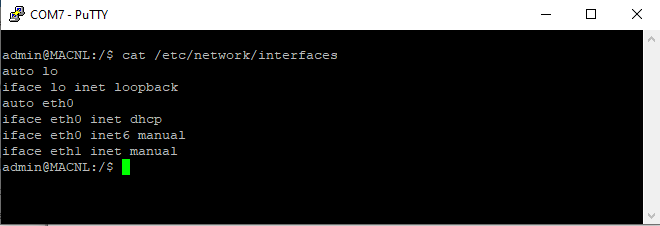
NOTE: The advantage of the method that checks the contents of the interfaces file is the ability to check the configuration of both Ethernet interfaces, even if one of them is not connected to the network. Unfortunately, in this method if any interface is set to DHCP mode then the information about the set mode will be displayed, not the current IP address, which is a disadvantage of the method.
1.1 View the Network Interfaces Configuration File
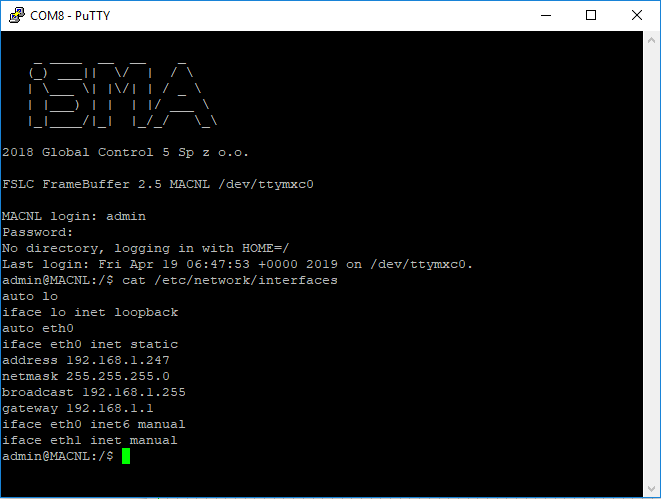
In the command line, type the command cat /etc/network/interfaces (remember the space between cat and /etc/network/interfaces). After confirming the command with the Enter key, the full network configuration will appear.
1.2 Display Current Network Information Using ifconfig
At the command prompt, enter the following command: /sbin/ifconfig -a
Ensure there is a space between /sbin/ifconfig and -a, then press Enter. The controller will display the current network status of all Ethernet interfaces, including IP addressing information for interfaces configured with either static IP addressing or DHCP.
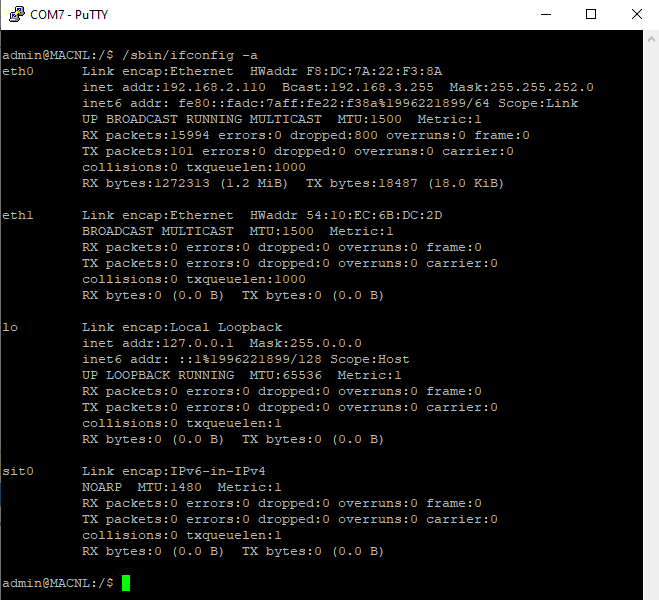
NOTE: The advantage of the method that executes the ifconfig program is that the current network data of both Ethernet interfaces can be displayed, even if DHCP mode is set. Unfortunately, in this method, if any interface is not connected to another device, then its IP address will not be displayed, even if it is set statically.
2. Restoring the default IP address
If it is not possible to connect via a USB-A/USBmini cable to the iSMA-B-MAC36NL controller, then it is also possible (for image 983 or higher only) to restore the default IP address (192.168.1.123) using the 6th pin in the S3 DIP switch. Detailed instructions are available at Hybrid IoT Controllers in the iSMA-B-MAC36BL_Manual document under Restore Controller to the Factory Default.
Backup Recommendation:
If station access is still available, create a station backup before performing a factory default restore.
Warning
Performing a factory default restore will not only reset the IP address but will also:
-
Remove all Platform user accounts.
-
Recreate the factory default Platform account:
-
Username:
tridium -
Password:
niagara -
Remove all installed JAR modules.
-
Delete the uploaded station.
-
Clear the driver's passphrase.
-
Ensure any required backups are available before performing this procedure.
A workaround is available that uses the Provisioning Service to extract the station from the controller prior to resetting the Platform credentials. The procedure is relatively lengthy, so please see the attached video for full details.
The attached video demonstrates how to use the Niagara Provisioning Service to extract the station from the controller before performing a factory reset.

Other Resources & Customer Survey:
💬 Don't miss out! Follow the Forest Rock News channel on WhatsApp Click Here!
💬 We’d also love your feedback! Please take a moment to complete our quick Customer Survey
It only takes a minute and helps us serve you better!

IoT Devices for BMS, Automation & Smart Connectivity | Forest Rock