

Adding M-Bus Devices to an iSMA-B-MAC36NL-M Niagara Station
This article explains how to configure an iSMA-B-MAC36NL-M controller to communicate with
M-Bus devices using Niagara and how to discover and add both devices and points to the station.
Prerequisites
Before starting, ensure that:
-
The controller is running Niagara 4.8.0.110 or later.
-
The M-Bus devices are correctly wired to the controller's M-Bus interface.
-
The communication parameters of the connected M-Bus devices are known (baud rate, parity, data bits, and stop bits).
Step 1: Install the M-Bus Runtime Module
-
Connect to the controller using a Niagara Platform connection.
-
Open Software Manager.
-
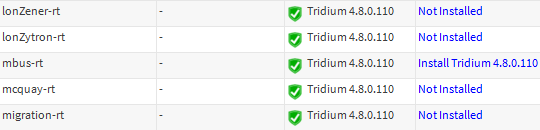
Locate and install the mbus-rt module if it is not already present.
-
Reboot the station if prompted.
Figure 1. Installing the mbus-rt module using Software Manager.
Step 2: Add an M-Bus Network
-
Log in to the Niagara station.
-
Open the M-Bus Palette.
-
Drag the MbusSerialNetwork component into Config > Drivers.
-
Open the component's AX Property Sheet view.
Step 3: Configure Serial Communication
Configure the network with the communication settings required by the connected M-Bus devices.
|
Property |
Value |
|---|---|
|
Port Name |
COM2 |
|
Baud Rate |
Match device settings |
|
Data Bits |
Match device settings |
|
Stop Bits |
Match device settings |
|
Parity |
Match device settings |
Note: All connected M-Bus devices must use communication settings compatible with the configured M-Bus network.
Save the configuration once all parameters have been verified.
Step 4: Discover M-Bus Devices
-
Open the Mbus Device Manager view.
-
Select Discover from the bottom toolbar.
-
In the Discovery Wizard, choose the required discovery method.
-
Configure any address range or search limitations as required.
-
Start the discovery process.
When discovery completes, the wizard displays two panes:
-
Discovered - Devices found on the M-Bus network.
-
Database - Devices already added to the station.
Move the required devices from Discovered to Database to add them to the Niagara station.
Figure 2. An M-Bus device successfully added to the iSMA-B-MAC36NL-M station.

Step 5: Discover Device Points
After adding a device to the station, its available data points must be discovered.
-
Navigate to the selected M-Bus device.
-
Open the device's Points folder.
-
Select Discover.
-
Wait for the point discovery process to complete.
The discovery wizard will display all available points exposed by the device.
Move the required points from the Discovered pane to the Database pane to add them to the station.
Once added, the points will begin reading live data from the M-Bus device.
Figure 3. M-Bus points successfully discovered and added to the station.

Verification
To confirm successful communication:
-
Open one of the discovered points.
-
Verify that the point is reporting a valid value.
-
Check the station and application logs for any communication errors.
-
Confirm that the device status is Online.
If values are updating correctly and no communication faults are present, the M-Bus integration has been successfully completed.
Troubleshooting
If devices are not discovered:
-
Verify that the mbus-rt module is installed.
-
Confirm that COM2 is configured as the active M-Bus port.
-
Check wiring polarity and network connections.
-
Verify that the configured baud rate, parity, data bits, and stop bits match the M-Bus devices.
-
Ensure devices are powered and have valid M-Bus addresses.
-
Review Niagara station logs for communication errors.
Following these steps should allow the iSMA-B-MAC36NL-M controller to successfully discover M-Bus devices and expose their data points within Niagara.

Other Resources & Customer Survey:
💬 Don't miss out! Follow the Forest Rock News channel on WhatsApp Click Here!
💬 We’d also love your feedback! Please take a moment to complete our quick Customer Survey
It only takes a minute and helps us serve you better!

IoT Devices for BMS, Automation & Smart Connectivity | Forest Rock