

Discovering M-Bus Meters in Niagara
Objective
To discover and add M-Bus devices into a Niagara station using either an iSMA-B-MAC36NL-M controller or an iSMA-B-MG-IP gateway.
Applies To
Niagara 4.8+
iSMA-B-MAC36NL-M
iSMA-B-MG-IP
M-Bus Driver
This article explains how to discover and add M-Bus meters to a Niagara station using either:
-
MbusNetwork on an iSMA-B-MAC36NL-M controller, or
-
MbusTcpIpNetwork through an iSMA-B-MG-IP gateway.
The meter discovery process is identical for both network types. This article focuses on meter discovery only. For M-Bus network configuration, refer to the related article M-Bus Configuration.
Prerequisites
Before proceeding, ensure that:
-
The M-Bus network has been configured and is communicating correctly.
-
The M-Bus driver has been added to the Niagara station.
-
Meters are powered and connected to the M-Bus network.
-
You know the meter baud rate and, where applicable, addressing information.
Example of Meter Information
|
Primary Address |
Serial Number |
Manufacturer ID |
Medium |
Version |
|---|---|---|---|---|
|
8 |
16210171 |
ACW |
Water |
14 |
|
15 |
00331533 |
APA |
Water |
21 |
|
36 |
20702297 |
BMT |
Water |
01 |
Table 1. The following examples are used throughout this article to demonstrate primary and secondary address discovery and filtering.
Discovery Methods
Niagara supports three primary methods for discovering M-Bus devices:
"At a Glance" Method Selection Table
|
Method |
Use When |
Recommended |
|---|---|---|
|
Primary Address Search |
Devices have unique primary addresses |
✅ Yes |
|
Single Device Discover |
Address conflict exists |
✅ Commissioning only |
|
Specific Secondary Address |
Serial number known |
✅ Fastest secondary search |
|
Secondary Address Search |
Limited information available |
⚠ Slower |
-
Primary Address Search Discover
-
Single Device Discover
-
Secondary Address Discover
Select the method appropriate for your installation and the information available about the connected meters.
Recommendation Hierarchy
-
Primary Address Search
-
Specific Secondary Address
-
Secondary Address Search
-
Single Device Discover
Expected Discovery Times
Typical discovery times at 2400 baud:
1-10 addresses: Under 30 seconds
1-50 addresses: 1-3 minutes
Full address range: Several minutes
Technical Note
Primary addresses are configurable and may not be unique unless manually assigned.
Secondary addresses are factory-defined and globally unique to each meter.
Method 1: Primary Address Search Discover
Use this method when each meter has a unique primary address configured.
Step 1: Open Device Discovery
-
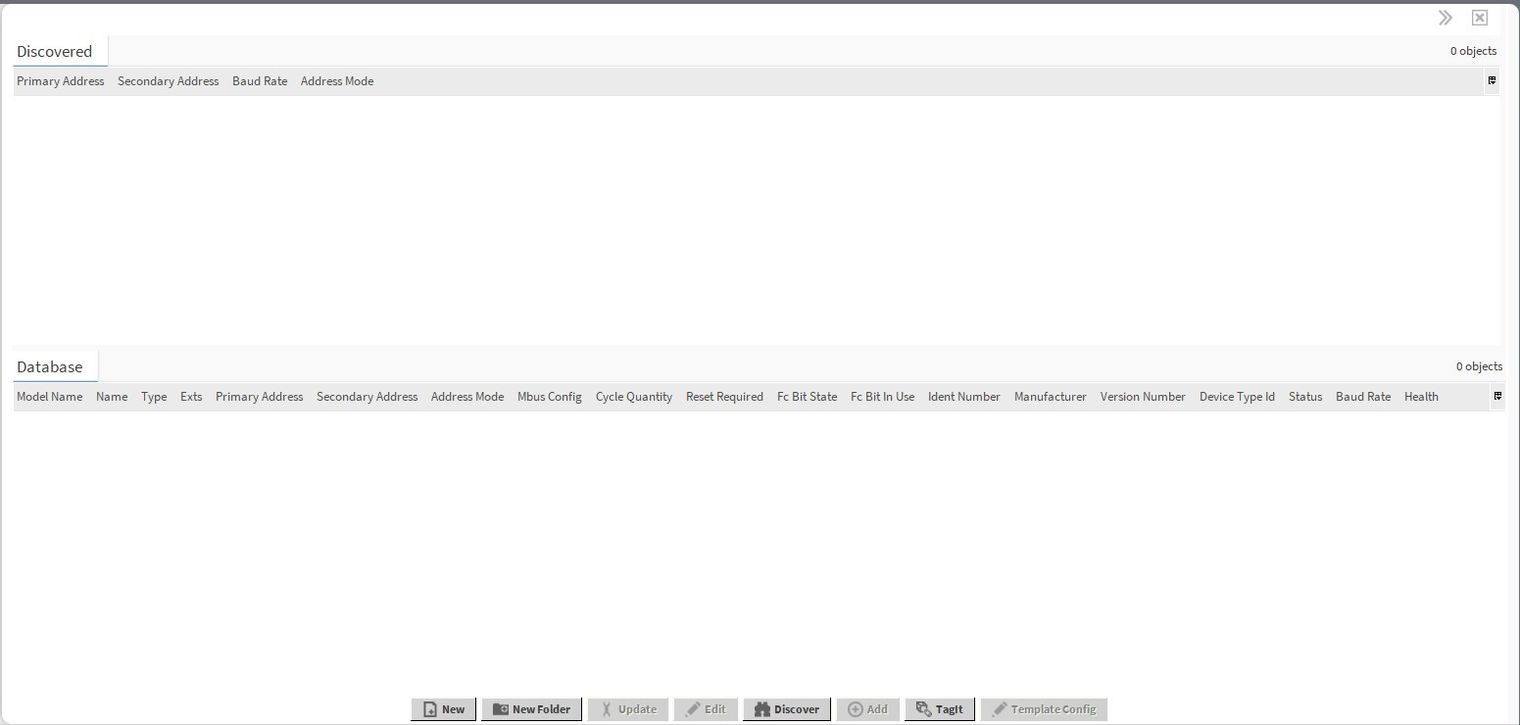
Navigate to the Mbus Device Manager view.
-
Click Discover.
Figure 1. Mbus Device Manager with the Discover button selected.
Step 2: Select Discovery Mode
-
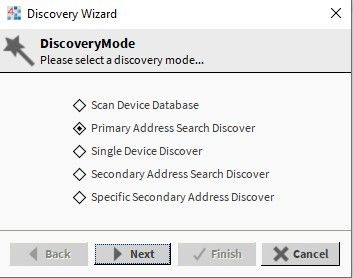
Select the Primary Address Search discovery method.
-
Select Next.
Figure 2. Discovery mode selection.
Step 3: Configure Baud Rate
Select the communication baud rate used by the connected meters.
Figure 3. Baud rate selection.
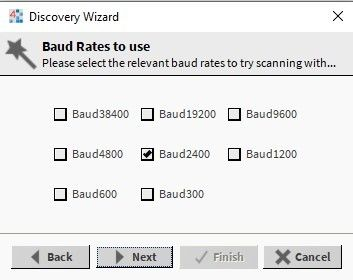
Note: This screen is only displayed when using the MbusNetwork driver. For MbusTcpIpNetwork, the baud rate is configured directly within the M-Bus gateway.
Step 4: Limit the Address Range
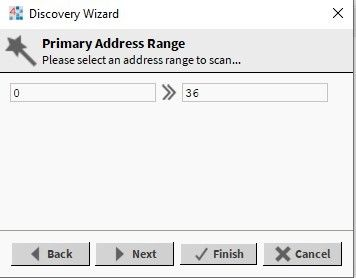
To speed up discovery, specify a smaller range of primary addresses whenever possible.
For example:
-
Start Address: 1
-
End Address: 50
Scanning fewer addresses reduces overall discovery time.
Figure 4. Limiting the discovery address range.
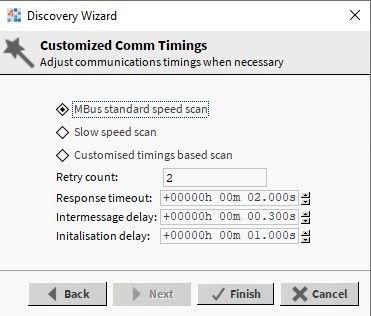
Step 5: Configure Discovery Timing
Select one of the available timing profiles:
Mbus Standard Speed Scan
Recommended for most installations operating at 2400 baud.
Slow Speed Scan
Recommended when network response times are slow or communication reliability is poor.
Customized Timings Based Scan
Allows manual adjustment of:
-
Retry Count
-
Response Timeout
-
Inter Message Delay
-
Initialization Delay
Figure 5. Discovery timing configuration.
Step 6: Add Discovered Devices
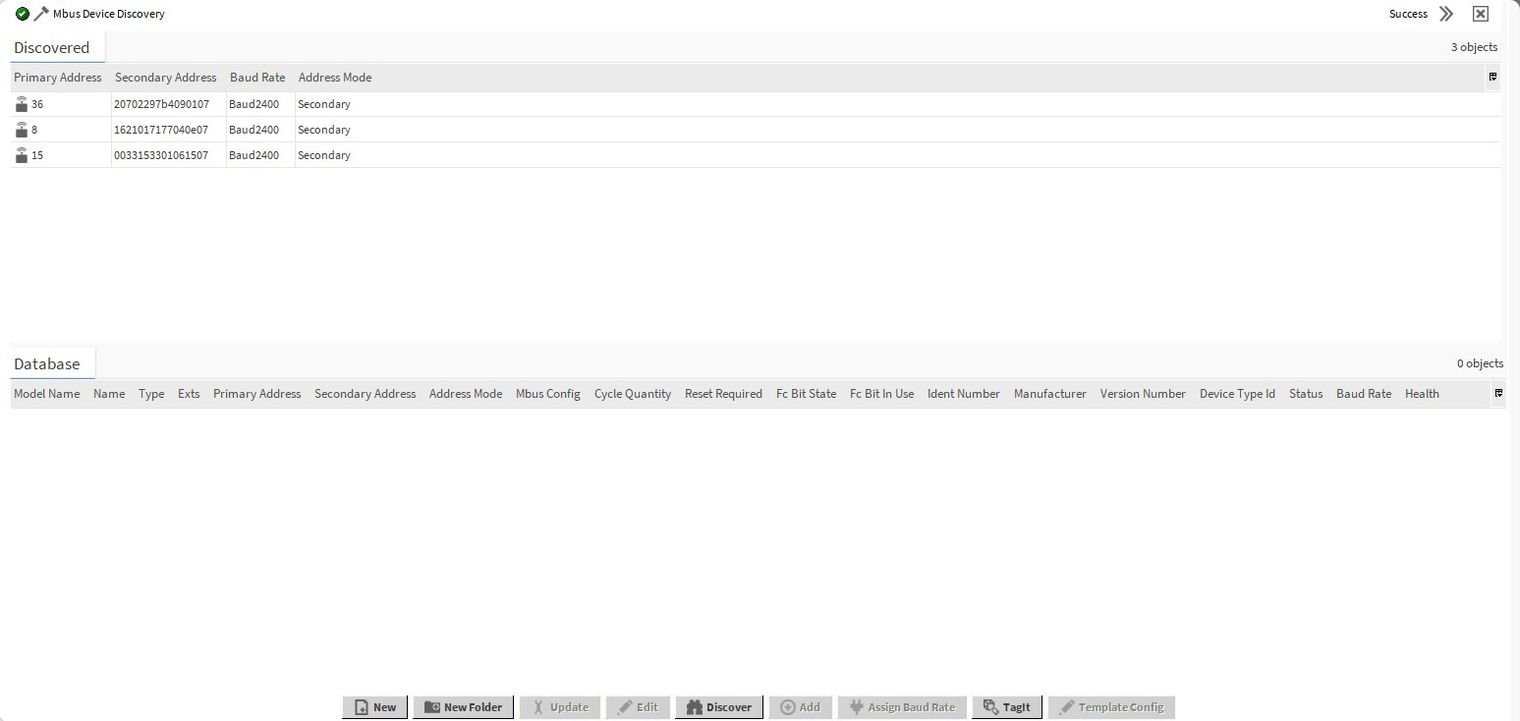
Click Finish to begin the scan.
After discovery completes:
-
Review the devices listed under Discovered.
-
Move the required devices into the Database pane.
The selected devices are now added to the Niagara station.
Figure 6. Successfully discovered M-Bus meters.
Method 2: Single Device Discover
Use this method when:
-
Multiple devices share the same primary address.
-
The primary address is unknown.
-
You need to identify a specific meter quickly.
Important
Only one M-Bus device should remain connected during discovery.
Disconnect all other devices from the network before starting.
Procedure
-
Open Mbus Device Manager.
-
Click Discover.
-
Select Single Device Discover.
-
Configure baud rate and timing settings as required.
-
Click Finish.
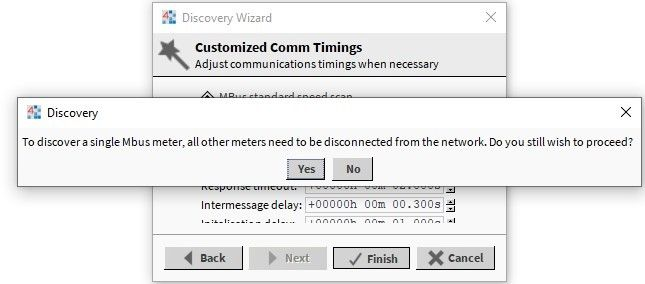
Niagara will display a confirmation message asking whether only one device is connected.
Select Yes to continue.
Figure 7. Single Device Discover confirmation prompt.
Once the meter has been discovered:
-
Add it to the station.
-
Assign a unique primary address.
-
Reconnect the next device.
-
Repeat the process until all meters have unique addresses.
Best Practice: Assign unique primary addresses during commissioning to simplify future maintenance and discovery operations.
Avoid scanning the entire primary address range when meter addresses are known.
Standardise primary address allocation schemes across projects.
Record M-Bus baud rates in commissioning documentation.
Method 3: Secondary Address Discover
Every M-Bus device contains a unique secondary address.
The secondary address consists of:
|
Field |
Length |
|---|---|
|
Device ID (Serial Number) |
4 Bytes |
|
Manufacturer ID |
2 Bytes |
|
Medium |
1 Byte |
|
Version |
1 Byte |
Unlike primary address discovery, Niagara cannot scan the entire secondary address range without filtering. At least one secondary address parameter must be known before discovery can be completed efficiently.
Option 1: Specific Secondary Address Discover
Use this method when the meter serial number is known.
-
Open Discover.
-
Select Specific Secondary Address Discover.
-
Enter the device serial number in the Secondary Address field.
-
Continue through the normal discovery workflow.
Figure 8. Specific Secondary Address Discover using a serial number.
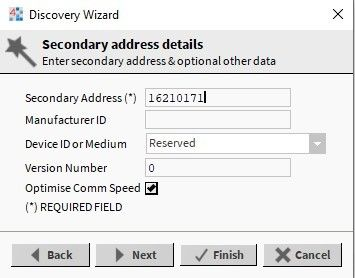
This is typically the fastest secondary address discovery method.
Option 2: Manufacturer ID Filtering
If the serial number is not known but the manufacturer is known:
-
Select Secondary Address Search Discover.
-
Open the Filters page.
-
Enter the required Manufacturer ID.
-
Complete the discovery process.
Figure 9. Secondary Address Search filtered by Manufacturer ID.
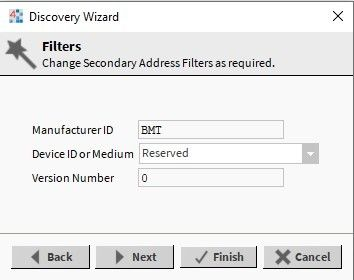
Example manufacturer codes:
-
ACW
-
APA
-
BMT
Filtering by manufacturer significantly reduces the search scope and improves discovery performance.
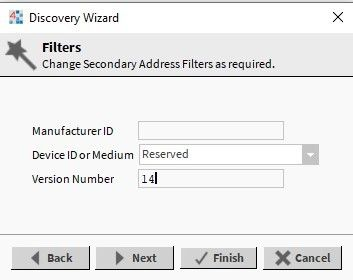
Option 3: Version Number Filtering
If device firmware or meter version information is available:
-
Select Secondary Address Search Discover.
-
Enter the required Version Number in the Filters page.
-
Complete discovery.
Figure 10. Secondary Address Search filtered by Version Number.
Improving Secondary Address Discovery Performance
For the fastest discovery results, combine multiple filters where available.
For example:
-
Manufacturer ID = BMT
-
Version Number = 01
Applying multiple filters reduces the number of possible matches and shortens scan times.
Verification
After adding the meters:
-
Confirm that each device appears in the station database.
-
Verify that device status reports Online.
-
Open the meter's Points folder.
-
Discover and add the required points.
-
Confirm that live values are updating.
Successful point updates indicate that communication between Niagara and the M-Bus meter has been established.
Troubleshooting
No Devices Found
Common Fault Table
|
Symptom |
Likely Cause |
Resolution |
|---|---|---|
|
No devices discovered |
Incorrect baud rate |
Verify meter configuration |
|
Duplicate devices appear |
Shared primary address |
Use Single Device Discover |
|
Device offline |
Wiring fault |
Check M-Bus polarity and continuity |
|
Point values not updating |
Points not discovered |
Run point discovery |
Discovery Takes Excessively Long
Check:
-
Address range is not larger than required.
-
Correct discovery mode is selected.
-
Secondary address filters have been applied.
-
Timing profile matches network speed.
Duplicate Devices Detected
This typically indicates multiple meters sharing the same primary address.
Use Single Device Discover to identify each device individually and assign unique primary addresses.
Device Added but No Data Available
Check:
-
Point discovery has been completed.
-
Meter supports the requested data objects.
-
Device status is Online.
-
Station logs do not contain communication errors.
Best Practices
-
Assign unique primary addresses during commissioning.
-
Document serial numbers and manufacturer IDs for all installed meters.
-
Use primary address discovery wherever possible.
-
Restrict discovery ranges and apply filters to reduce scan times.
-
Verify point values immediately after adding devices to the station.
Following these guidelines will provide faster commissioning, more reliable discovery, and easier
Related Articles
M-Bus Configuration
Discovering M-Bus Points
M-Bus Wiring Guidelines
Changing M-Bus Primary Addresses
Niagara Serial Troubleshooting
Revision History
Version 1.0
Initial publication

Other Resources & Customer Survey:
💬 Don't miss out! Follow the Forest Rock News channel on WhatsApp Click Here!
💬 We’d also love your feedback! Please take a moment to complete our quick Customer Survey
It only takes a minute and helps us serve you better!

IoT Devices for BMS, Automation & Smart Connectivity | Forest Rock